
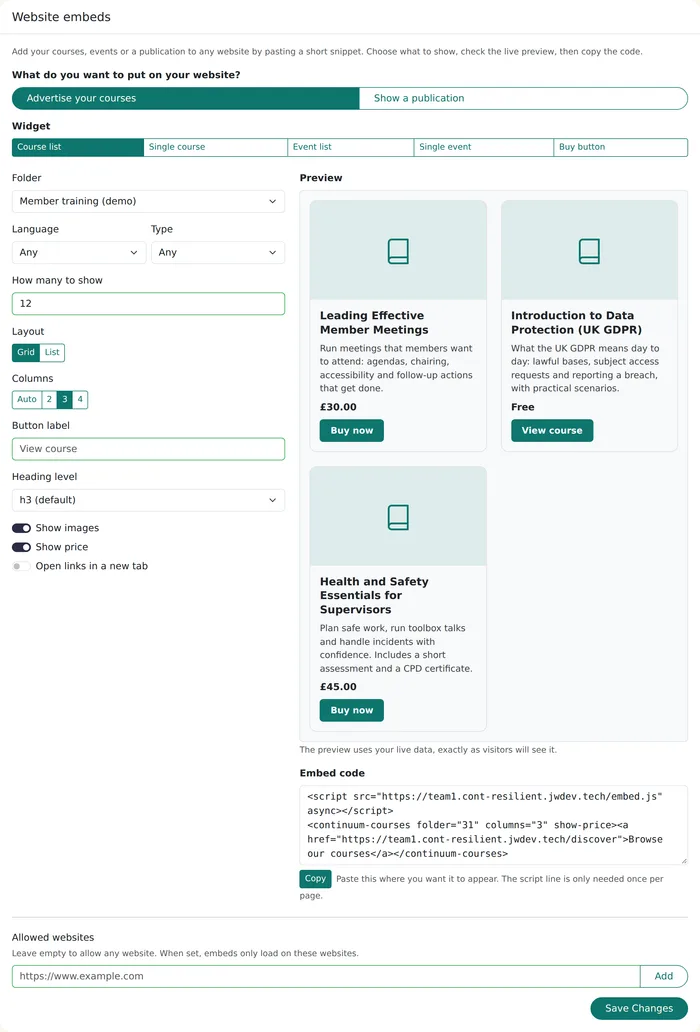
To add your training catalogue to Wix, Squarespace, Webflow, WordPress or any other website, generate an embed code in your learning platform, then paste it into the HTML, Code or Embed block on the page where you want the courses to appear. The cards then fill themselves from your live catalogue, with prices and links to book.
This guide walks through it step by step using Continuum Learn's website embeds, but most of it applies to any platform that offers an embed code.
Key Takeaways
- What you need before you start
- Step 1: create the embed
- Step 2: paste it into your website
- Step 3: check the published page
What you need before you start
- Access to edit the page on your website, and a website plan that allows custom code or script tags.
- Admin access to your learning platform.
- The courses you want to show set to public, and events published. Drafts and members-only courses are not shown in a public catalogue.
- A decision about where buyers should go: straight to checkout, or to the course page first.
Step 1: create the embed
In Continuum Learn, go to Manage > Settings > Integrations and find the Website embeds card. Under What do you want to put on your website?, choose Advertise your courses, then pick a widget: a course list, a single course, an event list, a single event or a buy button.
Set the options. For a course list you can filter by folder, language or type, choose how many to show (up to 50), pick a grid or list layout with 2, 3 or 4 columns, show or hide prices and images, and write your own button text. The heading level option lets you match the card titles to the headings on your page, which keeps the page in order for screen-reader users.
The preview shows the real embed with your real courses, so what you see is what visitors will see. When it looks right, click Copy.
Step 2: paste it into your website
The code has two lines. The first loads the embed and is only needed once per page, even if you add several embeds. The second is the embed itself, with a plain link inside it that visitors see if their browser blocks the script.
| Website | Where to paste the code | Watch out for |
|---|---|---|
| WordPress | A Custom HTML block | Some hosted WordPress plans and some user roles strip script tags |
| Wix | An Embed code element (Embed HTML) | Wix shows the code in its own frame: set its height, and turn on opening links in a new tab |
| Squarespace | A Code block | Code blocks are only on some plans, and scripts may not run in the editor preview |
| Webflow | A Code Embed element | Scripts run on the published site, not in the Designer |
| Drupal or another CMS | A block or text format that allows script tags | Ask your web team if script tags are filtered out |
| Hand-built HTML | Wherever you want the cards to appear | Nothing in particular |
Paste the whole snippet exactly as copied. Don't retype the address in the first line: it is your team's own address, or your custom domain, and it decides whose courses appear.
Step 3: check the published page
- Open the published page, not the editor preview, in a private browser window.
- Check the cards appear, the prices are right and the buttons go where you expect.
- Check it on a phone. Columns drop automatically on narrow screens; if the cards look cramped, choose fewer columns or the list layout.
- Click through to the course and check the address bar shows your learning site.
If nothing appears, the usual causes are a website builder that removed the script, a course that is not public, or an address restriction (see the next step). The troubleshooting table in the help guide covers each one.
Step 4 (optional): limit which websites can use it
By default any website can show your embed. That is usually fine, because the catalogue is already public on your learning site. If you would rather limit it, add your website addresses to the Allowed websites list on the same settings page. Add both the www and the plain version if your site answers on both. If your website builder shows embed code inside its own frame, as Wix does, the code runs on the builder's address rather than yours, so test the page after you save the list.
Make it look like your site
Cards take your website's font and your team's brand colour, so they usually fit without any work. Each embed draws inside its own isolated box: it won't restyle your page, and your site's styles won't restyle it.
If your web team wants to adjust it, they can set four CSS custom properties on the embed (accent colour, corner radius, font and card background) and style named parts such as the title or the button with ::part(). The help guide has a copy-and-paste example.
What an embed won't do
- Sign visitors in. Visitors sign in or register on your learning site when they enrol or buy. If your site runs WordPress and you want members to sign in once, use the WordPress plugin instead.
- Run a course inside your page. Courses with progress, quizzes and certificates run on your learning site. Guides and handbooks are different: see Publications on your website.
- Do all your SEO. The cards are added by JavaScript. Google renders them; many other crawlers don't. Write a short introduction on the page yourself, so every search engine knows what the page offers.
Moving PDF guides and handbooks onto your website? See why and how to replace PDF guides with web pages.
Conclusion
A catalogue embed is the quickest way to get live training onto a website you already have: generate, copy, paste, check. If you are weighing it against a plugin or an API integration, see four ways to integrate an LMS with your website. To try it with your own courses, book a demo.
Frequently asked questions
Can I add a course catalogue to a Wix website?
Yes, if your learning platform gives you an embed code. In the Wix editor, add an Embed code element (Embed HTML), paste the code and set the element's height. Wix shows the code in its own frame, so turn on opening links in a new tab.
Can I embed courses on Squarespace?
Yes. Add a Code block to the page and paste the embed code. Code blocks are only available on some Squarespace plans, and scripts may not run while you are in the editor, so check the published page.
Will the course cards update when I change a course?
With a live embed, yes. The cards read your current catalogue each time the page loads, usually through a short cache, so a new course or a new price appears within minutes without editing the page.
Do course embeds help SEO?
Only partly. Embeds are added by JavaScript, which Google renders but many other search engines and AI crawlers do not. Write your own introduction text on the page around the embed, so every crawler sees what the page is about.
Found this useful? Share it with your network
Ready to transform your training?
See how Continuum Learn helps organisations deliver impactful learning experiences at scale.