
Still deciding? See what Sell Online Courses in Continuum Learn can do for your organisation.
You can charge for your courses and bundles directly from Continuum. Learners pay by card at checkout, and the money goes into your own Stripe account. When a payment succeeds, the learner is enrolled automatically and gets a confirmation email.
Use this guide to connect Stripe, set prices, publish your terms of sale, and keep track of orders. You can sell a single course, or group courses and programmes into a bundle at one price.
Who can do this: team members with the Billing role (normally your team admins). Everything lives under Manage > Selling. Course prices are set by admins and authors in the course editor.
Before you start
- Set your team email address under Manage > Settings > General. If it is blank, Manage > Selling sends you back to that page and asks you to add it.
- Have your business details ready for Stripe. Stripe asks for your organisation's details and a bank account for payouts. Continuum doesn't see or store your bank details.
- Plan your terms of sale. Buyers can't check out until you have published them (see below).
Connect your Stripe account
- Go to Manage > Selling. The Stripe tab opens first.
- If you haven't connected yet, you'll see Set Up Stripe Connect. Follow the steps Stripe shows on the page to create or link your account and verify your business.
- Once Stripe has accepted your details, the page changes to Account Management. Use it to check your account status, payouts and details.
Payments are taken on your own Stripe account, so you see every charge, payout and dispute in your Stripe dashboard as well as in Continuum.
Until Stripe is connected, the price fields in the course editor are greyed out, with a note pointing you here. If the Stripe section shows an error instead of loading, use the Reload button it offers. If it keeps failing, contact support.
Publish your terms of sale
Buyers must agree to your terms before they can pay, so this step is essential.
- Go to Manage > Selling and open the Terms of Sale tab.
- Write your terms in the editor. To start from a draft instead, click Load suggested template and tick the box to confirm you understand it is a starting point and not legal advice. Then click Load template into editor and adapt the wording to your business.
- Click Save Changes.
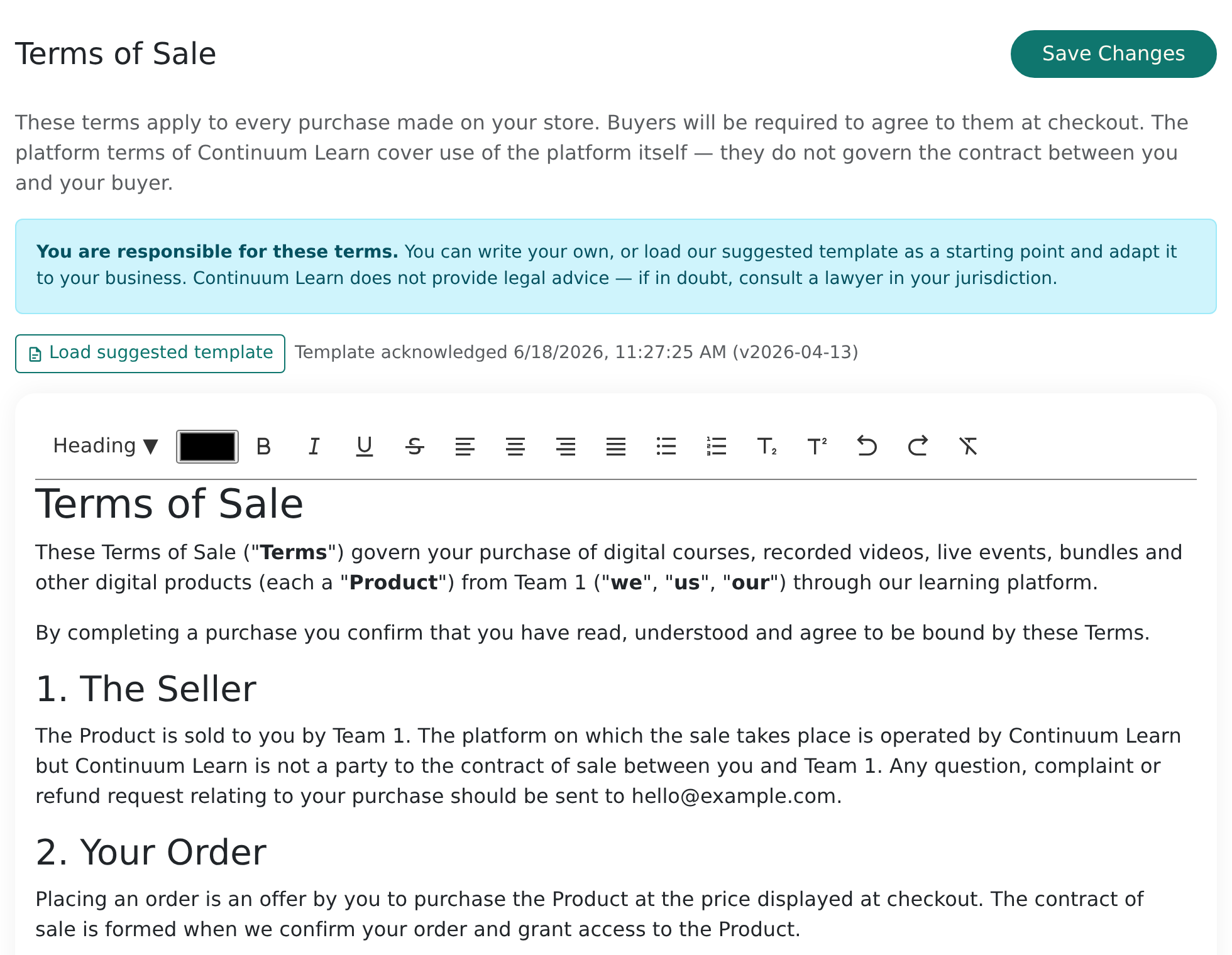
You are responsible for these terms. Continuum's own platform terms cover use of the platform only, not the contract between you and your buyer.
If your terms are blank, the checkout shows "This store has not published its terms of sale yet" and nobody can buy. Continuum keeps a copy of the terms the buyer agreed to with each order, so editing your terms later doesn't change what past buyers accepted.
Put a price on a course
- Open the course in Create > Courses and go to its settings.
- Open the Pricing tab. (You'll only see it if your plan includes selling.)
- Choose Pound Sterling as the Currency and enter a Price. Changes save as you type.
Leave the price empty, or at 0, for a free course. Courses that are fully public publications are always free to read, and the tab tells you so.
If the course is already part of a bundle, the tab lists it under Included in Bundles, with a link to each one.
Things to know about checkout:
- Everything is sold in pounds sterling. Checkout, bundles, event tickets, VAT and receipts all work in GBP, so pounds is the only currency you can price in.
- A course with a limited number of spaces stops selling when it is full.
Group prices
Use group prices to give an organisation or cohort a different price, such as a partner discount or free access for members.
- From the course: in the Pricing tab, find Group Pricing, choose a group and click Add Group Price. Edit the price in the table. Click Remove to delete it.
- From the group: go to Manage > People, open the group and find Course Pricing. Set the Group Price for each paid course.
How it works:
- A person who belongs to a group with a group price pays that price instead of the normal one.
- If someone belongs to several groups with prices for the same course, they pay the lowest one.
- A group price of 0 makes the course free for that group. Those learners are told to enrol directly rather than checking out.
Continuum doesn't have discount or coupon codes. Use group prices or a bundle instead.
Create a bundle
A bundle sells several courses and programmes at one price. Buyers get everything in it with a single payment.

- Go to Manage > Selling and open the Bundles tab.
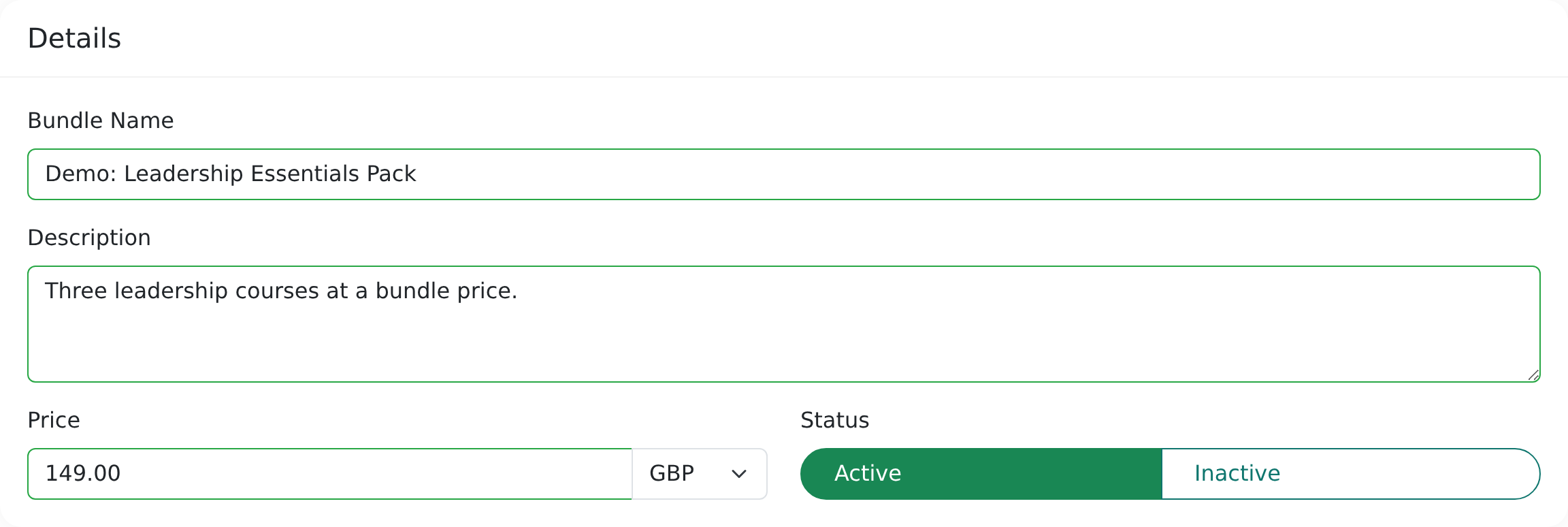
- Click New Bundle. Enter a Bundle Name, a Price (in pounds), then click Create Bundle.
- On the bundle page, fill in the Details card: Bundle Name, Description, Price and Status. Set Status to Active to put it on sale, or Inactive to hide it.
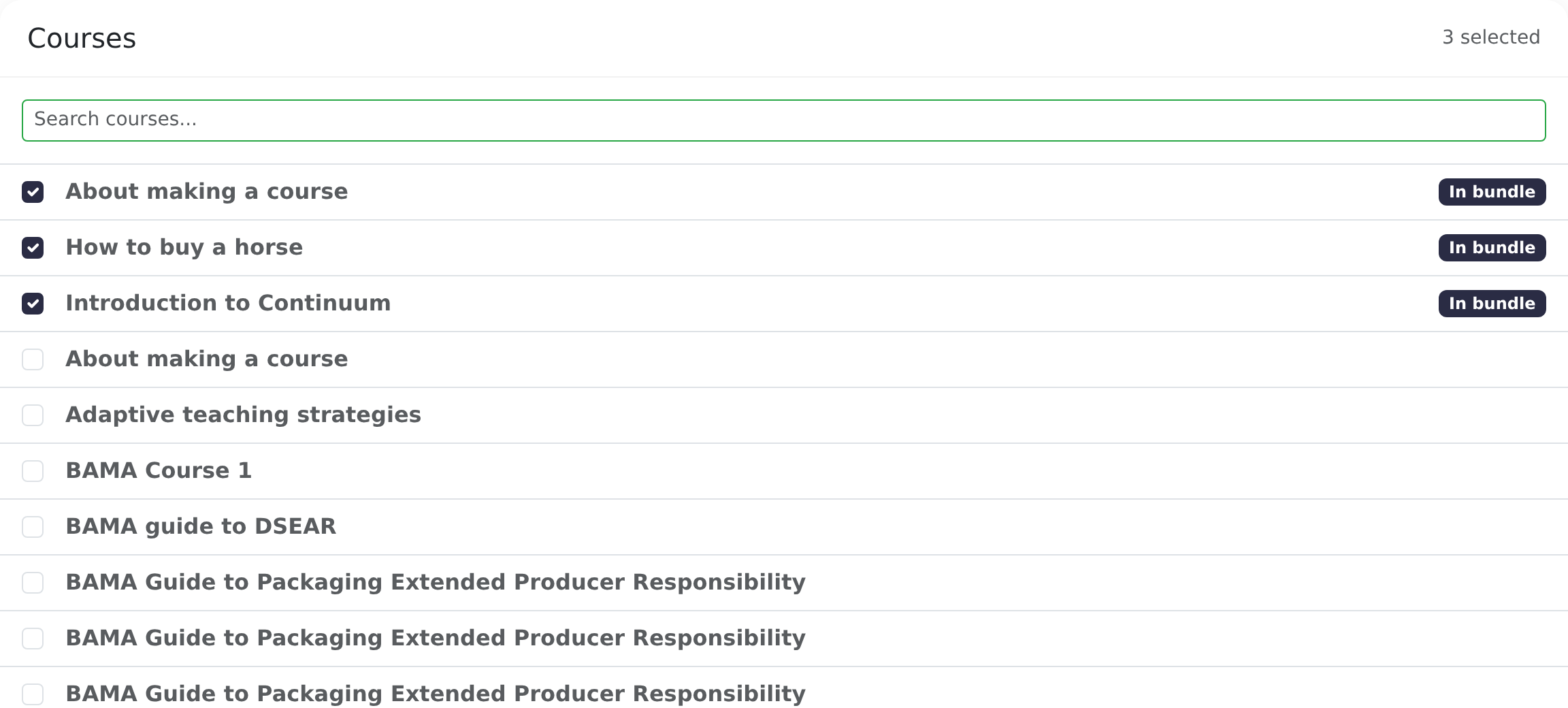
- In Courses, search and tick each course to include. In Programmes, tick the programmes to include.
- Click Save Changes.
When someone buys a bundle, they are enrolled on every course in it. For each programme, they are enrolled on the programme and on its required courses.
Below the lists, a summary compares the Individual value of everything inside with the Bundle price, and shows the Savings. It only appears once the courses you chose have prices.
Teams focused on video-on-demand events see Event Products here instead of courses and programmes, so event access can be sold in a bundle too.
Click Delete Bundle on the bundle page to remove one you no longer want. To stop selling it without deleting it, set it to Inactive.
What your buyers see
- The buyer adds a course or bundle to their cart.
- The cart shows a Subtotal, Tax and Total.
- At checkout, they tick I have read and agree to the Terms of Sale. They can click the link to read your terms first.
- They pay by card on a secure Stripe payment form.
- Continuum enrols them on what they bought. They receive an email headed Order Confirmation – Order #… listing their purchases.
A buyer can't add something they already have access to, or a bundle that is Inactive. They need to be signed in to check out.
Purchases enrol learners automatically once payment succeeds. If a paid order doesn't enrol the learner, contact support and quote the order number.
VAT and tax
Checkout shows a Tax line, calculated at a flat 20% on top of the price you set. The same amount is on the order and the confirmation email. Continuum doesn't currently let you change the rate or add VAT numbers or tax rules by country. If you need different tax handling, speak to your accountant and then contact support.
View and manage purchases
Go to Manage > Selling and open the Purchases tab. Each row shows the order number, customer, items, total, status and date.
Use the tabs to filter:
| Tab | What it shows |
|---|---|
| Completed | Successful purchases, including refunded and partly refunded ones. This is the default. |
| Abandoned | Checkouts that were started but never paid. |
| Failed | Checkouts where payment was attempted but didn't go through. |
| All | Every order, whatever the outcome. |
Search by product name, customer name, email or payment ID.
On each completed order you can:
- click Resend to email the confirmation to the customer again;
- click the small link icon beside the order number to open the payment in Stripe;
- click Refund (see below).
Refunds
Refund from the Purchases tab:
- Find the order and click Refund.
- Choose Full Refund or Partial Refund. For a partial refund, enter the Refund amount. It can't be more than the order total.
- Click Confirm Refund.
Continuum sends the refund to Stripe, which returns the money to the customer's card. The order then shows Refunded or Partially refunded.
A full refund also takes away the access the order gave: the learner is removed from the courses, bundle courses and programmes they bought, and loses access to any event or replay. If they also hold the same course through a different paid order, they keep it. A partial refund leaves their access as it is.
You can also refund directly in your Stripe dashboard. Once Stripe tells Continuum about the refund (this needs the charge.refunded event on your Connect webhook endpoint, see your account's Stripe setup), the order here updates to Refunded or Partially refunded and a full refund removes access in the same way. Refunding in both places doesn't do anything twice.
Failed payments
If a card is declined or the payment can't complete, the learner isn't charged, isn't enrolled and sees the error on the payment form. They can try again or use another card.
You can see these attempts in the Failed tab. Stripe's reason, such as a decline code, appears under the status. Click Details to see the steps of that checkout. A learner who left without paying appears under Abandoned.
Frequently asked questions
Where does the money go?
Into your own Stripe account, and from there to your bank on your Stripe payout schedule. Continuum doesn't hold your funds and takes no platform fee on your course and bundle sales. Stripe's own card processing fees still apply to your Stripe account.
Why can't my customer check out?
Check, in this order:
- Have you published your Terms of Sale? Without them, checkout is blocked.
- Is Stripe fully set up under Manage > Selling?
- If they're buying a bundle, is it Active?
- Do they already own it? Continuum won't sell the same item twice.
A learner paid but isn't enrolled. What now?
Open Manage > Selling > Purchases and check the order's status. If it shows as Completed and they still have no access, or the payment shows in Stripe but not here, contact support with the order number.
Can I offer a discount code?
Not at the moment. You can set a lower group price for a group of learners, or put courses in a bundle with a bundle price.
Can I sell a programme?
Yes. Add it to a bundle. Buyers are enrolled on the programme and its required courses.
Can learners get an invoice?
They receive the order confirmation email with the totals, and you can resend it from Purchases. Stripe also records each payment on your account.