
To integrate an LMS with your website, keep the website you have and connect it to the learning platform in one of four ways: a copy-and-paste embed that advertises your courses, an embedded guide that shows reading material inside your page, a plugin for your website platform, or a server-side integration through the API. Which one fits depends on your website platform, how much search visibility matters, and whether members need to sign in from your site.
This guide is for membership bodies, trade associations, charities and training providers who already have a website and want their training on it. It explains what each route does and does not do, so you can pick one before you talk to a supplier or your web team.
Key Takeaways
- Why not just build the LMS into the website?
- 1. A catalogue embed: advertise courses on any website
- 2. A publication embed: put a whole guide inside your page
- 3. A plugin for your website platform
Why not just build the LMS into the website?
It is tempting to want everything in one place. For most organisations it is the wrong trade. A plugin LMS that runs inside your website has to be hosted, updated and secured alongside everything else on the site, and a problem with one affects the other. Learning records, certificates and payments are the parts you least want to break during a theme update.
The common pattern is the opposite: the website does marketing and the LMS does learning, each on a platform built for it. The LMS can run on your own address, such as learn.yourorganisation.org.uk, with your logo and colours, so moving between the two feels like one site. The question is then how much of the LMS should appear on the website itself.
1. A catalogue embed: advertise courses on any website
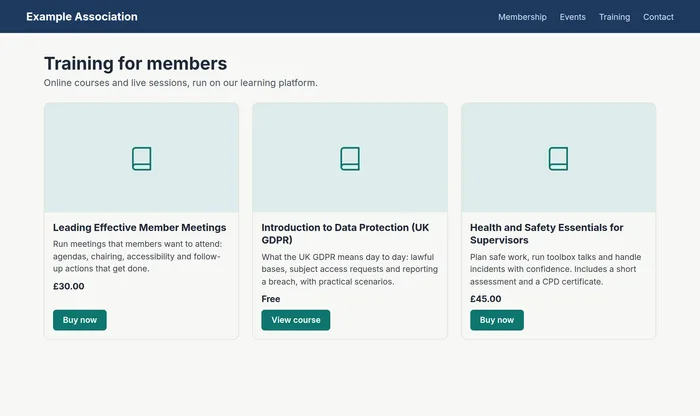
A catalogue embed is a short snippet you copy from the LMS and paste into a page. It shows your courses, events or a buy button as cards with an image, title, summary and price, and each card links through to the course or to checkout on the LMS.
Its strength is that it works almost anywhere: Wix, Squarespace, Webflow, WordPress, Drupal or a hand-built page, as long as the site lets you add a script tag. It reads the live catalogue, so a new course or a price change appears without anyone editing the page. Look for filtering (by folder, category or language), control over the button text and layout, a way to restrict which websites can use it, and a plain fallback link for visitors whose browser blocks scripts.
Its limits are worth knowing. The cards are added by JavaScript, so search engines that do not run JavaScript only see the fallback link. And an embed does not sign anyone in: visitors sign in on the LMS when they enrol or buy.
2. A publication embed: put a whole guide inside your page
Some content is for reading rather than for assessment: technical guidance, member handbooks, policies, fact sheets. Many organisations publish these as PDFs. A publication embed shows that content inside your own page instead, with its own contents sidebar and lesson navigation, so readers never leave your website.
This only makes sense for content that has no progress tracking, quizzes or certificates, because nothing needs to be recorded. Courses that do need those stay on the LMS. A good publication embed keeps its own styles apart from your site's, so neither restyles the other, and gives each section its own address on your site so readers can share it and the Back button works. The search-engine caveat is the same as for the catalogue embed.
3. A plugin for your website platform
If your website runs on WordPress, a connector plugin can do more than an embed. It fetches course details on your server and outputs them as part of the page's HTML, so every search engine reads them. It can add buy buttons and a link to the member's own learning. Most importantly, it can sign your WordPress members straight into the LMS without a second password, which an embed cannot.
The trade-off is that it is specific to one platform, needs an administrator to install it and has to be kept up to date like any other plugin. It is a connector, not a plugin LMS: the learning still happens on the LMS.
4. The API: a server-side integration you control
An API lets your developer fetch courses, events or ready-made content pages from the LMS on your website's server and present them however you like. Because the content arrives in your page's HTML, search engines and AI assistants can read it, which makes this the strongest route for guides you want people to find through search. It is also the route for anything custom, such as your own catalogue design or a members' portal.
It needs a developer and ongoing ownership, and it is only as good as the API behind it. Ask suppliers whether API access costs extra, whether the documentation is public, how keys are created and revoked, and how much notice they give before changing anything.
The four routes compared
| Catalogue embed | Publication embed | WordPress plugin | API | |
|---|---|---|---|---|
| What appears on your site | Course and event cards, buy buttons | A whole guide or handbook | Course and event cards, buy buttons, a My Learning link | Whatever your developer builds |
| Website platform | Any site that allows a script tag | Any site that allows a script tag | WordPress | Any site with a server you control |
| Who sets it up | Anyone who can paste HTML | Anyone who can paste HTML | A WordPress administrator | A developer |
| Search engines | Google reads it; many other crawlers don't | Google reads it; many other crawlers don't | In the page HTML | In the page HTML |
| Members sign in from your site | No | No sign-in needed | Yes | Depends on the build |
You can combine them. A common set-up is a catalogue embed on the training page, a publication embed for the member handbook, and single sign-on for members who arrive from a portal.
How to choose
Work through these questions in order and stop at the first yes.
- Is your site on WordPress, and do members need to sign in once? Use a WordPress plugin.
- Do you mainly want to advertise courses and events? Use a catalogue embed. It takes minutes and needs no developer.
- Do you want a guide or handbook to read as part of your website? Use a publication embed, or the API if search visibility beyond Google matters most.
- Do you need a custom design or have a developer who wants control? Use the API.
Whatever you choose, check where the learner signs in and takes the course, whether the LMS can run on your own domain, and whether any of these routes costs extra.
How Continuum Learn does it
Continuum Learn supports all four routes, and they are included on every plan.
- Website embeds. In Manage > Settings > Integrations, the Website embeds generator offers Advertise your courses (course lists, single courses, events and buy buttons) and Show a publication, with a live preview of your real data and an Allowed websites list. See website embeds.
- Publications. Guides and handbooks built in the course editor, embeddable one by one once you allow it, or delivered through the API as server-rendered HTML. See Publications on your website.
- WordPress. The Continuum Connect plugin adds shortcodes, buy buttons and sign-in from WordPress. See WordPress LMS.
- Your own domain and sign-in. Run the academy on your own address with white-label branding, and let people sign in with their work account through single sign-on.
For a side-by-side view, see LMS website integration, or the step-by-step help guide Which way should I connect Continuum to my website?
If your courses need to run inside another organisation’s LMS rather than on a website, export them as SCORM instead. What is SCORM? explains how packages work and how to make one.
Conclusion
You do not need to rebuild your website to put training on it. Start with the smallest route that does the job, usually an embed on the training page, and add a plugin or an API integration when there is a clear reason. If you would like to see the routes with your own courses, book a demo.
Frequently asked questions
How do I integrate an LMS with my website?
Most organisations keep their website and run the LMS beside it, then connect the two in one of four ways: a copy-and-paste embed that advertises courses, an embedded guide or handbook, a WordPress plugin, or a server-side integration through the LMS's API. Learners still take courses on the LMS, which can run on your own domain.
Can I add an LMS to my website without a developer?
Yes, if the LMS offers copy-and-paste embeds or a plugin for your website platform. You generate a snippet in the LMS and paste it into an HTML or embed block on your page. A developer is only needed for an API integration.
Which way of integrating an LMS is best for SEO?
Routes that put the text into your page's HTML on the server, such as a WordPress plugin or an API integration, can be read by every search engine and AI crawler. Embeds added by JavaScript are rendered by Google, but many other crawlers don't run JavaScript.
Can learners take courses inside my website?
Usually not with a hosted LMS. Progress, quiz results and certificates are recorded on the LMS, so learners take courses there. Reader-focused content without tracking, such as a guide, can be shown inside your website.
Found this useful? Share it with your network
Ready to transform your training?
See how Continuum Learn helps organisations deliver impactful learning experiences at scale.