
Still deciding? See what WordPress LMS in Continuum Learn can do for your organisation.
Continuum Connect is a small plugin for WordPress. It links your WordPress site to your Continuum team so you can show your courses and events on your pages, send visitors to checkout, and let your WordPress members move across without signing in twice.
Learners still learn on your Continuum site, not inside a WordPress page. The plugin lists courses and links to them. It does not embed lessons.
Who can do this: team admins. You also need an administrator login for the WordPress site.
Before you start
- You need a Continuum team, and a WordPress site that uses https.
- The plugin needs WordPress 6.0 or later and PHP 8.0 or later.
- The plugin isn't in the WordPress.org directory. You install it from a ZIP file that you download from Continuum.
- Only published courses and events appear on your WordPress pages.
Download and install the plugin
- In Continuum, go to Manage > Settings > Integrations.
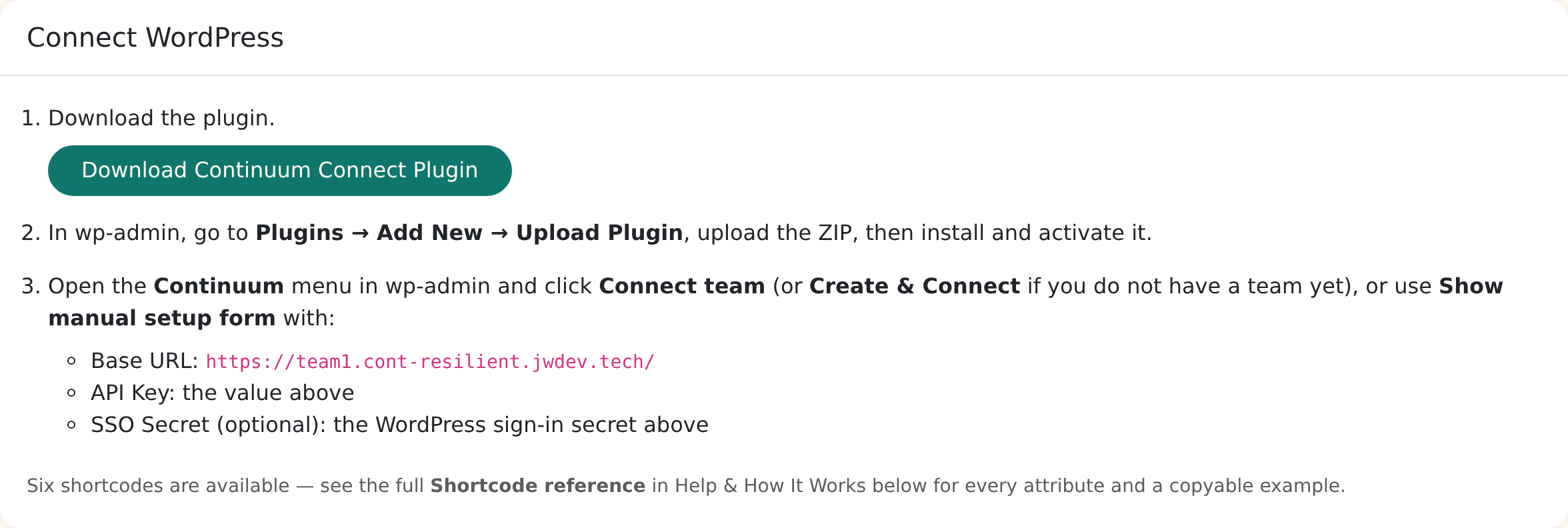
- In the Connect WordPress card, click Download Continuum Connect Plugin.
- In WordPress, go to Plugins > Add New > Upload Plugin, choose the ZIP file, then install and activate it.
To update the plugin later, upload a newer ZIP in the same way.
Connect the site
Open the new Continuum menu in WordPress. You have three choices.
| Option | Use it when |
|---|---|
| Create & Connect | You don't have a Continuum team yet. You create one and connect it in one step. |
| Connect team | You already have a team. This is the easiest route. |
| Manual setup (advanced) | You want to paste in the details yourself. |
To connect an existing team:
- Check the Continuum base URL is your team's address, then click Connect team.
- Sign in to Continuum if asked. You must be an admin or owner of the team.
- Choose the team and confirm.
- You return to WordPress with a Connected successfully message.
For manual setup, open Show manual setup form and enter the Base URL, API Key and, if you want members to sign in once, the SSO Secret (optional). Copy the API key and the WordPress sign-in secret from Manage > Settings > Integrations. Click Save & Test.
When you connect with Connect team or Create & Connect, each site gets its own API key and sign-in secret, so you can revoke one site without affecting the others.
The plugin screen then shows your team, its address and a Connection health status of Connected or Unreachable.
Show courses and events on a page
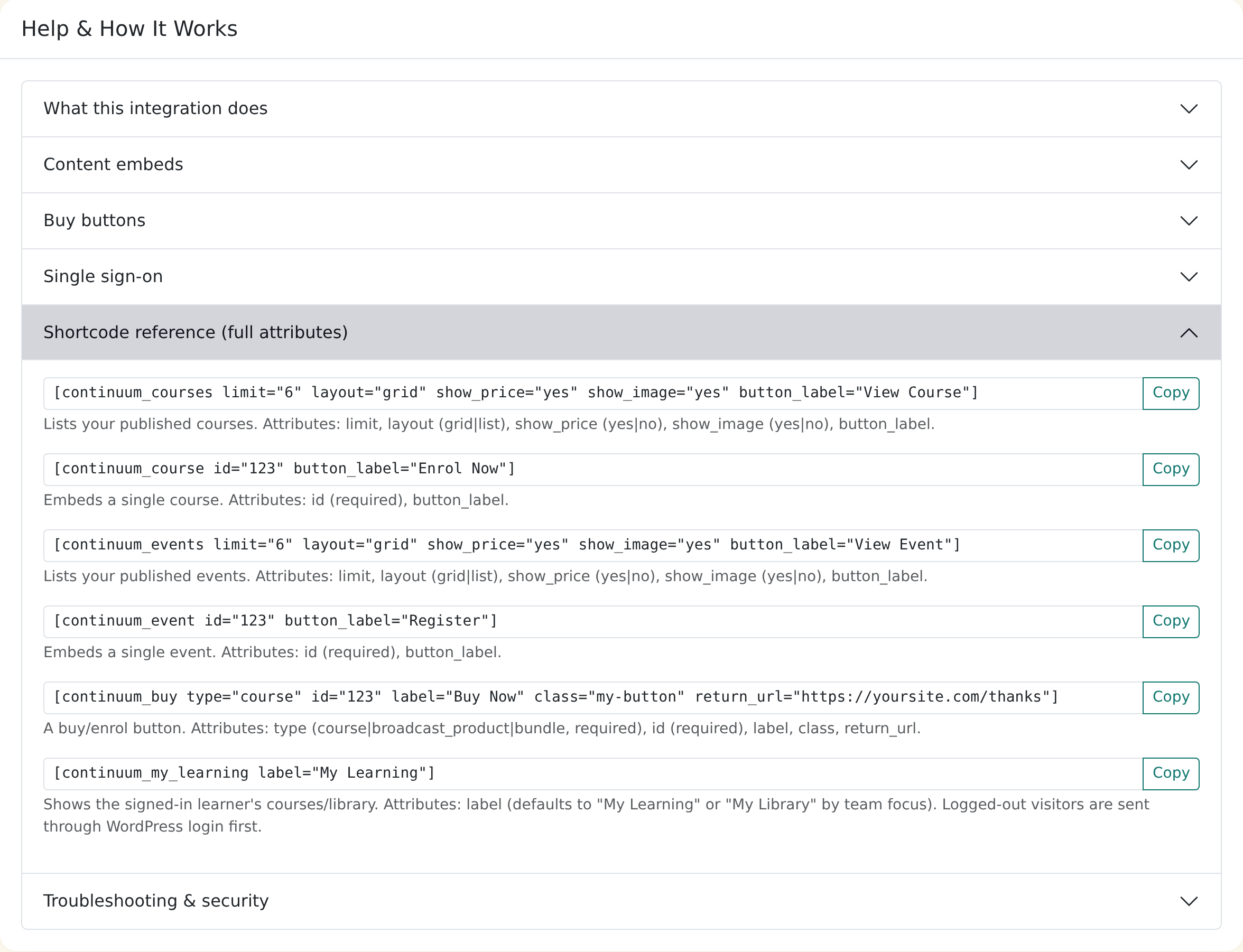
Paste a shortcode into a WordPress page. In the block editor, add a Shortcode block. There are no dedicated Continuum blocks. You can copy every example from Manage > Settings > Integrations, in Help & How It Works > Shortcode reference.
| Shortcode | What it shows | Options |
|---|---|---|
[continuum_courses] |
A list of your published courses | limit, layout (grid or list), show_price, show_image (yes or no), button_label |
[continuum_course id="123"] |
One course | id (required), button_label |
[continuum_events] |
A list of your published events | Same options as the course list |
[continuum_event id="123"] |
One event | id (required), button_label |
[continuum_buy type="course" id="123"] |
A buy or enrol button | type (course, broadcast_product or bundle), id, label, class, return_url |
[continuum_my_learning] |
A link to the member's own learning | label |
The id is the item's number in Continuum. For a course, it's the number at the end of the course's address when you open it in the editor.
Add buy buttons
A buy button sends the visitor to Continuum checkout. They sign in or register there, pay, and are returned to the page you set in return_url. If you leave return_url out, they land on the course or event. Free items and items the person already owns are handled without taking payment again.
Payment is by card to your own Stripe account. Selling needs to be set up in Continuum first.
Let members sign in once from WordPress
The WordPress sign-in secret card on Manage > Settings > Integrations is not the same as the Single Sign-On setting under Manage > Settings > Single Sign-On. That setting lets people sign in through your own identity provider. The WordPress sign-in secret is only for WordPress. It signs the links the plugin creates, so Continuum knows a link really came from your site.
Once the plugin has a sign-in secret, a logged-in WordPress member who clicks a Continuum link from your pages arrives already signed in. The link stops working after 5 minutes.
| The member's email… | What happens |
|---|---|
| is new to Continuum | A learner account is created on your team and they're signed in. Their email is treated as verified. |
| matches an existing learner already on your team, with no other sign-in method linked | The accounts are linked and they're signed in. |
| matches anyone else, such as an admin, an author, a presenter or someone not on your team | They're asked to sign in to Continuum once, then click the WordPress link again. This protects those accounts. |
Keep the connection secure
- Rotate API Key and Rotate sign-in secret each make a new value straight away. Sites that use the team's own key or secret stop working until you paste the new value into the plugin.
- The Connected WordPress Sites card lists each site, its status and the date it connected. Revoke cuts that site off straight away: its requests for courses and events, and its sign-in links, are refused. Other sites are not affected. The site's status changes to Revoked.
- A site connected before each site had its own credentials shows active (shared key). For these, Revoke only marks the connection as revoked. To cut the site off, also rotate the API key and the sign-in secret, then reconnect your other sites.
- To let a revoked site back in, connect it again from the plugin.
- Treat the API key and sign-in secret like passwords.
Troubleshooting
| Problem | What to try |
|---|---|
| A shortcode shows nothing | Check Connection health on the plugin screen, then click Test connection. WordPress admins see a message in place of the empty section. |
| Courses are out of date | The plugin keeps a copy for about 5 minutes. Click Clear cache on the plugin screen. |
| Unreachable | Check the base URL, and that the API key hasn't been rotated or the site revoked. |
| Buy button does nothing | Check the item exists, belongs to your team and is for sale. |
| "An account with this email already exists" | This is expected. Sign in to Continuum once, then use the WordPress link again. |
| The connect step is refused | Your WordPress site must use https, and you must be an admin of the team. |
Frequently asked questions
Will learners complete lessons inside WordPress?
No. WordPress shows the course list and sends people to your Continuum site. For content that lives inside a page, see our guide on embedding courses.
Does it work with page builders?
It works anywhere a shortcode works, including the block editor's Shortcode block and most page builders. There are no dedicated blocks.
Will the cards match my theme?
The plugin adds a small stylesheet. Your web team can override it with your theme's CSS.
What happens if I deactivate the plugin?
Your connection settings are kept. Deleting the plugin removes its settings and saved data.
Can I connect more than one site?
Each connection is listed separately under Connected WordPress Sites, so you can connect more than one.
Is there a charge for the plugin?
Contact support if you need pricing details.