
Still deciding? See what Embed Courses & SCORM in Continuum Learn can do for your organisation.
You build a course once in Continuum, then choose where it goes. You can export it as a SCORM package to run inside another learning management system (LMS), or set it up as a Publication so your own website can display it as ordinary web pages.
Use SCORM when the content is going into someone else's LMS and they need completion and scores. Use a Publication when you want guides, handbooks or policies to read like part of your website.
Who can do this: team admins and authors who can edit the course.
Export a course as SCORM
- Open the course in the course editor (Create > Courses, then click the course).
- Click Export SCORM in the toolbar above the course content. The button only appears once the course has at least one module.
- In the Export as SCORM Package window, choose a SCORM Version.
- If the course has translations, choose the Language to export. One package contains one language.
- Click Export Package, then Download Package when it is ready.

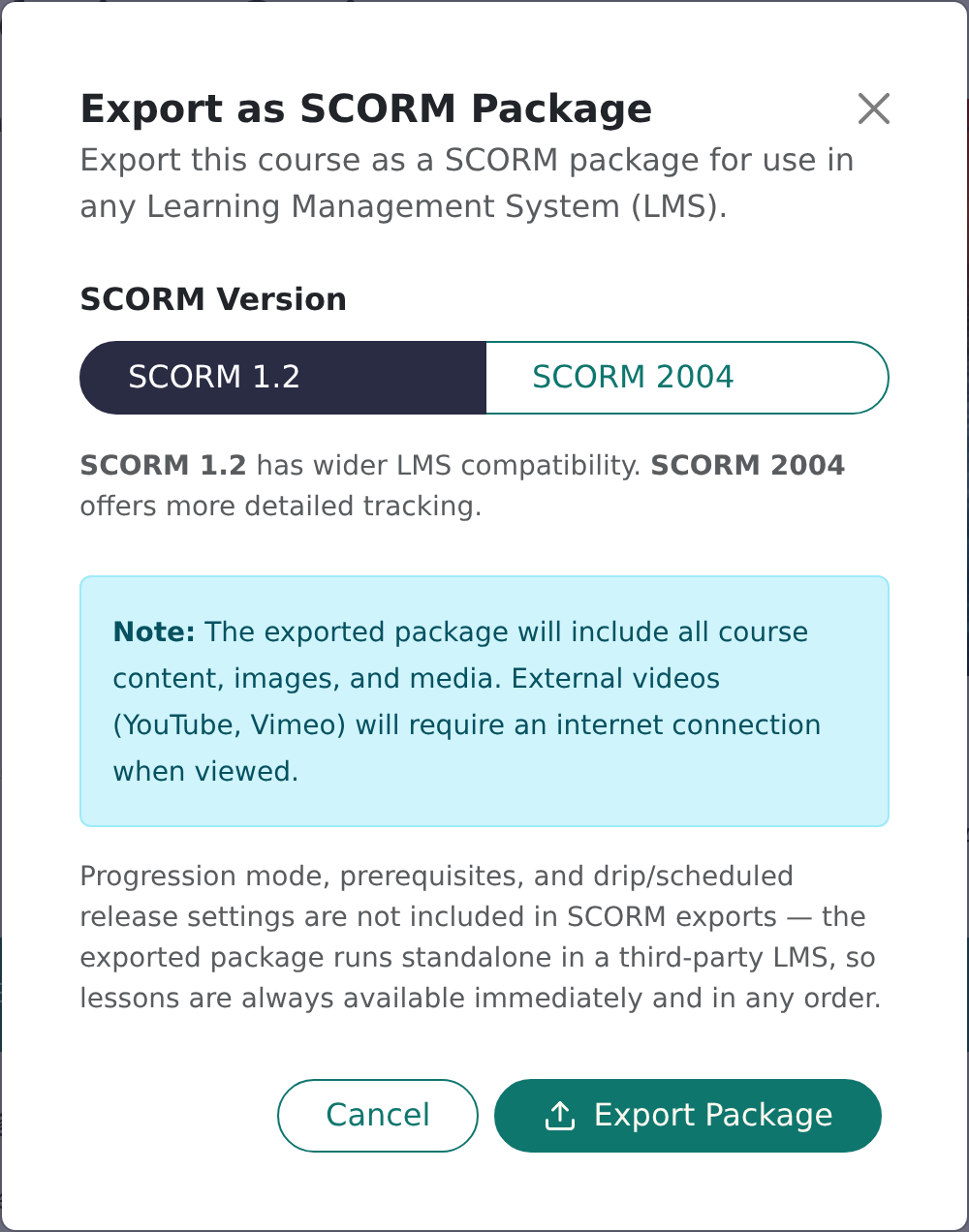
Need the other version too? Click Export Another Version.
SCORM 1.2 or SCORM 2004?
| SCORM 1.2 | SCORM 2004 | |
|---|---|---|
| Compatibility | Widest. Almost every LMS accepts it. | Most modern LMSs accept it. |
| Tracking | Completion and score | More detailed: separate completion and pass statuses, plus a scaled score |
| Choose it when | You are not sure what the other LMS supports | The other LMS supports it and you want the richer reporting |
If in doubt, ask the other LMS's administrator, or pick SCORM 1.2.
What you get
You download a single ZIP file. It contains the course content with its images and media bundled in, and a built-in player that shows the lessons. You don't need to unzip it.
External videos such as YouTube and Vimeo are not bundled, so learners need an internet connection to watch them.
Upload it to the other LMS
- In the other LMS, find the option to add a SCORM package or SCORM course. The name varies between systems.
- Upload the ZIP file as it is.
- Enrol learners in the usual way in that LMS.
What gets reported back
The player reports to the other LMS as learners work through the course:
- Completion: when the learner finishes the lessons.
- Scores: quizzes and knowledge checks run inside the package and report a score out of 100.
- Progress and place: the learner's position is saved, so they can leave and carry on where they stopped.
Where the results appear, and how they are labelled, depends on the other LMS. Results stay in that LMS. They don't come back into Continuum.
What doesn't carry over
A SCORM package runs on its own, away from Continuum. So:
- Progression rules: prerequisites, progression mode and scheduled or drip release are not included. Lessons are always open, in any order.
- Surveys: learners see a short note saying the survey is available in the online version of the course. It never blocks progress.
- Live sessions: a live lesson shows its title and date and a link to the event page, if there is one, rather than the stream.
- Zoom sessions: the session card shows the time and any recording that existed when you exported. Joining isn't tracked.
- Anything else the player doesn't recognise shows a message that the component isn't supported. Preview the package in a test LMS before you send it to a client.
The course discussion board is online only and is not part of the package.
Content is a snapshot. If you change the course afterwards, export a new package and upload it again.
Publish a guide on your own website
A Publication is a course type for reader-focused content: policies, reference material, handbooks and guides. It uses the same editor as a course, but it doesn't track learner progress and doesn't support quizzes.
- Open the course and click Settings in the editor toolbar (or next to the course title).
- Under Course Type, choose Publication.
- Build the modules and lessons as normal.

Continuum builds each page as ready-made web content. Your website then picks it up through your team's API, using your API key. That connection is set up by whoever looks after your website, so give them your Continuum team details and the course to show. If you need help with it, contact support.
There is no copy-and-paste embed code to place in a page.
How updates reach your site
You don't need to do anything. A few minutes after your last edit to a Publication, Continuum rebuilds its pages automatically. There is no publish button to press. If you keep editing, it waits until you have paused for about three minutes. If your site keeps its own copy of the pages, it will show the new version the next time it refreshes.
Your site's styles won't break it
The content is built so that your website's theme can't restyle it. Layout, text and buttons carry their own styling, and your team's brand colours and fonts are applied when the pages are built. Expect it to look the same on your site as it does in Continuum.
Using WordPress?
There's a separate route for WordPress sites. See How to connect a WordPress site to Continuum Learn.
Frequently asked questions
Can I put a SCORM file straight onto my website?
Not usefully. A SCORM package needs an LMS to receive the tracking. To show content on your own site, use a Publication instead.
Why did my learners' results not appear in Continuum?
SCORM results go to the LMS that runs the package. Continuum can't see them. If you need results in Continuum, run the course here instead.
Which language does the package use?
The one you pick in the Language list. That list only appears when the course has translations. The player's buttons and labels follow the same language.
I edited the course after exporting. Does the other LMS update?
No. Export a new package and upload it. Whether learners keep their progress depends on how the other LMS handles a replacement.
My Publication hasn't changed on the website yet.
Allow about five minutes after your last edit. If it still looks old, check that your site has refreshed its copy, then contact support.
Do quizzes work in a Publication?
No. Publications don't support quizzes. Use a normal course, or export it as SCORM, if you need assessment.