
A verifiable credential is a digital badge that proves itself. Alongside the PDF certificate, learners get a badge that carries the details of what they achieved, who issued it and when, all locked in with your organisation's digital signature. Anyone they share it with can check it is genuine and hasn't been revoked.
Employers trust it because they don't have to take the learner's word for it, or phone you to check. Continuum issues credentials in the Open Badges 3.0 standard, the same format used by universities and professional bodies, so they also work in other badge wallets. Use them for micro-credentials, CPD, compliance training or any award a learner will want to show off.
Who can do this: team admins, under Manage > Settings > Certificates (issuer setup) and Manage > Settings > Webhooks (integrations). Authors can switch a credential on for courses and programmes they edit in Create.
Before you start
- Certificates must be switched on. A credential is issued together with a certificate, so the course needs Certificates set to Yes (or be part of a programme that awards one). Depending on your plan, some of these options may not appear. If you can't see them, contact support.
- Write your wording first. Decide what the credential recognises, what a learner has to do to earn it, and what they will be able to do afterwards. These appear on the public verification page.
- Nothing to set up for signing. Continuum creates your signing key automatically the first time a credential is issued.
The issuer card: your organisation's signature
Go to Manage > Settings > Certificates and find the Issuer card. It shows where verifiers look you up:
| Item | What it is |
|---|---|
| Issuer profile URL | A public page that says who you are. Credentials point back to it. |
| Public keys | The public half of your signing key. Verification tools use it to confirm a credential really came from you. It is safe to share. |
| Current signing key | The key used to sign every new credential. |
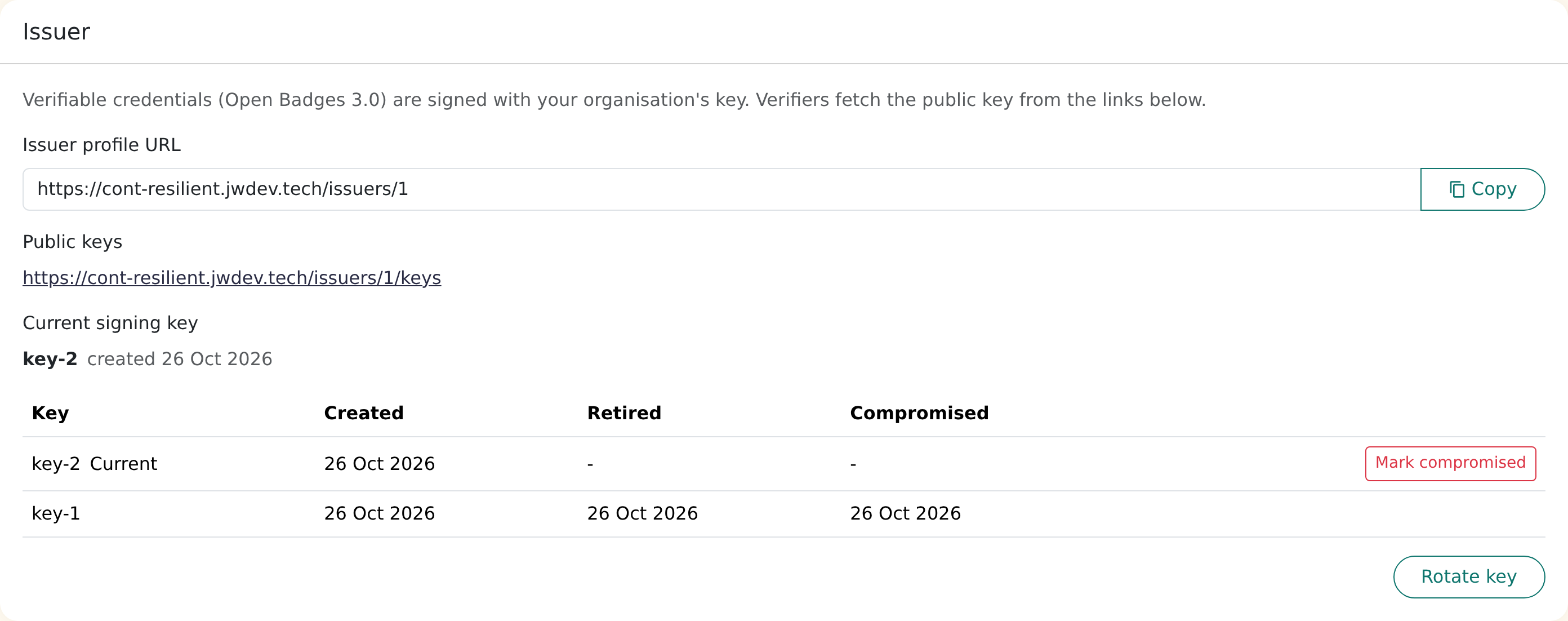
You normally never need to touch this card. There are two buttons for special situations.
Rotate key
Rotate key retires the current key and starts a new one. New credentials are signed with the new key. Credentials already issued keep verifying exactly as before. Rotating is a good routine step, for example when the person who looked after the setup leaves.
Mark key as compromised
Think of the signing key as the stamp on your credentials. If someone who shouldn't have it might have got hold of it, they could in theory forge your stamp. Mark compromised is the emergency response.
Only use it if you have a real reason to think the key was exposed. When you confirm:
- every credential signed with that key is revoked, so anyone verifying one will see it as revoked;
- the key stops verifying;
- if it was your current key, a new one is created straight away so you can keep issuing;
- it cannot be undone.
Learners whose credentials were revoked need to be issued new ones (see Revoke or re-issue a credential). If you only want to refresh the key as good housekeeping, use Rotate key instead.
Switch on a credential for a course
- Open the course in Create > Courses and go to its settings.
- Open the Access tab and make sure Certificates is set to Yes.
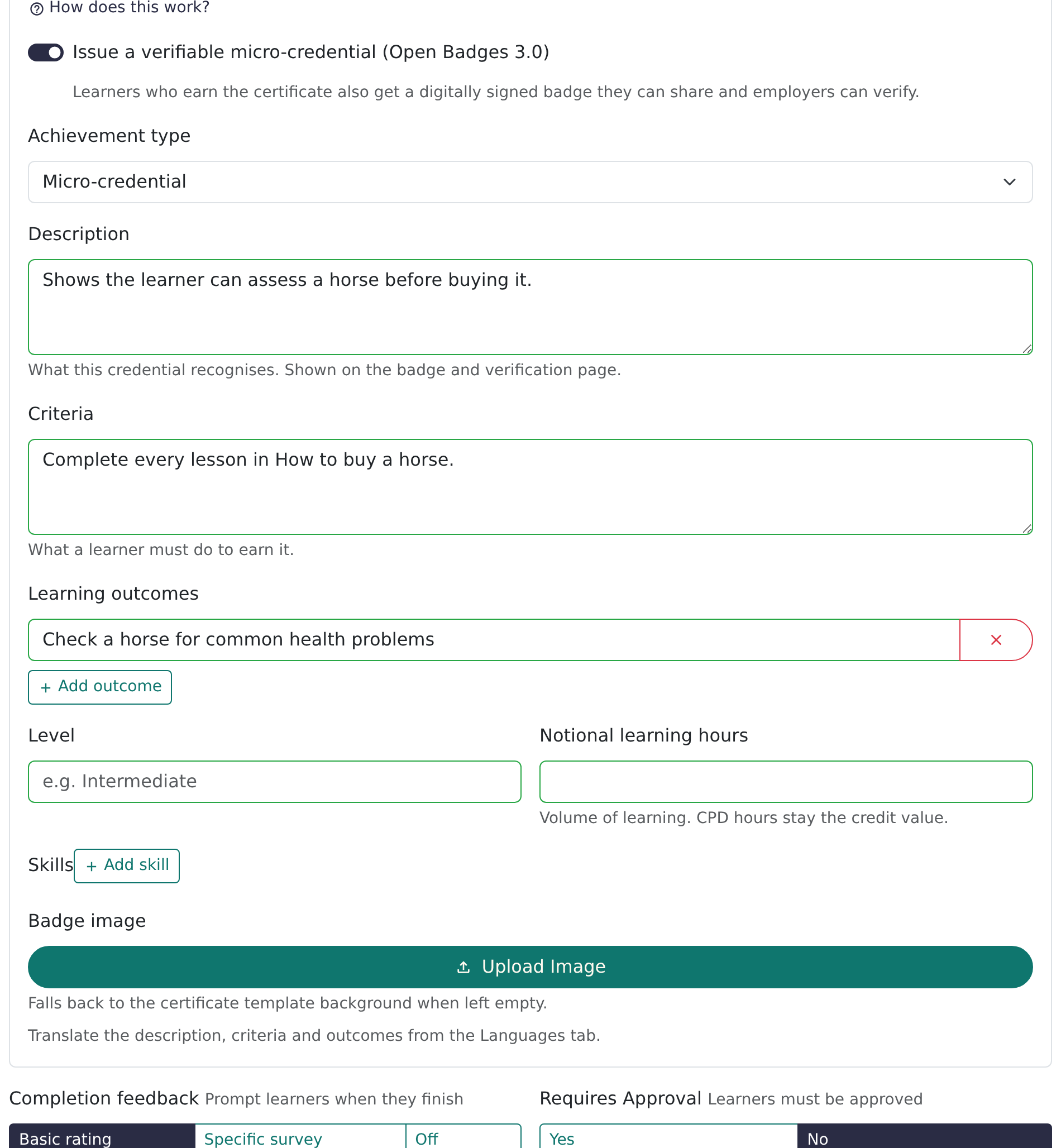
- In the Micro-credential (Open Badges) box, switch on Issue a verifiable micro-credential (Open Badges 3.0).
- Fill in the details (see the table below). Changes save automatically.
Switch on a credential for a programme
- Open the programme in Create > Programmes.
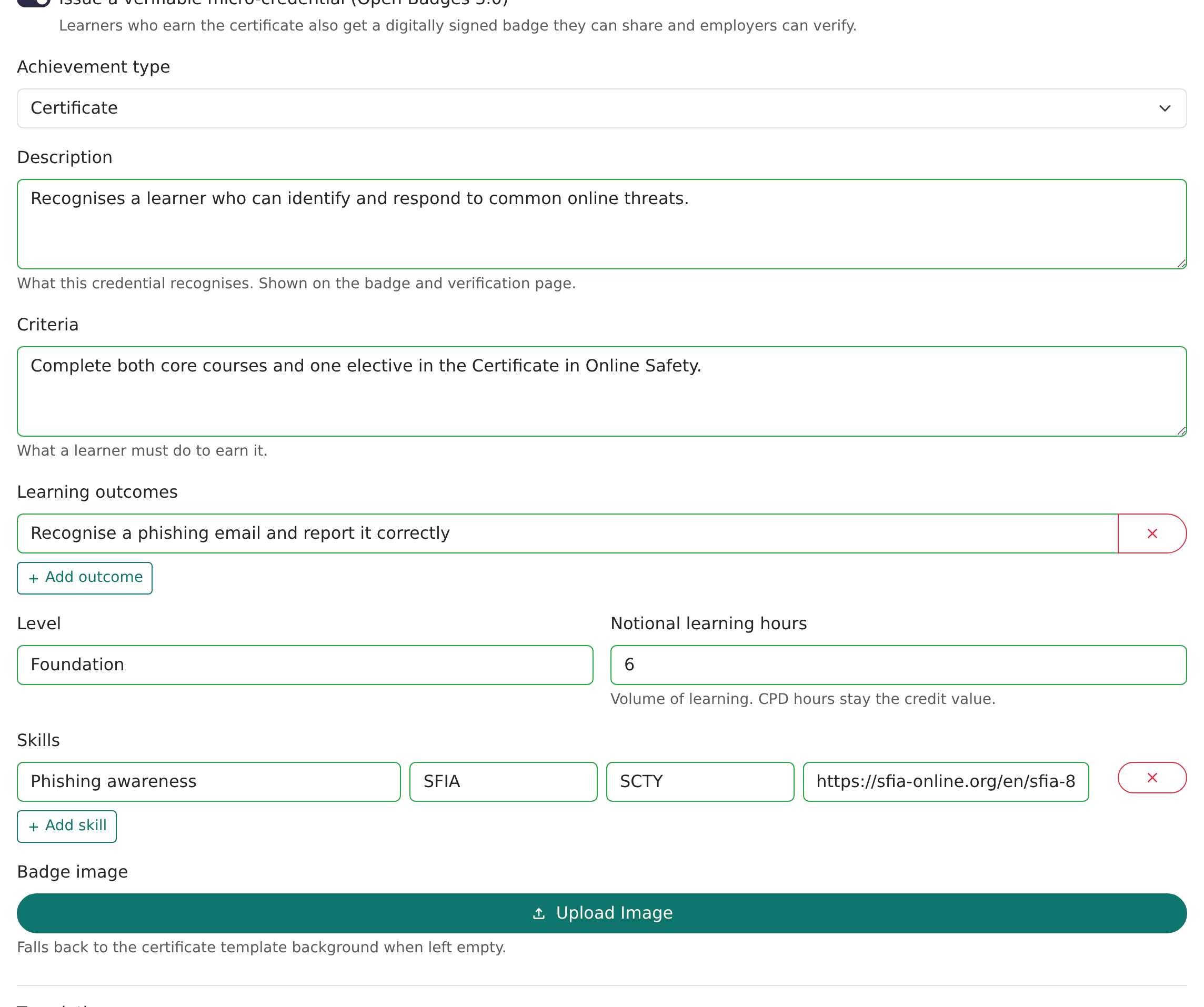
- In the Credential card, switch on Issue a verifiable micro-credential (Open Badges 3.0).
- Fill in the details and click Save Changes.
What each field means
| Field | What to enter |
|---|---|
| Achievement type | The kind of award: Micro-credential, Certificate, Certification, Course completion, Learning programme, Badge, Assessment or Achievement. It is shown on the verification page and read by other badge systems. |
| Description | What this credential recognises. Shown on the badge and verification page. |
| Criteria | What a learner must do to earn it. |
| Learning outcomes | Click Add outcome for each one, starting "The learner can…". |
| Level | Optional free text, such as Intermediate. |
| Notional learning hours | Optional. The volume of learning involved. It is separate from CPD hours, which stay the credit value on the certificate. |
| Skills | Optional. Click Add skill, then give a name and, if you use a skills framework, the framework, code and a link. |
| Badge image | Optional. Click Upload Image and choose a square PNG or JPEG, at least 600px. If you leave it empty, the certificate template background is used instead. |
Write for the person reading it, not for a system. The description, criteria and outcomes are what an employer will read.
Translations
If your team has more than one language switched on, the description, criteria and outcomes can be translated so verifiers see them in the learner's language.
- Programmes: under Translations in the Credential card, pick a language, then type the text or click Translate with AI.
- Courses: use the course's Languages tab.
Anything you leave blank uses your main language text.
What learners get
When a learner earns a certificate that has a credential, a Share button appears next to it on their dashboard and Results page. It opens a menu:
| Option | What it does |
|---|---|
| Add to LinkedIn | Opens LinkedIn's "add certification" form already filled in with the title, issuer, date and verification link. |
| Copy verification link | Copies the link to the public verification page, ready to paste into a CV or email. |
| Download badge | Saves the badge image. It has the credential built into the file, so badge wallets can import it. |
| Download credential | Saves the signed credential file itself, for wallets and systems that accept Open Badges 3.0. |
If an award has been revoked, the learner sees a Revoked label and only the verification link, so there is nothing left to share.
The verification page
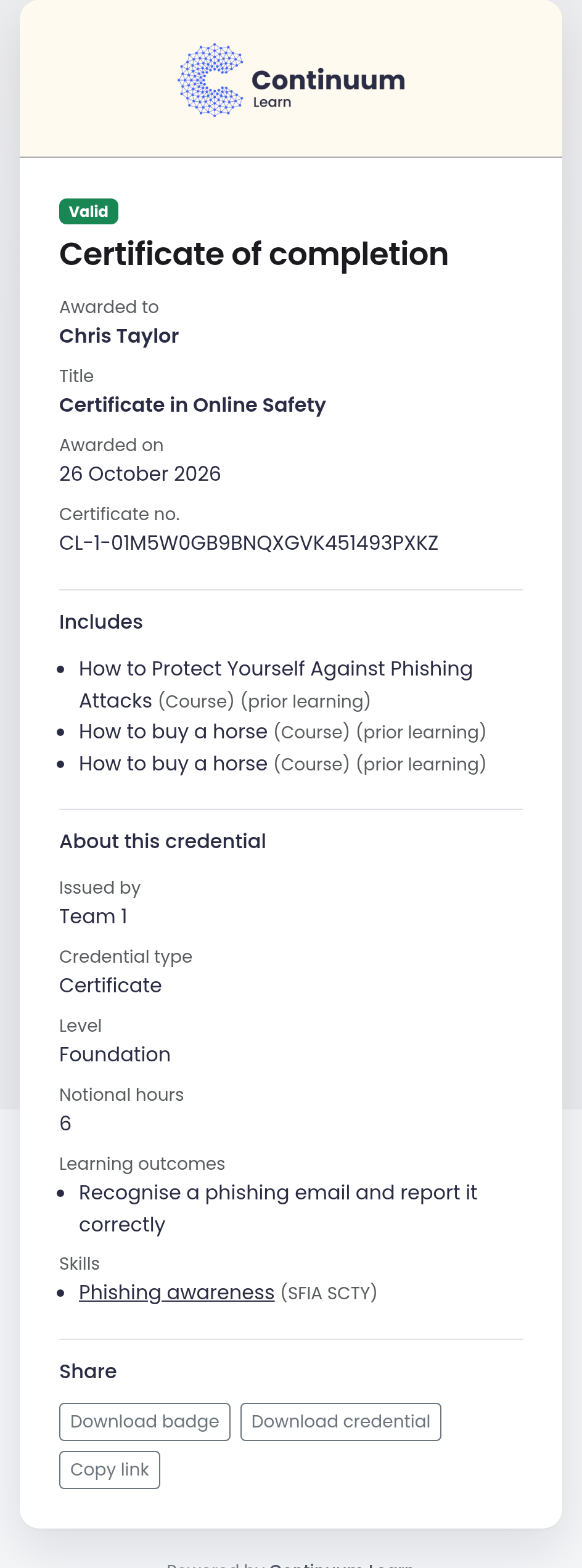
Every credential has a public page (no login needed) at a link ending /verify/…. Anyone can open it to check the award. It shows:
- a Valid, Expired or Revoked label (with the revocation date);
- who it was Awarded to, the title, when it was awarded and, if it expires, when;
- CPD hours and the Certificate no.;
- for a programme, the courses it Includes;
- an About this credential section: who issued it, the credential type, level, notional hours, learning outcomes and skills;
- buttons to Download badge, Download credential and copy the link.
The page deliberately shows no email address or other personal details beyond the learner's name.
Revoke or re-issue a credential
You can see and act on awards in two places:
- Programmes: the Awards table on the programme page.
- Courses: Manage > Reporting, in the course's results list.
To revoke an award issued in error:
- Click Revoke next to the learner.
- Enter a Reason and click Revoke credential.
Anyone verifying it will now see Revoked. This cannot be undone, but you can issue a new award afterwards.
To re-issue an award, for example after correcting a name or updating the credential wording:
- Click Re-issue next to the learner.
- Enter a Reason and click Re-issue certificate.
The learner gets a new certificate and credential, marked Re-issued, that replaces the old one. The old award stays verifiable (and shows Superseded in the Awards table), so a link someone already holds doesn't break. Continuum refuses a re-issue while the award is still valid and its credential wording hasn't changed, because there would be nothing new to issue.
An issued credential is frozen. Editing the description, criteria or template later does not change awards that already exist. Re-issue to give a learner the updated version.
Expiry and renewal
Set Valid for (months) on the course or programme (see How to set up a programme and How to manage certificates) if the award needs renewing. The credential then carries an expiry date, shows as Expired on the verification page after that date, and learners get a reminder email shortly before it lapses.
To renew, click Re-issue on the expired award. The new award starts a fresh validity period and the learner can share it as before. Leave Valid for (months) blank for credentials that never expire.
Send credentials to other systems
Under Manage > Settings > Webhooks, in the Credential Events section:
- Credential Webhook: enter an Endpoint URL and a Signing secret. Continuum sends your system a signed message every time a credential is issued or revoked. Use Send Test Event to check it works, and see the Recent deliveries list for what was sent. Your developer will need this one.
- Credly: switch on Send credentials to Credly, enter your Organisation id and API token, and match each credential to a Credly badge template with Add template. Learners then receive the badge in Credly too, and it is withdrawn there if you revoke the credential here. Only credentials that have a template listed are sent.
Both are optional. Credentials work without them.
Frequently asked questions
A learner earned the certificate but has no Share button. Why?
Check that the credential was switched on for the course or programme before they earned it. Credentials are signed in the background, so allow a minute or two after the award. For learners who earned certificates before you switched credentials on, contact support and we can issue them in bulk.
Do learners need an account anywhere to use their badge?
No. They can copy the verification link or download the badge and credential straight from the Share menu. LinkedIn and badge wallets are optional extras.
Can I change a credential after people have earned it?
You can edit the wording at any time, but awards already issued stay exactly as they were. Use Re-issue to give a learner the updated version.
What happens to credentials if I rotate the key?
Nothing visible. Existing credentials keep verifying. Only new credentials use the new key.
Is this the same as the certificate PDF?
No. The PDF is a document to print or file. The credential is a digital badge that can be checked online. A learner gets both when the credential is switched on.
Can I use my own badge artwork?
Yes. Upload a square PNG or JPEG in Badge image. Without one, the certificate template background is used.