
A Zoom session is a live class that sits inside a lesson. Learners see a card with the date, a countdown and a Join session button, and afterwards a link to the recording. You can have Continuum create the meeting in Zoom for you, or paste a link to a meeting you already have.
Use it for live tutorials, Q&A sessions and webinars that are part of a course.
Who can do this: team admins connect Zoom under Manage > Settings > Zoom. Admins and authors add Zoom sessions to lessons. Presenters linked to a course can see its attendance.
Before you start
- To let Continuum create meetings and record attendance, you need a Zoom account on a paid plan (Pro or higher) and to be an account admin on it.
- Pasting an existing meeting link needs no connection at all. You only lose automatic attendance tracking and recordings.
- Zoom's Marketplace screens change from time to time. If a label below does not match what you see, contact support and we will help.
Connect your Zoom account
You do this once for your whole team. You create a small private app in Zoom, then copy its details into Continuum.
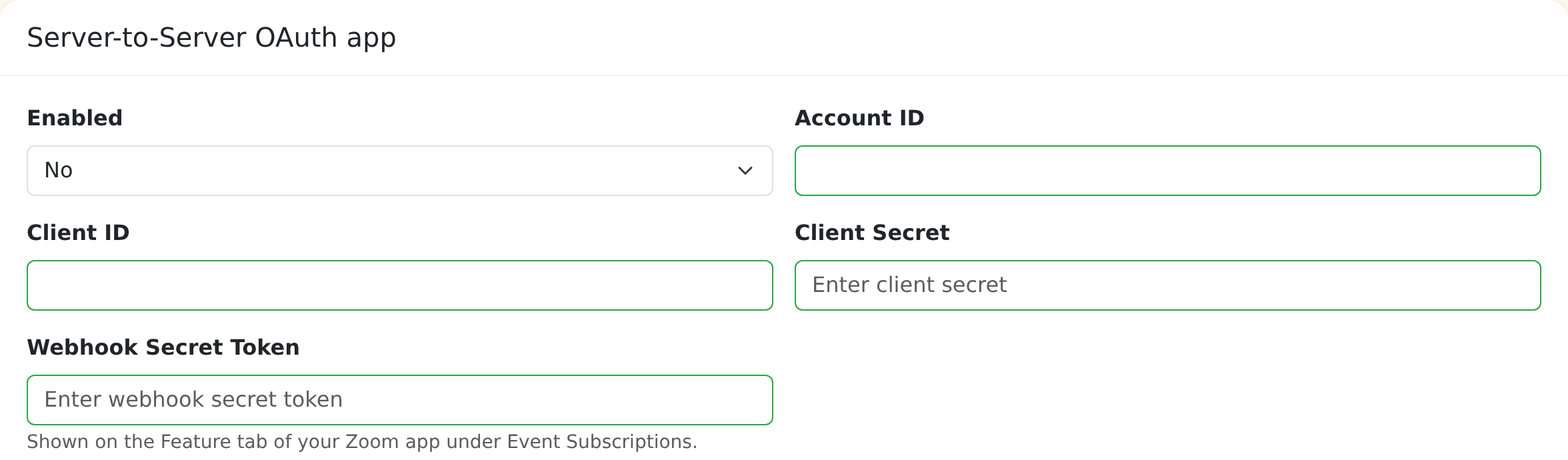
- Go to the Zoom App Marketplace, choose Develop > Build App and create a Server-to-Server OAuth app.
- On the Information tab, fill in the app name and contact details.
- On the App Credentials tab, copy the Account ID, Client ID and Client Secret.
- In Continuum, go to Manage > Settings > Zoom. Paste them into the Account ID, Client ID and Client Secret fields, and set Enabled to Yes.
- Back in Zoom, open the Scopes tab and click Add Scopes. Zoom's search box matches the label, not the ID. Search for each label below, expand it and tick the checkbox whose ID ends in
:admin(never:master).
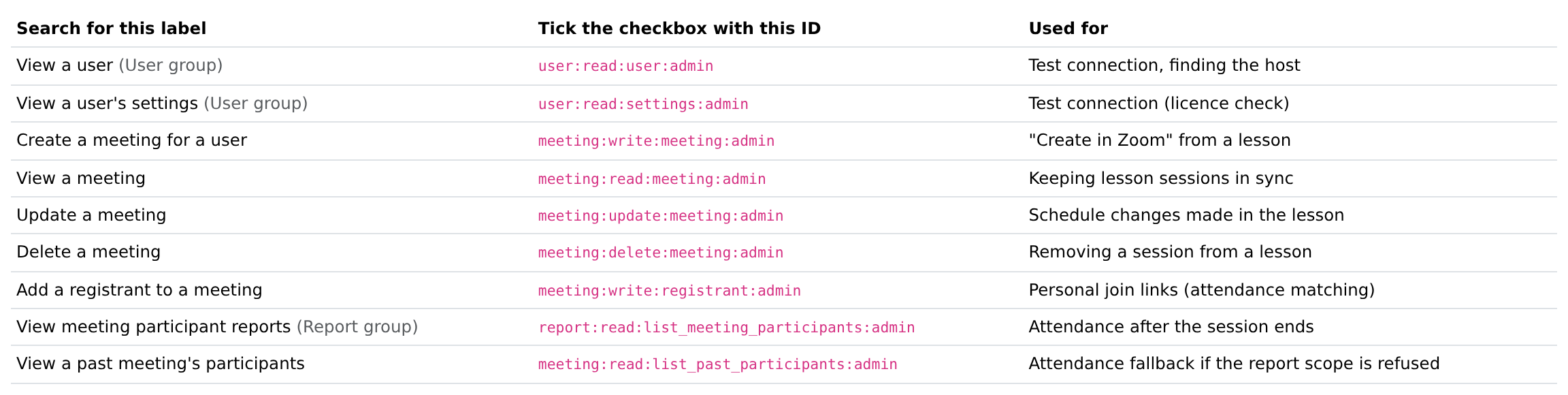
You can copy this list from the same page in Continuum. You need all of them:
| Search for this label | Scope ID |
|---|---|
| View a user | user:read:user:admin |
| View a user's settings | user:read:settings:admin |
| Create a meeting for a user | meeting:write:meeting:admin |
| View a meeting | meeting:read:meeting:admin |
| Update a meeting | meeting:update:meeting:admin |
| Delete a meeting | meeting:delete:meeting:admin |
| Add a registrant to a meeting | meeting:write:registrant:admin |
| View meeting participant reports | report:read:list_meeting_participants:admin |
| View a past meeting's participants | meeting:read:list_past_participants:admin |
- In Default host email, enter the Zoom login of the trainer who will normally host. They must be a Licensed user on your Zoom account.
- Set up the webhook, which is how Zoom tells Continuum who joined and when a recording is ready:
- On the Feature tab in Zoom, switch on Event Subscriptions and add a subscription.
- In Continuum, copy the Event notification endpoint URL from the Webhook card and paste it into Zoom as the endpoint.
- Copy the Secret Token Zoom shows into Webhook Secret Token in Continuum, and click Save Changes.
- Now click Validate in Zoom. Save first: Zoom checks the URL within 3 seconds.
- Click Add Events and tick
meeting.started,meeting.ended,meeting.participant_joined,meeting.participant_leftandrecording.completed.
- On the Activation tab in Zoom, activate the app.
- In Continuum, click Test connection. You should see Connected with the host's name and whether they are Licensed. Any warnings tell you which scope or setting is missing.
If you regenerate the webhook URL, you must paste the new one into Zoom. Disconnect deletes the stored credentials.
Add a Zoom session to a lesson
- Open the course in the builder and go to the lesson.
- Add the Zoom Meeting block (in the Media category) and click Edit Settings.
- On the Meeting Details tab, enter a Meeting Topic and an optional Description.
- Choose a Meeting source:
- Create in Zoom: Continuum schedules the meeting on your Zoom account when you save. This option only appears once Zoom is connected.
- Paste an existing meeting: paste the Join URL. You can also add the Meeting ID and Meeting Passcode.
- Set the Start Date & Time, the Time zone and the Duration (minutes).
- Save. For a created meeting, the block now shows Managed in Zoom with the meeting ID, a join link you can copy and the passcode.
Meeting options
| Option | What it does |
|---|---|
| Host (optional) | Create in Zoom only. The trainer's Zoom login. Leave blank to use the team default from the settings page. They must be a Licensed Zoom user. |
| Time zone | The start time is entered in this zone, so you can schedule for a cohort in another country. Learners see the time in their own zone, with yours alongside. |
| Duration (minutes) | From 15 minutes up to 1800 (30 hours). |
| Require registration | Create in Zoom only. Each learner gets a personal join link, so Zoom's attendance can be matched to them exactly. Recommended if you track attendance. |
| Record to the cloud automatically | Create in Zoom only. The recording is attached to the block when Zoom finishes processing it. |
For a meeting Continuum created, later changes to the topic, time, zone, duration and these options are sent to Zoom when you save. Remove from Zoom deletes the meeting in Zoom and detaches it from the block.
Display and completion
On the Display & Completion tab:
- Show Countdown Timer: a countdown on the card before the session.
- Show "Add to Calendar" Button: lets learners add the session to their calendar.
- Show Recording Link (when available): shows the recording once the session has ended.
- Recording URL (Optional): paste a recording link yourself if you did not record to the cloud automatically.
What learners see
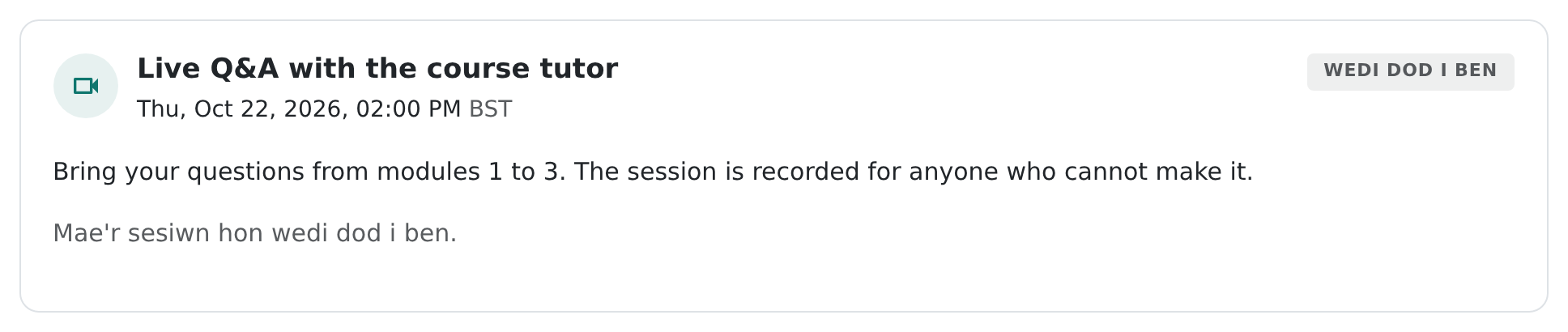
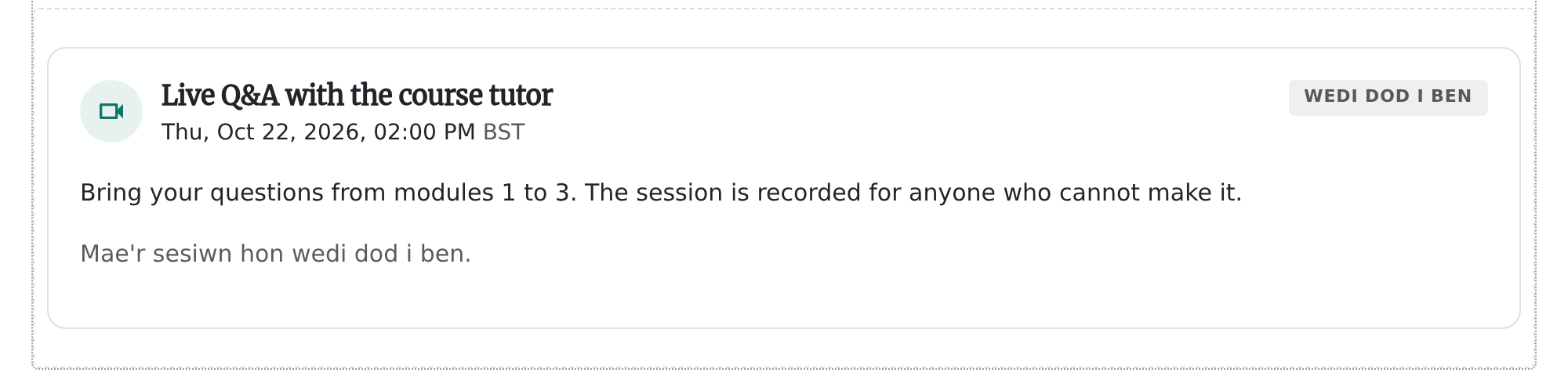
- The card shows the topic, the date and time in the learner's own time zone, and a status label (such as upcoming, live or ended). If your time zone differs, it also shows your time as the trainer time.
- Before the start, a countdown (if you left it on) and a disabled Join session button.
- Join session becomes available 15 minutes before the start. Clicking earlier shows a message that joining opens 15 minutes before.
- The meeting passcode is shown next to the button, when there is one. The join link itself is never shown in the page; it is only handed out when the learner clicks the button.
- Add to calendar offers calendar links.
- After the session, Watch recording appears if a recording is available, with its passcode if it has one. If the learner attended, the card says how many minutes.
- Upcoming sessions also appear in a Live sessions list on the course's intro page.
How the lesson completes
Choose when the block counts as complete under Completion:
| Setting | Completes when |
|---|---|
| When joined (the default) | The learner clicks Join session. |
| When attended | Zoom reports the learner stayed for at least Minimum Attendance (minutes). |
| When viewed | The learner simply sees the block. |
Attendance is worked out from the join and leave times Zoom sends, and checked again when the meeting ends. It relies on the Zoom connection and the webhook above. Without the connection, When attended behaves like When joined.
Learners are matched by their registration link, or by their email address if they are enrolled on the course. Using Require registration gives the most reliable matches.
Check attendance and fix gaps
Go to Manage > Reporting, open the course's results and find the Live Sessions section. It shows:
- the session Status, and counts of Attendees, Completed and Unmatched;
- a table of each attendee's Minutes, Source and whether they Completed;
- Unmatched Zoom participants: people who were in the meeting but could not be matched to an enrolled learner. This happens when they joined with a different email.
Click Refresh from Zoom to pull the latest attendance. Click Mark attended against a learner to credit them manually, for example if they joined on a phone under another name.
Reminders
Continuum emails enrolled learners 24 hours and 1 hour before a session starts. Learners who have already completed the course are skipped, and nobody gets the same reminder twice. The 24 hour reminder is skipped if the session is added with less than a day to go, and only the nearest reminder is sent.
Reminders follow your team's Event reminders switch, which you can turn on or off in Manage > Notifications > Reminders. If it is Disabled, no session reminders are sent.
Hosts and presenters
- The host is the Zoom user who owns the meeting. Each block can have its own Host (optional); otherwise the Default host email from the settings is used. The host must be a Licensed user on your Zoom account.
- Presenters linked to a course (see Manage > People > Presenters) see its upcoming Zoom sessions on their presenter dashboard, and can see and mark attendance for their courses. Being a presenter in Continuum does not make someone a Zoom host: you still choose the host in the block.
Frequently asked questions
Do I have to connect Zoom?
No. You can paste any Zoom link and learners can join from the card. But without a connection there is no attendance tracking, no automatic recordings and no meeting creation.
Why can't I see "Create in Zoom"?
Zoom is not connected or not enabled for your team. Check Manage > Settings > Zoom, set Enabled to Yes and use Test connection. The option also only appears for a lesson that has already been saved.
The test connection says the host is "Basic (unlicensed)".
Zoom only lets Licensed users host meetings through an app. Make the host a Licensed user, or pick a different Default host email.
Learners can't click Join.
Joining opens 15 minutes before the start time. Also check the start time and time zone in the block, as a wrong zone shifts the opening time.
Someone attended but isn't marked as complete.
Open the course results and look at Live Sessions. If they are under Unmatched Zoom participants, they joined with an email Continuum does not know. Use Mark attended. If nobody is recorded, check that the webhook events are set up and that you used Require registration.
Can I run a series of weekly sessions?
Each Zoom Meeting block is one meeting. Add one block per session.
Does it work in SCORM exports?
Joining and attendance rely on your Continuum site, so check the result in your own setup before relying on it in an exported course.