
The presenter area is where you follow the learners on a course while it runs. You can see who has started, how far they've got and how they did in quizzes and surveys. If a learner asks a question on a course discussion board, you answer it from the inbox.
Who can do this: presenters, team admins and authors. Presenters see the courses their presenter profile is linked to. Admins and authors can also switch to every course in the team.
What you can do depends on your role:
| Presenter | Author | Admin | |
|---|---|---|---|
| How to get there | Present in the main menu | Present in the main menu | Manage > Presenter area |
| Courses on the dashboard | Courses you're linked to | Yours, or All courses | Yours, or All courses |
| Learners and Results | On your courses | Only on courses you're linked to as a presenter | On every course |
| Learner email addresses | No | No | Yes |
| Full report link to Manage | No | No | Yes |
| Answer and moderate questions | On your courses | On every course | On every course |
Before you start
Sign in to your organisation's Continuum site. How you get to the presenter area depends on your role:
- Presenters: click Present in the main menu. Sign in with the account linked to your presenter profile. If you were invited by email, accept the invitation first. If you only have the presenter role, signing in takes you straight to the presenter area. If you can't see Present, ask your administrator to check that your profile is linked to your account.
- Authors: click Present in the main menu.
- Admins: go to Manage and click Presenter area in the Manage menu. The page is titled Presenter area for you. The Manage page also has a Learner questions tile showing how many questions are waiting.
The dashboard
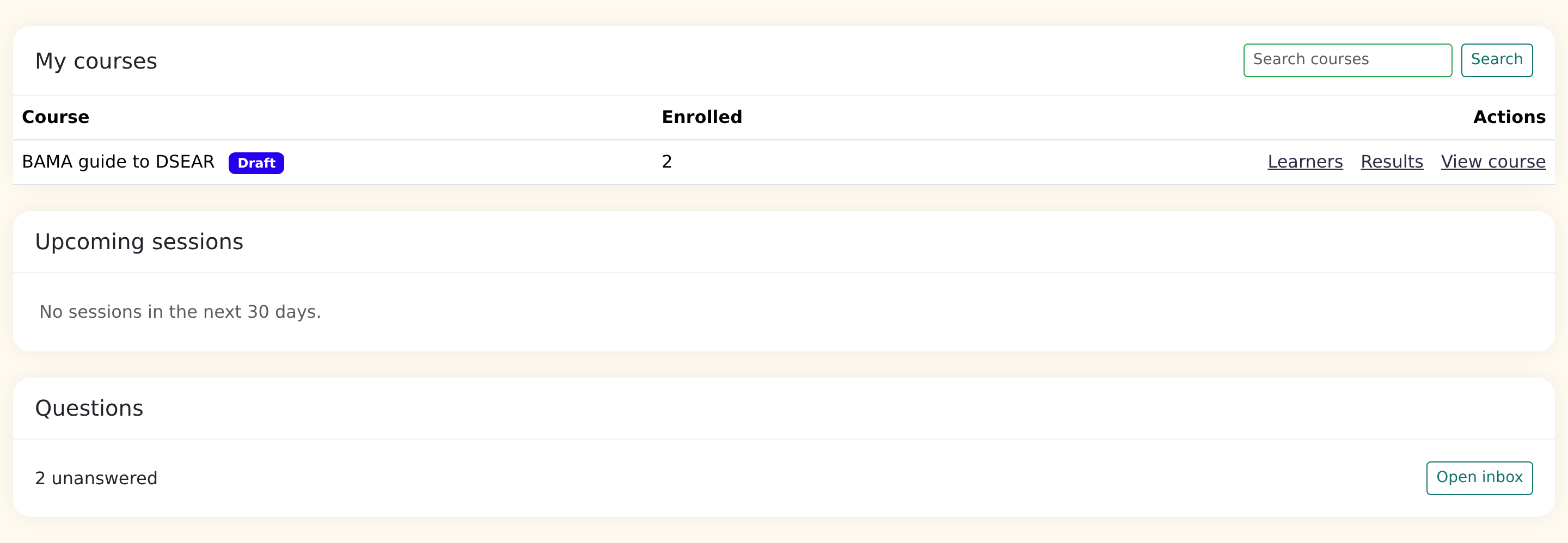
The dashboard has three sections:
- My courses lists each course you present, how many learners are enrolled, and a Draft label if it isn't published yet. Each row has links to Learners, Results and View course. Use Search courses to find one by name. Long lists are split into pages, with Previous and Next at the bottom.
- Upcoming sessions shows your online and live sessions in the next 30 days, with the date, topic, course and an Open link.
- Questions shows how many questions are unanswered, with an Open inbox button.
The menu under the header has two items: Dashboard and Inbox.
My courses or all courses (admins and authors)
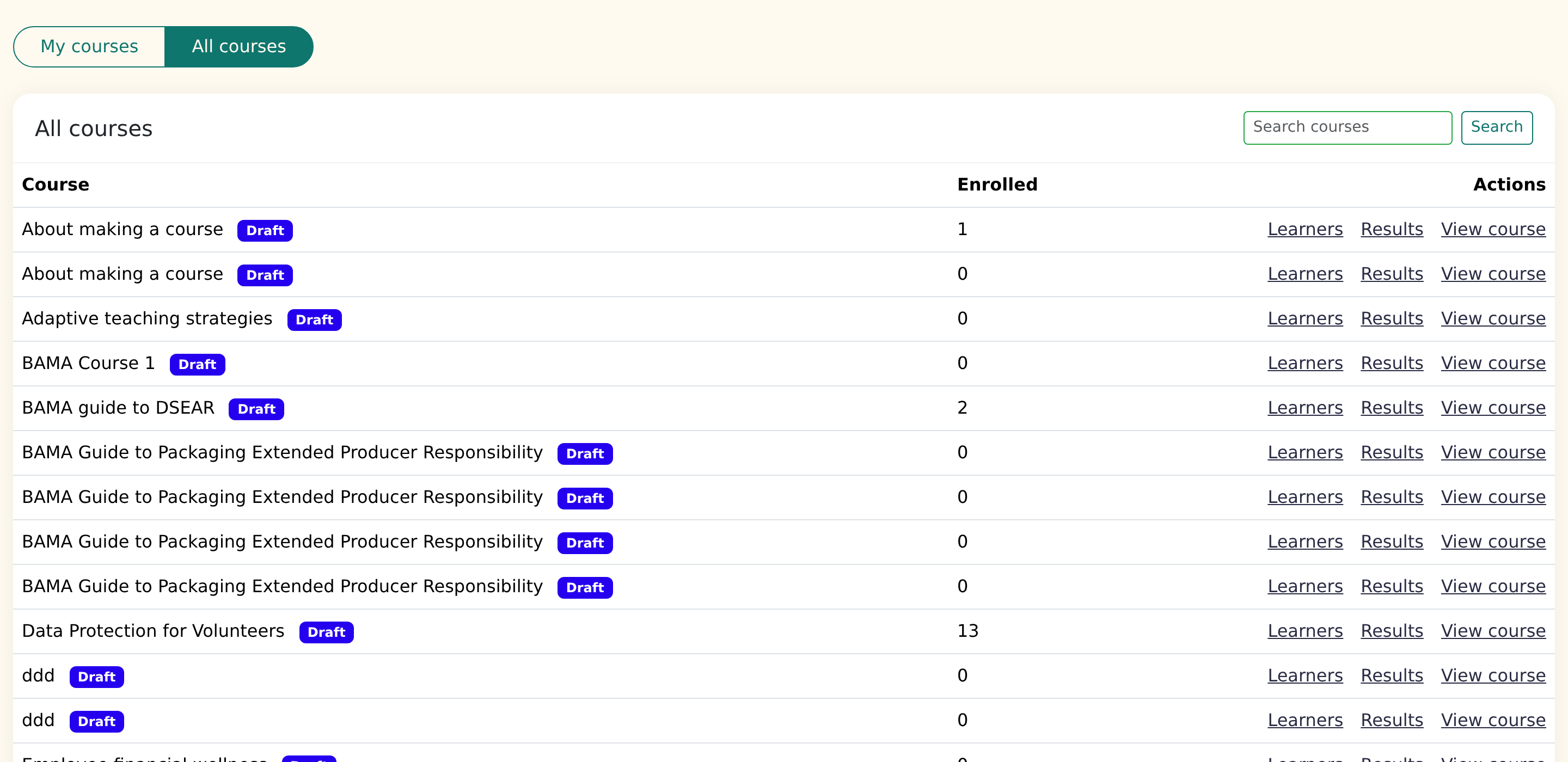
Admins and authors see a My courses / All courses switch at the top. My courses shows the courses you're linked to as a presenter. All courses shows every course in your team, and marks the ones you're linked to as Linked. If you aren't linked to any course, the dashboard opens on All courses.
The switch applies to the inbox too: on All courses, it lists questions from every course with a discussion board.
Authors see Learners and Results only on courses they're linked to as a presenter. On other courses, the row shows the course without those links.
See your learners
Click Learners next to a course. The table lists each enrolled learner with:
| Column | What it shows |
|---|---|
| Name | The learner's name. Use Search by name to find someone. |
| Enrolled | When they enrolled. |
| Progress | A progress bar and percentage. |
| Last activity | The last time they were in the course. |
| Status | Not started, In progress or Completed. |
For privacy, presenters see names and progress only. Email addresses and other personal details aren't shown. If you need those, ask your administrator.
Admins also see each learner's email address, plus a Full report link. It opens the course's results page under Manage > Reporting, which has downloads, live session attendance and certificate actions. See How to track learner progress and results.
Use the Results button at the top right to switch to results, and Back to dashboard to return.

Confirm attendance
For in-person courses, the learner table has an Attended column. Click Confirm attendance next to a learner once they've come along. The button changes to an Attended label with an Undo button, in case you marked the wrong person.
Marking attendance matters because certificates for in-person courses wait for it. Once you confirm it, a learner who has finished everything else gets their completion email and certificate.
This column only appears for in-person courses.
Sign off learners
Some courses need an assessor's sign-off before the certificate is issued. When a course does, a Sign-off column appears.
- Click Sign off next to the learner.
- Type an optional note, then confirm. Cancel if you've changed your mind.
- The row shows Signed off. Hover over it to see who signed off.
- To reverse it, click Undo sign-off.
Signing off doesn't complete the course by itself. If the learner has already finished everything else, their certificate is issued immediately. Otherwise it follows once they finish.
If you don't see a Sign-off column, the course doesn't require it.
Check quiz and survey results
Click Results next to a course. You see a summary of each quiz and survey in the course, and the course rating learners gave when they finished. The figures are totals across learners, so they show how the group did on each question.
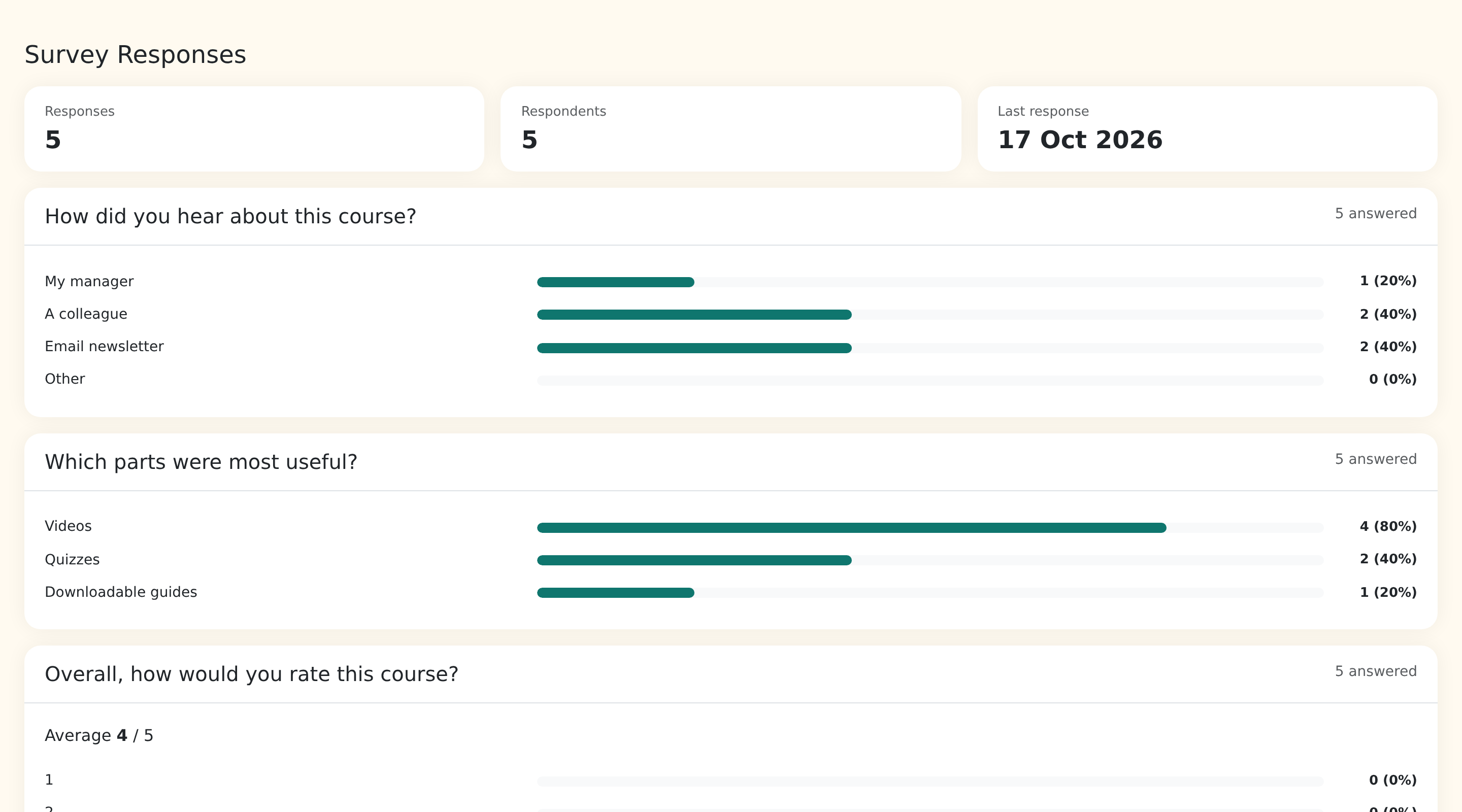
If nothing has been answered yet, you'll see No quiz or survey results yet.
Answer learners' questions
If your administrator has turned on the discussion board for a course, learners can ask questions on it. You get an email when a new thread starts on a course you present.
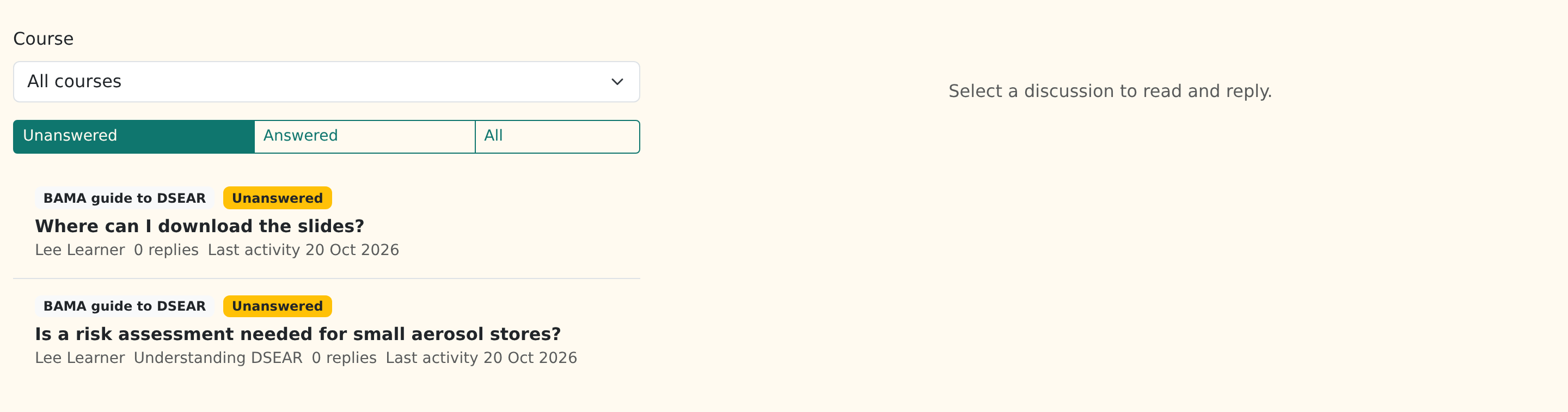
- Click Inbox in the menu. By default it shows Unanswered questions. Use Answered or All to see the rest.
- Use the Course list to look at one course. The number beside each course is how many questions are waiting.
- Click a question to read it on the right, then type your answer under Write a reply and click Reply.
A question is Unanswered until a staff member has replied, it has an accepted answer, or it is locked or hidden. Once you reply, it leaves the unanswered list.
From the three-dot menu on a thread or reply you can also:
- Pin or Unpin a thread;
- Lock or Unlock it, which stops learners replying;
- Hide or Unhide a thread or reply;
- Mark as answer on a helpful reply.
Learners can edit their own posts for 15 minutes. Anything after that is yours to moderate. Your posts show a Presenter badge, or Staff if you're an admin or author.
Emails are limited so they don't flood your inbox. After five discussion emails in an hour, the rest arrive together in one digest. Links in the emails take you to the inbox.
Look through a course
Click View course to open a course as a learner would see it.
- Presenters, admins and authors: on a course you aren't enrolled on, Continuum treats you as an observer. You can read everything and try quizzes and surveys, but your answers aren't saved and you won't appear in results, get a certificate, or be marked complete. This includes the preview in Create. If you enrol yourself on a course, you're treated as a normal learner on it.
Frequently asked questions
Why don't I see a course I teach?
As a presenter, you only see courses your presenter profile is linked to. Ask your administrator to add you under the course's Presenters setting. Admins and authors can switch to All courses.
I'm an author. Why can't I open Learners or Results?
Authors can see every course on the dashboard and answer questions, but learner lists and results are only open to admins and to the course's presenters. Ask an admin to link you as a presenter on the course.
Why can't I see learners' email addresses?
For presenters and authors, the presenter area only shows names and progress, to protect learners' privacy. Admins see email addresses here and in Manage > Reporting.
I can't see the Attended column.
It only appears for in-person courses. For other courses, attendance isn't recorded here.
Can I change a course?
No. The presenter area is for following learners and answering questions. Course changes are made by your administrator or an author.
Does looking at a quiz as a presenter affect results?
No. When you try quizzes and surveys on a course you aren't enrolled on, nothing is saved. This applies to presenters, admins and authors alike, so learners' results are never affected. If you want to try the whole journey and have it recorded, enrol a test learner account instead.