
Still deciding? See what Programme Certificates in Continuum Learn can do for your organisation.
A programme is a group of courses that earns one certificate. Use it when a qualification is bigger than a single course: a CPD pathway, an induction made of several modules, or a micro-credential with core and elective units.
You choose which courses are required and how many of the optional courses a learner must finish. Continuum checks progress for you and awards the certificate the moment the rule is met. Nobody has to issue it by hand.
Who can do this: team admins and authors, under Create > Programmes.
Before you start
- Build the courses first. A programme is made from existing courses (or other programmes), so publish those before creating it.
- Decide what "complete" means for each course. Programmes use each course's own completion rule. If a course requires a quiz pass, attendance at an in-person session, or assessor sign-off, the learner must meet that before the course counts towards the programme.
- Set up a certificate template (optional) under Manage > Settings > Certificates if you want the programme certificate to look different from your default.
Create a programme
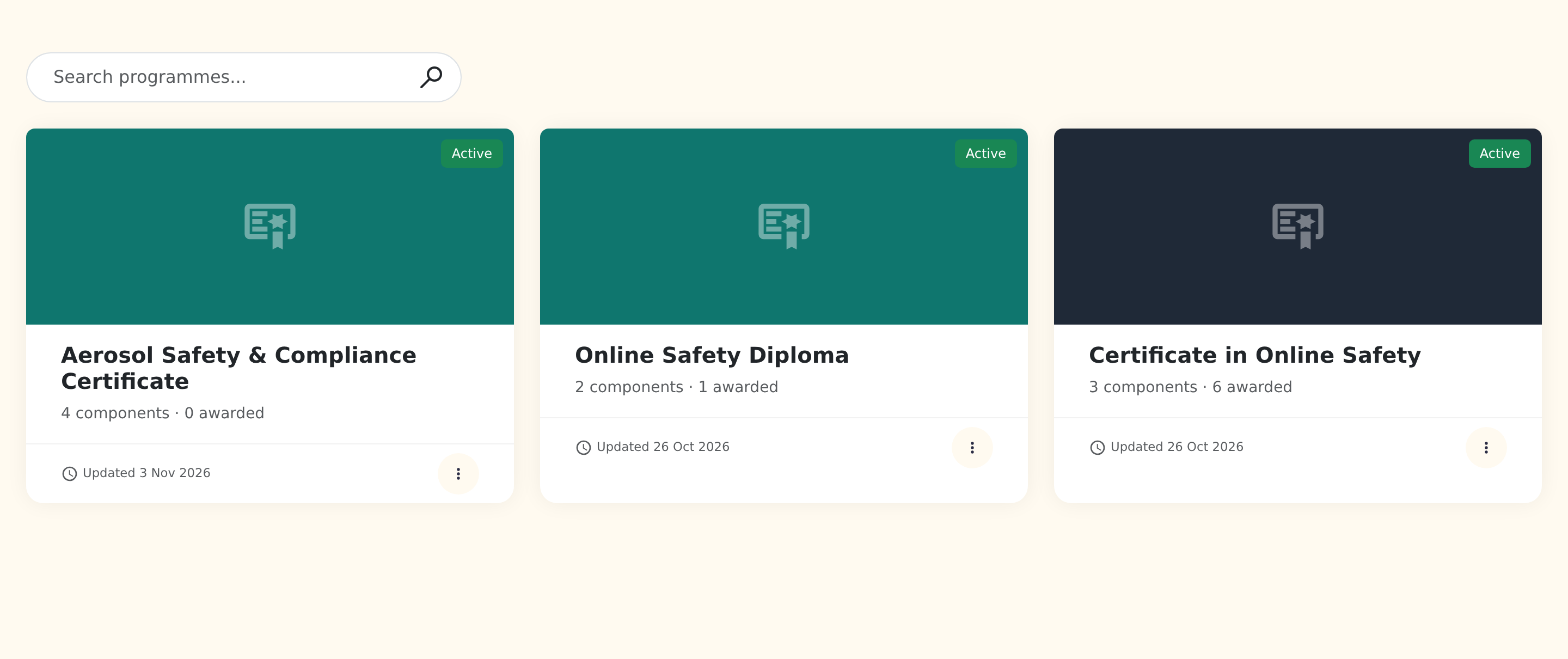
- Go to Create > Programmes and click New Programme.
- In Details, enter a Name and a short Description. Learners see both on their dashboard.
- Optionally upload an Image. It's shown on the learner's programme card.
- Click Save Changes. The Learners tab and the Awards table appear once the programme has been saved.
Add courses and choose required or optional
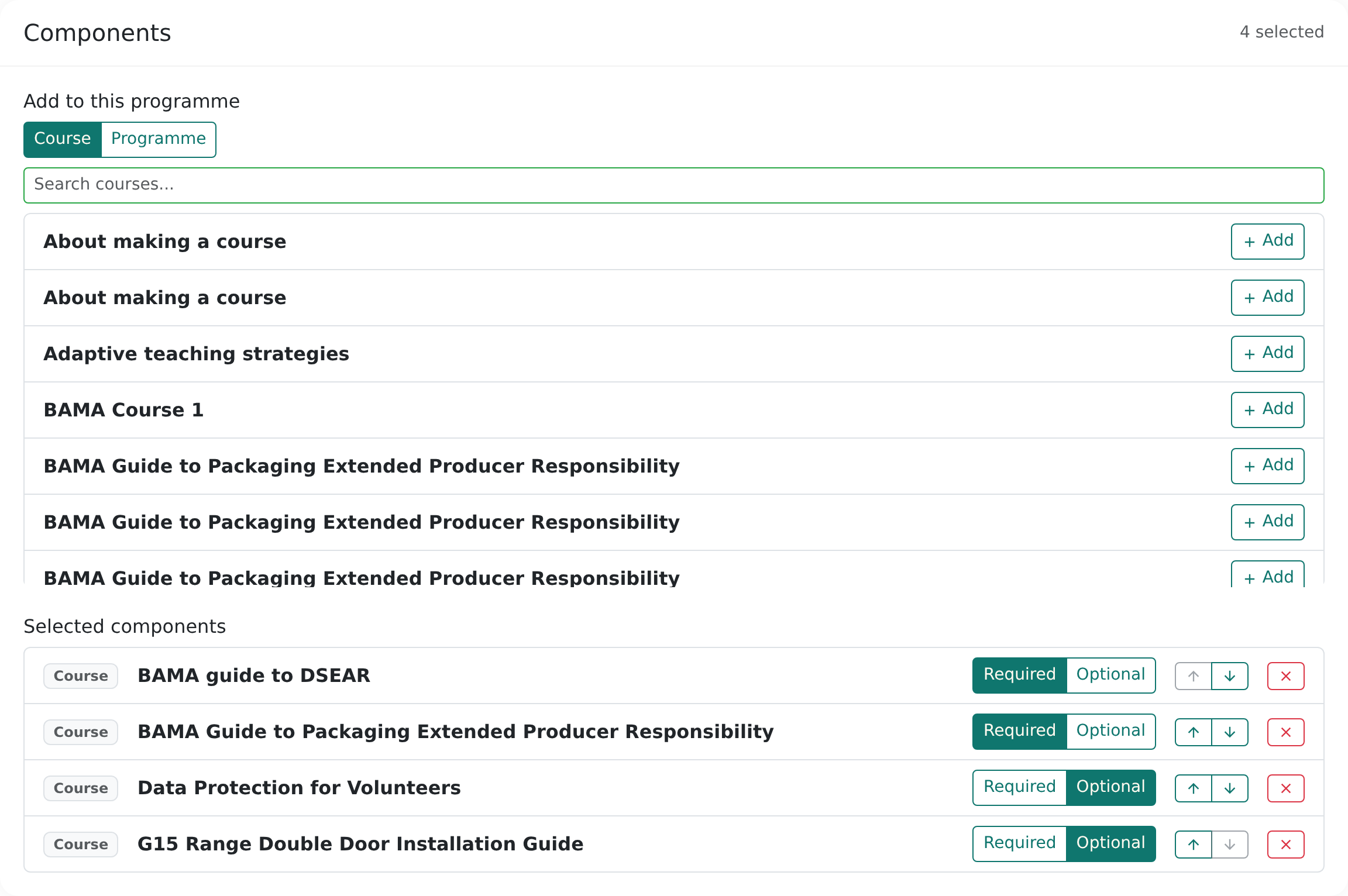
In the Components card:
- Choose Course (or Programme, to nest a smaller programme inside this one) and search for it.
- Click Add next to each one you want.
- In Selected components, mark each one Required or Optional. Use the arrows to set the order learners see.
Set the completion rule
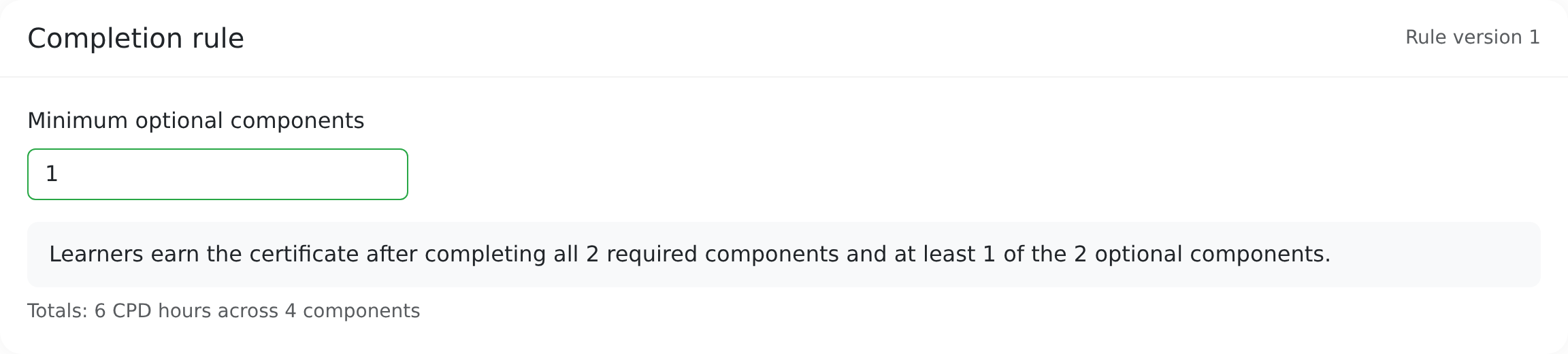
The Completion rule card has one number: Minimum optional components. Together with your required and optional choices, it covers every common shape of qualification:
| What you want | Set it up like this |
|---|---|
| Finish all of these courses | Mark every course Required. Leave the minimum at 0. |
| Finish any 2 of 4 courses | Mark all four Optional. Set the minimum to 2. |
| 3 core courses plus 1 elective from a list | Mark the three core courses Required and the electives Optional. Set the minimum to 1. |
Underneath, Continuum writes the rule out in plain English, for example "Learners earn the certificate after completing all 3 required components and at least 1 of the 4 optional components." Check it reads the way you intend before saving.
Nesting programmes
A programme can contain other programmes. For example, a Diploma could require the Foundation and Practitioner programmes. A nested programme counts as done while the learner holds a valid award for it. Revoked or expired awards don't count.
Certificate, CPD hours and expiry
Also in Details:
- Certificate title: printed on the certificate. Leave it blank to use the programme name. If your team has more than one language switched on, you can translate it per language or click Translate with AI.
- Certificate template: pick one of your templates, or leave Default template.
- CPD hours: printed on the certificate wherever the template uses
{cpd_hours}. - Valid for (months): set this for certificates that need renewing, such as annual compliance. Leave it blank for certificates that never expire. Learners see an expiry date on their dashboard and get a reminder email before it lapses.
Verifiable micro-credential (optional)
In the Credential card, switch on Issue a verifiable micro-credential (Open Badges 3.0) to give learners a digitally signed badge alongside the PDF. They can add it to LinkedIn, and employers can verify it.
- Fill in the Description, Criteria and Learning outcomes. They appear on the badge and its public verification page.
- Level, Notional learning hours, Skills and a Badge image are optional.
Choose how learners join
Enrolment controls who can earn the certificate:
- Implicit (the default): anyone who completes the courses earns the certificate. There's nothing else to manage. This is right for most teams.
- Explicit: only learners enrolled on the programme can earn it. Enrol people on the Learners tab, through a bundle purchase, or let them enrol themselves. Explicit enrolment gives you:
- Allow learners to self-enrol: lists the programme under Available programmes on the learner dashboard with an Enrol button.
- Lock rules at enrolment: learners are assessed against the rule that applied when they enrolled. If you change the course list later, it only affects people who enrol afterwards, so you never move the goalposts on a cohort part-way through.
Untick Active to stop a programme issuing new certificates. Certificates already issued stay valid and downloadable.
Manage learners and intakes
The Learners tab shows who is enrolled, who has completed and who has withdrawn. From here you can:
- Add a learner by searching for a name or email, and optionally give them an Intake label, such as "Spring 2027", to tell groups of starters apart. This is only a label: it isn't one of the lists under Manage > People > Cohorts.
- Import from CSV: one email per row. People must already be members of your team.
- Credit component: give a learner credit for a course they've covered elsewhere (recognition of prior learning). Add a note explaining why. Credited courses count towards the rule and are listed against the award.
- Withdraw or Re-enrol a learner. A withdrawn learner keeps any certificate they've already earned.
With implicit enrolment you don't need to use this tab at all. Anything you add here only feeds the intake and reporting columns.
What learners see
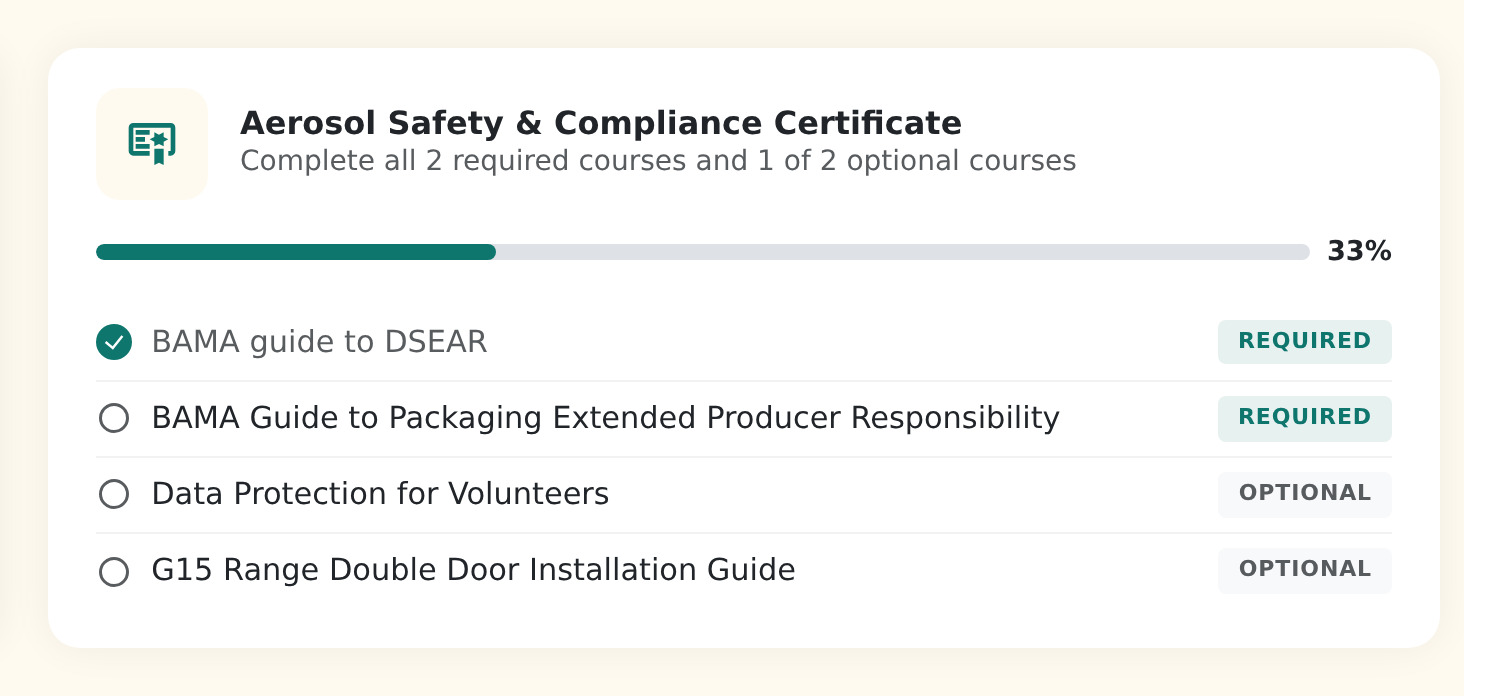
Once a learner has started a course that belongs to a programme, a Programmes section appears on their dashboard. Each programme card shows:
- each course labelled Required or Optional, and whether it has been completed (or Credited);
- their progress towards the rule;
- when the certificate is earned, the award date, any expiry date and a Download Certificate button. If a micro-credential is switched on, there's also a Share menu (Add to LinkedIn, copy verification link, download badge).
Earned programme certificates also appear on the learner's Results page.
How certificates are awarded
You don't need to do anything. Continuum checks the rule:
- when a learner completes a course in the programme, and
- whenever a learner opens their dashboard or results page. So learners who had already finished every course before you created the programme receive their certificate the next time they log in.
Each certificate gets a unique number, such as CL-12-01J…, and is frozen when it's issued. Editing the template, title or wording later never changes a certificate someone already holds.
View, revoke or re-issue awards
The Awards table on the programme page lists everyone who has earned the certificate, with the date, the certificate number and any prior-learning credit.
- Download: get a copy of the learner's PDF.
- Revoke: withdraw an award that was issued in error. You'll be asked for a reason. A revoked micro-credential shows as revoked when anyone verifies it.
- Re-issue: issue a fresh version, for example after correcting a learner's name. The new certificate gets a version number (
v2) and replaces the old one.
If a programme contains another programme and that nested award is revoked, the parent award is flagged Child credential revoked so you can decide whether it should still stand.
Frequently asked questions
A learner finished every course but has no certificate. Why?
Check, in this order:
- Is the programme Active?
- If it uses Explicit enrolment, is the learner enrolled?
- Does each course count as complete? A course needing a quiz pass, in-person attendance or assessor sign-off isn't complete until that happens.
- Has the learner opened their dashboard since finishing? That triggers the check for completions made before the programme existed.
Can I change the courses after people have started?
Yes. With implicit enrolment, the current rule applies to everyone. With explicit enrolment and Lock rules at enrolment on, each learner keeps the rule they signed up to. The Rule version number in the Completion rule card goes up each time the rule changes.
Can one course belong to more than one programme?
Yes. Completing it counts towards every programme it belongs to.
Do learners need to enrol on the programme separately from the courses?
Only if you choose Explicit enrolment. With Implicit, learners just take the courses.
Can I sell a programme?
Yes. Add the programme to a bundle under Manage > Bundles. When someone buys the bundle, they're enrolled on the programme and on its required courses automatically.