
Still deciding? See what White-Label LMS in Continuum Learn can do for your organisation.
Your learning site can look like your organisation, not ours. You upload a logo, choose colours and fonts, set up the links in the header and footer, and, if you want, make the site available on your own web address such as learn.yourcompany.com.
Who can do this: team admins. The Custom Domain page also needs permission to change team settings. You will also need access to your domain's DNS settings (usually your IT team or web host) to connect your own address.
Upload your logo
- Go to Manage > Settings > Theme. The page is titled Brand Your Team.
- Under Logo, upload your file. The page asks for a minimum of 1200px by 300px, at a 4:1 width-to-height ratio.
- Click Save Changes at the top right.
Your logo appears in the site header, on the login page and in emails. You can also change it from Manage > Settings > General, under Media. Both pages give the same recommendation (minimum 1200px by 300px, 4:1), and they update the same logo.
Use a PNG or JPG with a clear background. See Branding in emails below for why.
Choose colours and fonts
On Manage > Settings > Theme, start with a Brand Look. Each look sets colours, fonts, header, menu and dark-mode defaults together, and you can still change everything afterwards. The first card, Brand, is built from the colours in your logo.
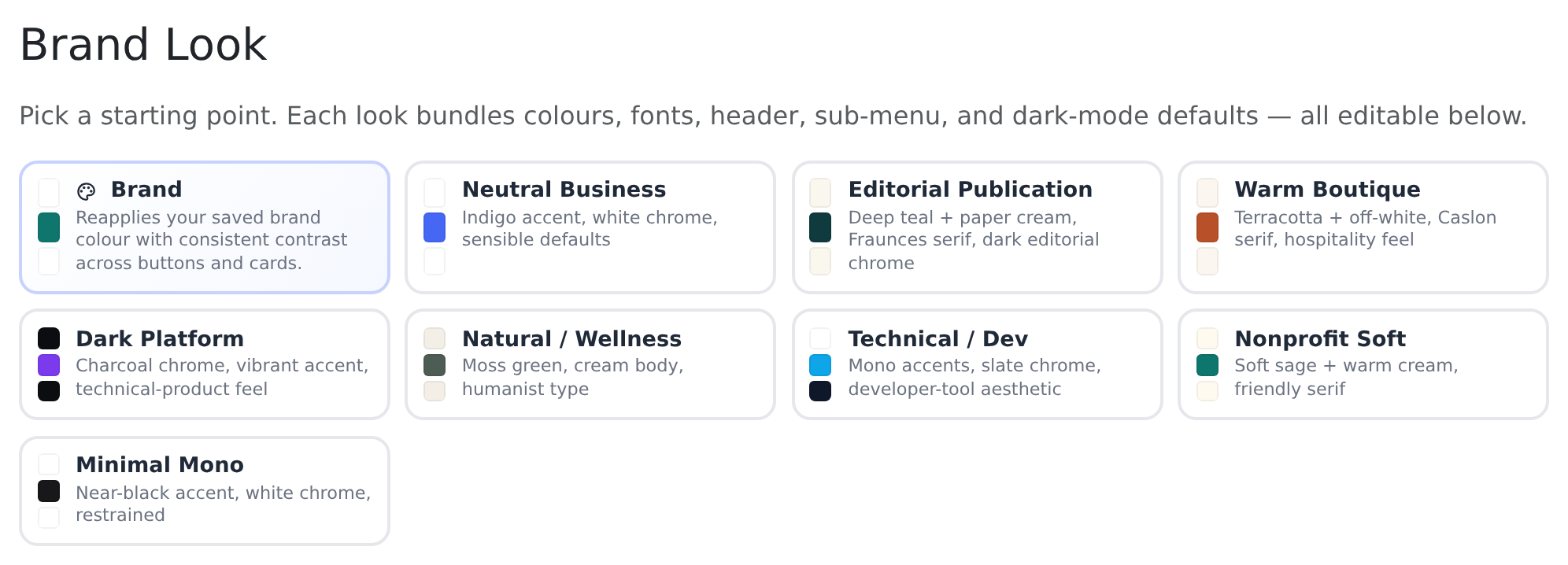
Below the looks, the colour sections let you fine-tune. A preview panel on the right updates as you change settings, so you can see the effect before you save.
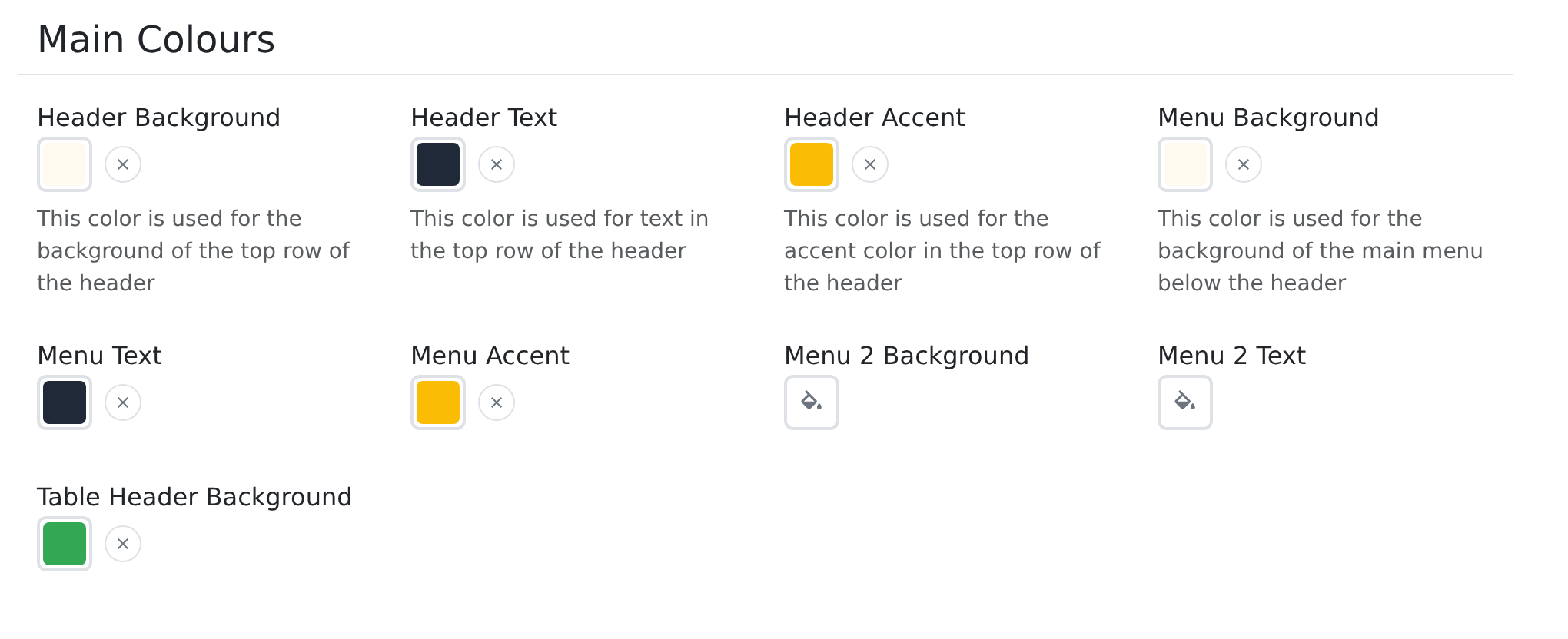
| Section | What it changes |
|---|---|
| Main Colours | The header, the menu below it (Menu), a second menu level (Menu 2) and the header of tables. |
| Primary Buttons | The main buttons across the site: Background, Text, Border and Hover Background. |
| Secondary Buttons | Less important buttons, such as filters on course lists. |
| Courses | The module headers inside a course. |
| Tooltips | The colours of tooltips. |
| Theme | Six colours used for page backgrounds, links, icons, sidebars and borders. Theme 1 is the main background. |
| Watch / Events | Video, live event and replay pages: light and dark backgrounds, text, cards, borders, header and the colour of headings. |
| Typography | Fonts for Headings, Body Text, Buttons and Links, plus Base Font Size, Heading Weight and Body Line Height. Leave a font empty to use the default. |
Click Save Changes when you are happy. Fonts and colours set on an individual course or page override these team-wide defaults.
Light and dark mode for video pages
In Watch / Events, Default Mode sets whether your video pages open in Light or Dark mode. Viewers can switch themselves from the header menu, and their choice is remembered on their device. The dark-mode colours (Background (Dark), Card Background (Dark) and so on) only apply to these video pages.
Set up your header and footer
Go to Manage > Settings > Header. The page is titled Header & Footer and starts with previews of both. Use Guest View and Learner View to see what each audience sees.
Header links
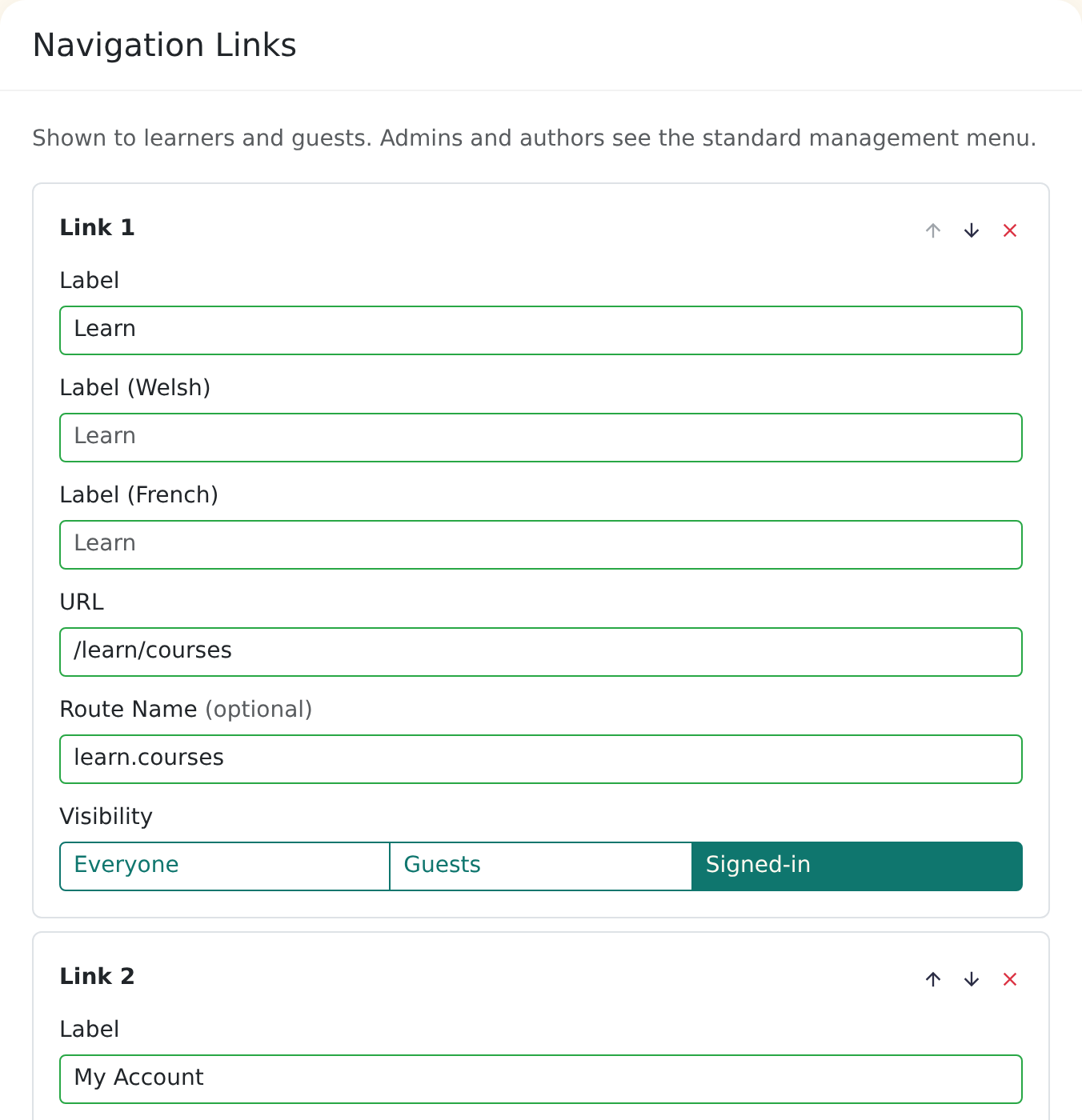
- In Navigation Links, click Add Link and choose a ready-made link, one of your published pages, or Custom Link.
- Give it a Label and a URL (for example
/register, or a full web address for another site). - Choose its Visibility: Everyone, Guests or Signed-in.
- Use the up and down arrows to reorder links, and the cross to remove one.
- Click Save Changes.
Header links are shown to learners and guests. Admins and authors see the standard management menu. The restore button next to Add Link puts back the default links.
If your site offers more than one language, each header link shows an extra field for every other language, such as Label (Welsh). Fill these in to translate the link. Leave one empty and learners in that language see the main Label.
You can also set the Logo Height (px) (20 to 120) and the Header Colours: background, text, accent and the menu colours.
Footer links
Further down, Footer Links works the same way: Label, URL and Visibility for each link. The footer shows your team name, a copyright line and the links you choose.
- Contact Email adds a link to that address in the footer. Leave it blank to hide it.
- Footer Colours set the footer background and text. If you don't set them, the footer uses your site's body colours. There are separate dark-mode colours for video pages.
The footer link form has a single Label field. Labels you have translated earlier are still shown in the learner's language, but you can't add new translations on this form.
The footer also shows Powered by Continuum Learn, linking to our website. You can't turn this off or change it.
Courses focus or video on demand
Go to Manage > Settings > General and find Team Focus under Experience.

| Choice | Best for | What visitors see |
|---|---|---|
| Courses | Training and learning programmes | A centred login card with your logo on your header colour, and the message "Access your courses, training and certificates." |
| VOD / Events | Video libraries, live events and replays | Login, register and password pages that use your site header, a centred card on the video-page background (light or dark) and your footer. |
The setting changes the look of the public pages: login, registration and password reset. It also changes what the Theme page previews (Dashboard and Watch (dark) for courses; Watch (light) and Watch (dark) for video) and which links the header offers by default.
Two related settings sit in the same card. Learner Login Redirect chooses where learners land after signing in, and Default language and Languages available to learners set the languages your site offers.
Click Save Changes at the top or bottom of the page.
Your web address
Every team gets an address on our platform, built from the URL field in Manage > Settings > General. If you type acme, your site is acme.continuumlearn.com.
Change it with care: bookmarks and links you have already shared may stop working once the address changes.
Use your own domain
You can also make your site available on a subdomain you own, such as learn.yourcompany.com. Go to Manage > Settings > Custom Domain.

You must use a subdomain. Root domains such as yourcompany.com, wildcard domains, IP addresses and our own platform domains are refused. A domain can only be used by one team.
Connect your domain
- Enter your subdomain, for example
learn.yourcompany.com, and click Save. The status is Pending verification. - A DNS Records table appears. Sign in to wherever your domain's DNS is managed (your registrar, web host or IT team) and create the CNAME record shown. The Name is your subdomain and the Value is the address in the table. Use the Copy button so you don't mistype it.
- If a second record appears with the purpose Certificate, add that as well. It proves you own the domain so a security certificate can be issued.
- Click Validate DNS Records. Each record shows Detected or Not found. DNS changes can take a few minutes, sometimes longer, to spread, so check again shortly if something is missing.
- Click Verify Domain. We register your domain and request a security certificate.
- Wait for the status to change to Active. Use Check Status to refresh it.
Leave all of the DNS records in place permanently. If you delete them later, your domain will stop working.
SSL certificates are automatic
You never buy or install a security certificate (the padlock in the browser). We request and renew it for you. After you click Verify Domain the status is Certificate pending. This usually takes 5 to 30 minutes.
What the statuses mean
| Status | Meaning | What to do |
|---|---|---|
| Pending verification | You have saved the domain but not verified it. | Add the DNS records, then click Verify Domain. |
| Certificate pending | The certificate has been requested. | Make sure the certificate record is in place and wait. Click Check Status to refresh. |
| Active | Your domain is working. | Nothing. |
| Failed | Something went wrong. The reason is shown in a red message. | Fix the DNS records it mentions, then click Verify Domain again. |
| Removal pending retry | We couldn't remove the old domain. It will be retried automatically. | Wait, or contact support if it stays like this. |
If a domain is still not active after 7 days, it is marked Failed with a message to check your DNS records. Check the records, then save the domain again.
Direct hosting
The Direct Hosting switch controls whether visitors stay on your own domain. The page tells you which of these applies to you:
- Direct hosting is on: visitors stay on
learn.yourcompany.com. - It is not available yet on your platform: visitors to your own domain are sent to your team address (for example
acme.continuumlearn.com). Your choice is saved and takes effect when it becomes available. Contact support if you need to know when.
To stop using your domain, click Remove. If the domain is active, visitors stop being redirected immediately.
Login page branding
The login page picks up your branding automatically. Under Courses focus it shows your logo on your header colour (Header Background in Main Colours), with your primary button colour on the Log in button. Under VOD / Events focus it shows your site header and footer, in your light or dark mode. If you haven't uploaded a logo, your team name is shown instead.
If you offer more than one language, learners can switch language from the login page.
Branding in emails
Emails sent from your team, such as invitations, verification and password resets, show your team logo. Email programs are much less forgiving than browsers, so:
- Use a PNG or JPG logo. SVG is not supported in most email programs.
- A PNG with a transparent background keeps its transparency. Some programs show a transparent logo on a dark background if it has dark text, so test yours.
- Send yourself an invitation to check how it looks before you invite your learners.
Frequently asked questions
I changed my colours but nothing happened. Why?
Make sure you clicked Save Changes at the top of the Theme page, then refresh the page you are looking at. A font or colour set on an individual course or page overrides your team-wide setting.
Can I use my root domain, like yourcompany.com?
No. Only subdomains such as learn.yourcompany.com are supported. Keep your main website on the root domain and use a subdomain for learning.
My domain has been "Certificate pending" for a while. Is something wrong?
Certificates usually take 5 to 30 minutes. Check that both DNS records show Detected after you click Validate DNS Records. If the domain is still not active after 7 days, it is marked Failed. Correct the records and try again, or contact support.
Do I need to buy an SSL certificate?
No. It is issued and renewed automatically once your DNS records are in place.
Can I remove "Powered by Continuum Learn" from the footer?
No. It is not a setting you can change.