
Still deciding? See what Multilingual LMS in Continuum Learn can do for your organisation.
Continuum Learn can show learners the platform, your courses and your emails in their own language. The buttons and messages learners see are already translated. The text you write yourself, such as course content, topic names and header links, is translated by you, either by hand or with the help of AI.
This guide covers turning languages on and translating the rest of your own text. To translate a course, see How to translate a course. If you work in Welsh, see also the Welsh language LMS page.
Who can do this: team admins turn languages on and set the default. Admins and authors translate courses and the other text described below.
Languages you can offer
| Language | Shown to learners as |
|---|---|
| English | English |
| Welsh | Cymraeg |
| French | Français |
| German | Deutsch |
| Spanish | Español |
| Italian | Italiano |
| Dutch | Nederlands |
| Portuguese | Português (European Portuguese) |
| French (Canada) | Français (Canada) |
Turn languages on
New and existing teams start out English-only. Learners see no language switcher until you do this.
- Go to Manage > Settings > General and find the Experience card.
- Choose your Default language. This is the language your site and content are written in.
- Under Languages available to learners, tick every other language you want to offer. The default language is always ticked.
- Click Save Changes.
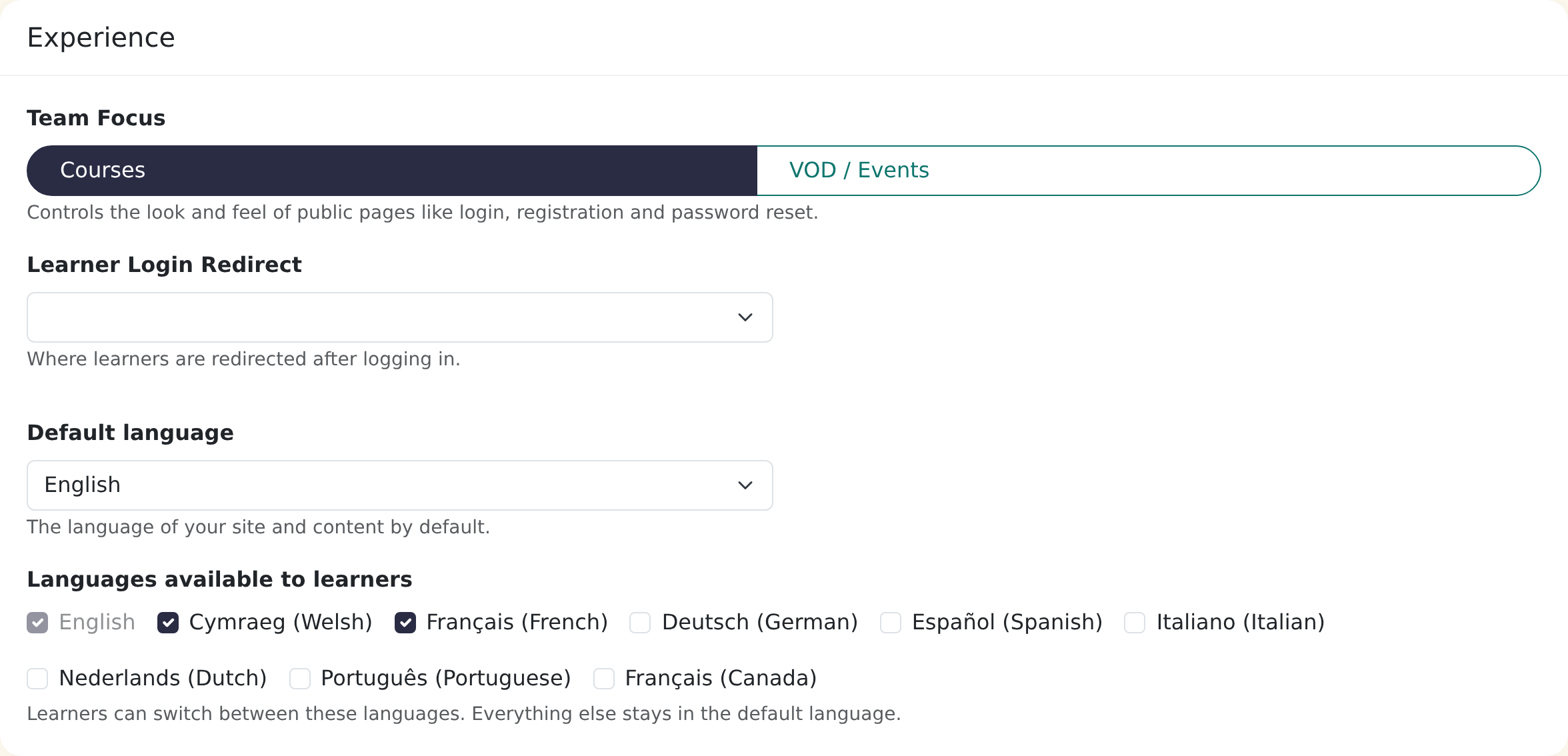
Once you have ticked at least one extra language, learners get a language switcher. Everything that isn't translated stays in your default language.
If you change your default language later, contact support first so your existing topic names, links and other text move across correctly.
How Continuum chooses a learner's language
Learners don't have to do anything. Continuum picks the language in this order:
- The language they chose using the switcher.
- The language saved on their account. When a signed-in learner uses the switcher, Continuum remembers the choice on their account for next time.
- Your default language.
A language is only used if you have ticked it under Languages available to learners.
What learners see
Learners see a language button with a translate icon in the site header, on the login page and on the watch pages. Clicking it opens a list of the languages you have turned on, each written in its own language.
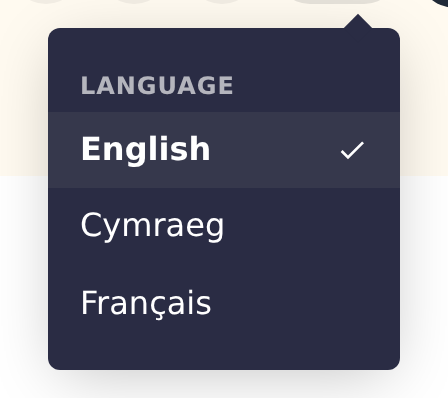
Switching language reloads the page. The buttons, menus, messages and dates change straight away. Courses change too if they have been translated into that language (see below).
In the course catalogue, learners can filter courses by language. On a course page that is available in several languages, they see a row of language buttons. If a course hasn't been translated into their language, they see a short note that it is shown in the original language.
Translate a course
Each course is written in one language, and you can add translations of it. Learners keep the same enrolment, progress, quiz results and certificates whichever language they use.
Open the course, click Settings, then the Languages tab (it appears once your team has an extra language turned on). Switch on a language, then click Translate missing & stale to translate with AI. You can then read and correct the text side by side in Edit translations.
For the full walkthrough, including what is and isn't translated, the status labels, what happens when you change the original and what learners see, read How to translate a course.
Translate the text you write yourself
Some text isn't part of a course. Wherever you can translate it, you'll see extra boxes labelled with each language you've turned on. If you leave a box empty, learners see your default-language text.
| What | Where |
|---|---|
| Course topic names | Create > Courses. Use New Topic, or Rename on an existing topic. Type a name for each language, or click Translate with AI. |
| Header link names | Manage > Settings > Header, under Navigation Links. Each link has a Label for every language. |
| Sign-up and profile fields | Manage > Settings > User Fields. Open a field, choose a language and fill in its name and description, or click Translate with AI. |
| Certificate wording | Manage > Settings > Certificates. Open a template and choose a language, then click Translate with AI or type your own. |
| Programme certificate titles | Create > Programmes, on the programme's page: Certificate title for each language. |
| Presenter titles and bios | Manage > People > Presenters, in the Translations section. |
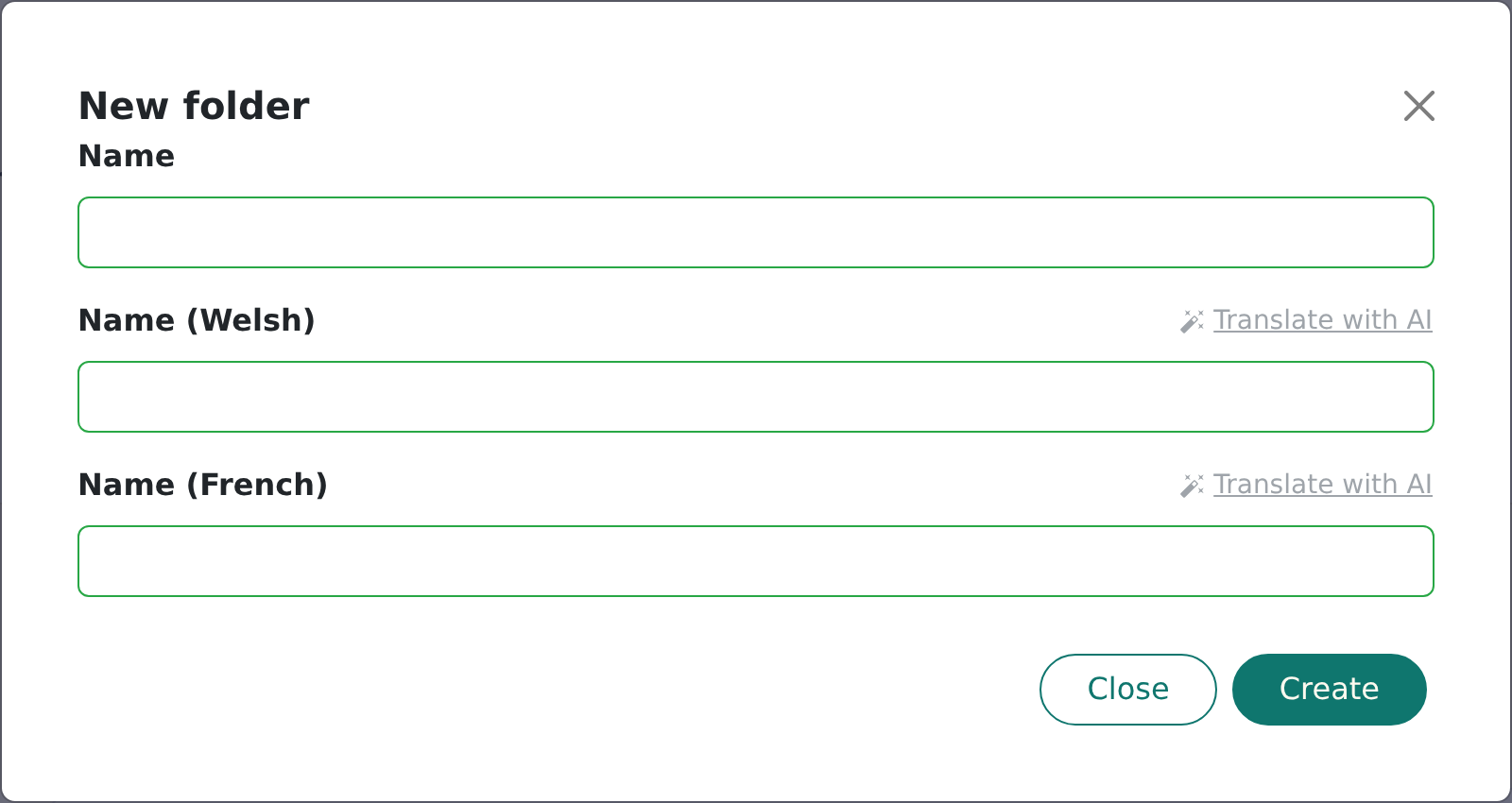
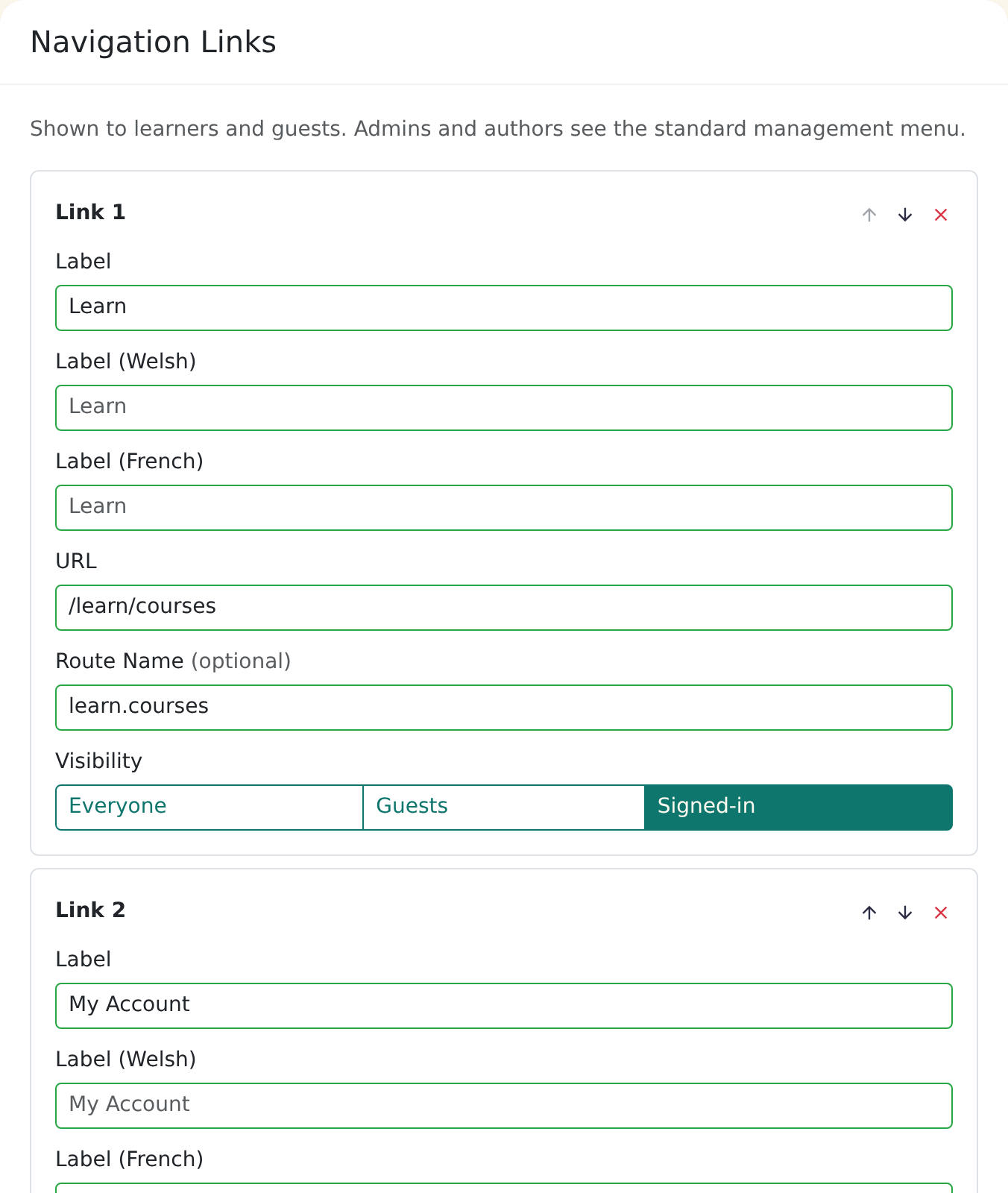
Always read an AI suggestion before you save it. It's a first draft.
What stays in English
The admin screens stay in English: Create, Manage, the presenter area and super-admin pages. Your own course names and descriptions in those screens are shown as you wrote them. Only learner-facing pages are translated.
Emails
Emails that Continuum sends, such as enrolment confirmations, password resets and certificate notices, are sent in the learner's language when it is turned on for your team.
Known limit: emails you design yourself in the email editor are written in one language. Learners get your wording whichever language they use.
Notes on Welsh and Canadian French
- Welsh translations follow standard, formal Welsh for public-sector training. Ask a Welsh speaker to check important courses before you publish.
- French (Canada) uses Québec wording. For example, it says ouvrir une session to log in and courriel for email, rather than the France French terms. Choose French for France and French (Canada) for Canada. You can offer both.
Frequently asked questions
Why don't my learners see a language switcher?
You need at least one language ticked besides the default under Manage > Settings > General, in Languages available to learners. Teams with one language show no switcher.
I turned on Welsh, but my course is still in English. Why?
Turning a language on translates Continuum's own buttons and messages. Your course content needs translating separately. See How to translate a course.
I edited a lesson and now it says stale. What should I do?
The translation is out of date because the original changed. See When you change the original.
Can I fix a translation I don't like?
Yes. Click Edit translations, change the text and click Save Changes. Your corrections are kept when you next click Translate missing & stale. Only Retranslate all overwrites them.
Can a learner change language in the middle of a course?
Yes. Their progress, enrolment and results are the same in every language. They just see the course in the new language.
Does translating a course cost extra?
AI translation uses your team's AI allowance. Depending on your plan there may be a monthly limit, and Continuum shows an error if you reach it. Contact support if you need it raised.