
Still deciding? See what Built-in Surveys in Continuum Learn can do for your organisation.
Surveys let you ask learners questions and see the answers in one place. You build a survey once under Create > Surveys and then use it wherever you need it:
- inside a lesson, using the Survey block in the course builder;
- when a learner finishes a course, as the course's completion feedback;
- on its own, through a direct link you can share.
Every response, wherever it came from, lands in the same results page.
Who can do this: team admins and authors build surveys. Admins see results under Create and in Manage reporting. Presenters see results for their own courses in the presenter area.
Create a survey
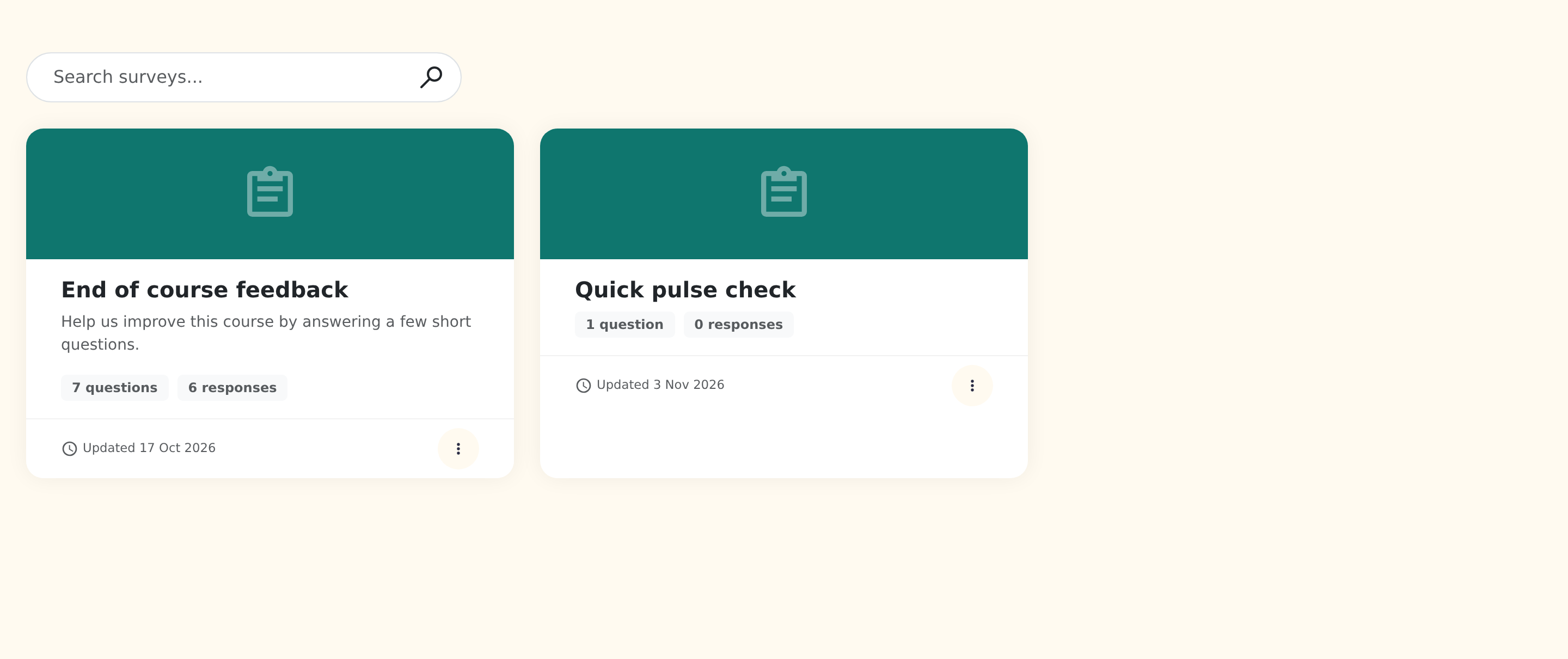
- Go to Create > Surveys and click New survey.
- On the Details tab, give it a Title and an optional Description. Learners see both before they start.
- Leave Active switched on. An inactive survey can't be answered anywhere.
- Click Save Changes.
Add questions
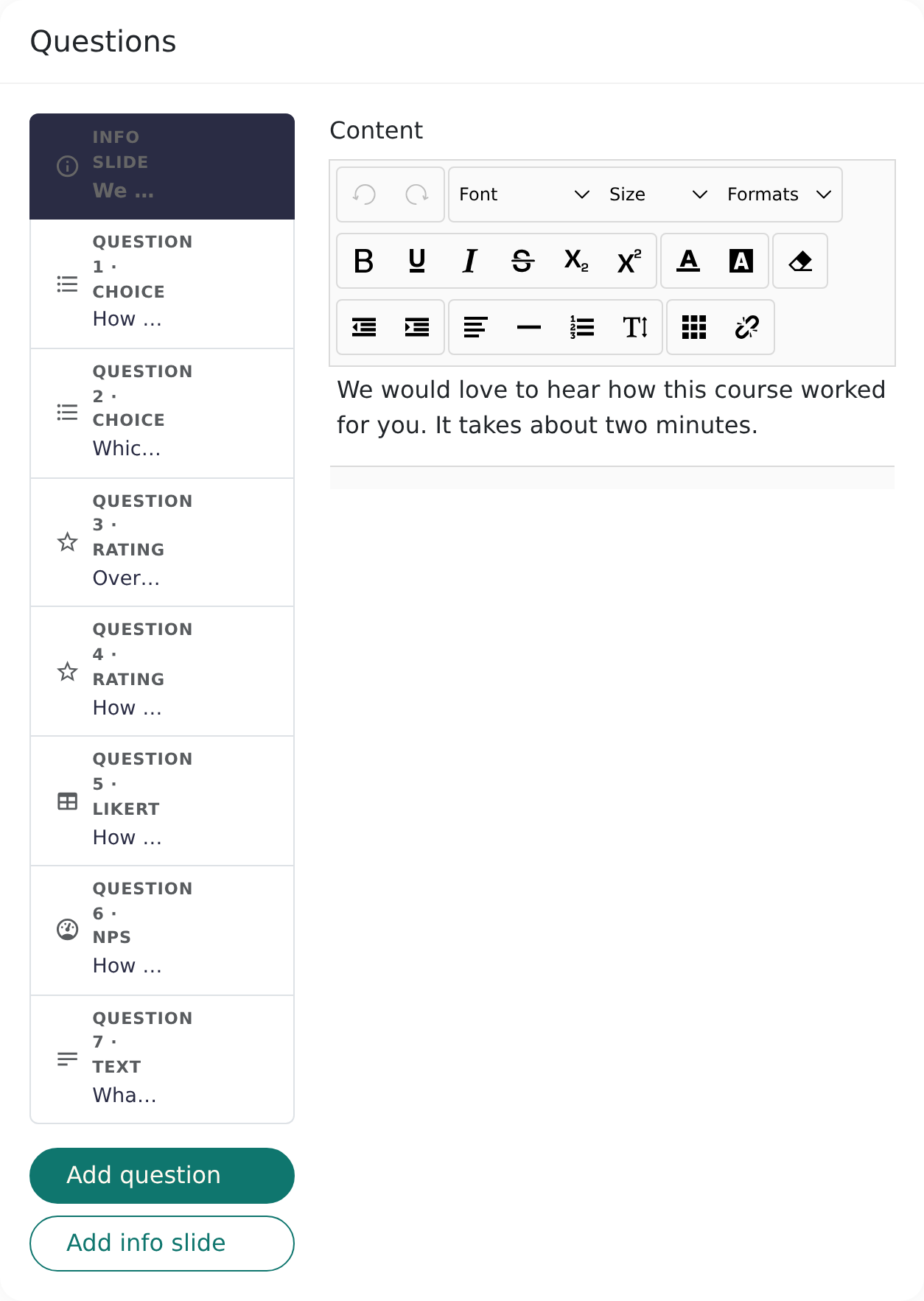
Open the Questions tab. The list of questions is on the left, and the selected question's settings are on the right.
- Click Add question, choose its Kind and type the question.
- Tick Required if learners must answer it before moving on.
- Click Add info slide to add a page of text between questions, for example an introduction or a section heading.
- Use the arrows to reorder questions.
Question types
| Kind | Use it for | Options |
|---|---|---|
| Choice | Picking from a list | Your answer options; Allow multiple answers |
| Text | Free-text comments | Multi-line, Placeholder, Max length |
| Rating | "How would you rate…" | Scale of 5 or 10; Stars or Numbers; min and max labels |
| Likert | Agree/disagree statements in a grid | Your Statements; a 3, 5 or 7-point Labels set |
| NPS | "How likely are you to recommend…" (0–10) | Min and max labels |
Click Preview at any time to try the survey exactly as a learner will see it.
Settings
On the Settings tab:
- Allow re-submission: learners can answer again, and their new answers replace the old ones. Leave it off for one-time feedback.
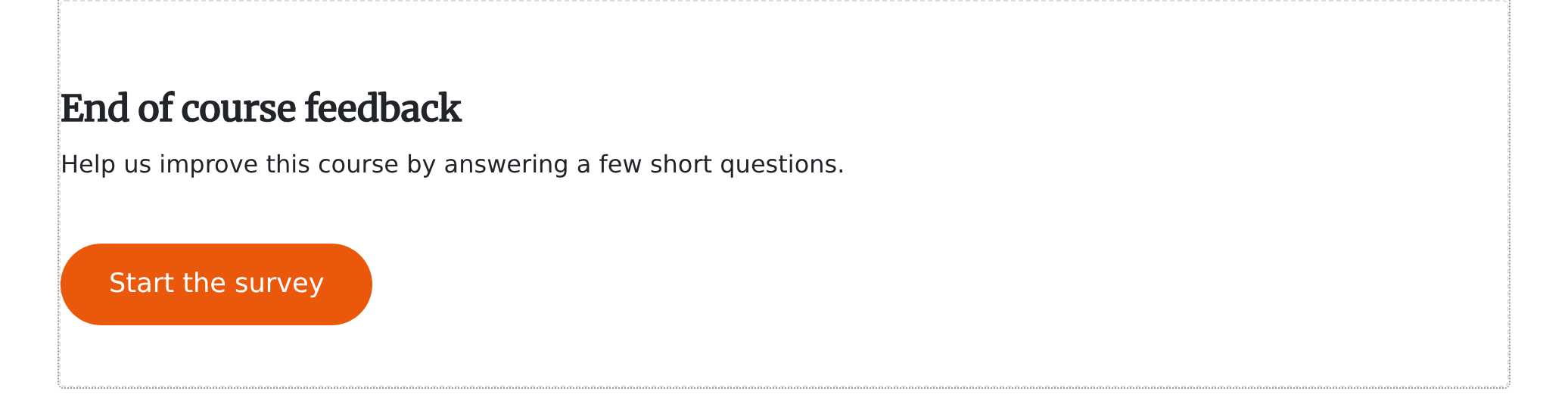
- Start button text, Thank-you title and Thank-you message: change the wording learners see before and after the survey.
Put a survey inside a lesson
- Open the course in the builder and go to the lesson.
- Add the Survey block (in the Knowledge category).
- In the block's settings, choose the Survey from the list.
- Decide whether it's Required to complete this lesson. When this is on (the default), the lesson doesn't count as complete until the learner submits the survey.
- Optionally change the Button text and colours.
The same survey can sit in as many lessons and courses as you like. Results show which course each response came from.
Ask for feedback when a course is finished
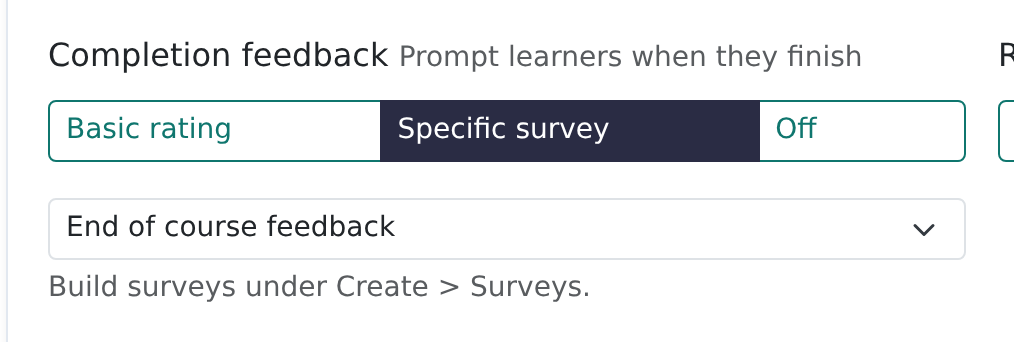
Every course can prompt learners for feedback the moment they complete it. Open the course, click Settings, go to the Access tab and find Completion feedback:
- Basic rating (the default for every course): a 5-star rating plus an optional comment box.
- Specific survey: show one of your surveys instead. Choose it from the list.
- Off: no prompt.
The prompt appears once, straight after the learner finishes the final lesson. If they choose Later, a Give feedback button stays on the course page so they can come back to it. It never appears while you're previewing a course as an admin.
If the chosen survey is later made inactive or deleted, the course falls back to the basic rating, so learners always see a working prompt.
Share a survey on its own
Once a survey is saved, the Where it's used panel on its page shows:
- Learner link: a direct link to the survey. Click Copy and send it in an email or post it in a lesson. Learners need to be signed in to your Continuum site to answer.
- The number of responses, with a link to the results.
- Completion survey for: every course that uses it as completion feedback.
Read the results
Click View results on the survey page, or Results from the survey's menu on the list page.
- Filter by source (All, Lessons, Completion or Standalone) and by course.
- Choice, rating, Likert and NPS questions are summarised as bar charts with totals. Text answers are listed in full.
- Click Download CSV to get every response, one row each, for analysis in Excel or Google Sheets.
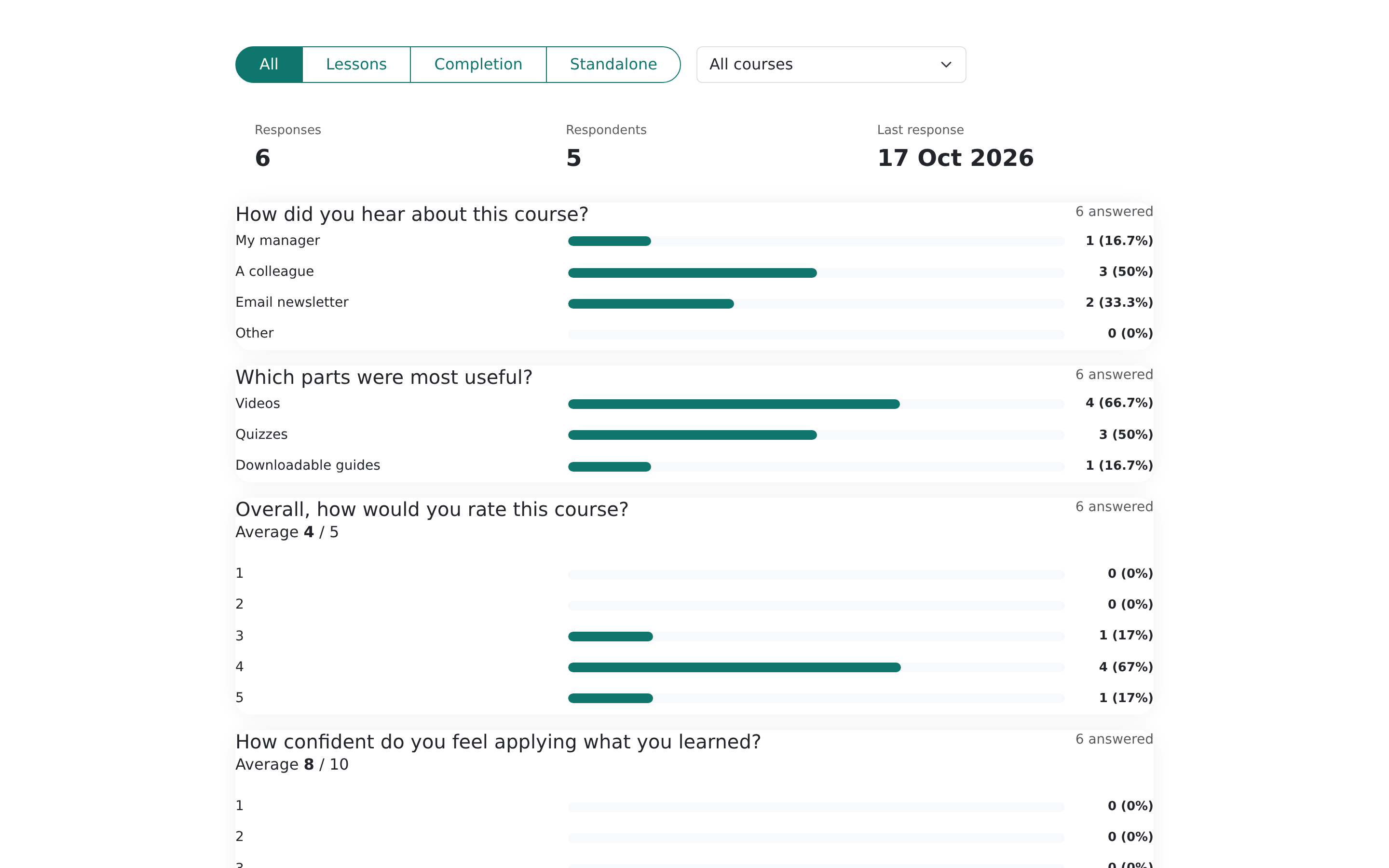
Results also appear per course under Manage > Reporting, in the course's results page. That view shows the Course rating from the basic feedback prompt alongside any survey responses for that course. Presenters see the same panel for their linked courses.
Frequently asked questions
Are responses anonymous?
No. Each response is linked to the learner who gave it, so you can follow up. Tell learners this in the survey description if it might affect their answers.
Can I edit a survey after people have answered?
Yes. Rewording a question is safe. If you remove a question or change its kind, earlier answers to it stay in the CSV but may no longer be summarised alongside new ones. For a big change, create a new survey instead.
What's the difference between the basic rating and a survey?
The basic rating is one 5-star question and a comment, set up automatically on every course. A survey is anything you build yourself. Both show up in course reporting.
Can a learner skip a survey in a lesson?
Only if you switch off Required to complete this lesson in the block settings, or leave individual questions not required.
Will surveys work in SCORM exports?
No. Answers are stored on your Continuum site, so in a SCORM export or an embedded course the Survey block shows a short note saying the survey is available in the online version of the course. For SCORM courses running in another LMS, use that LMS's own feedback tools, or send learners the survey's Learner link.