
You write a course once, in one language. Continuum then lets you add translations of the same course, so a learner can read it in Welsh, French or another language you offer. Everyone keeps the same enrolment, progress, quiz results and certificate, whichever language they use. This guide walks through translating a course from start to finish.
Who can do this: admins and authors who can edit the course. Turning languages on for the whole team is an admin job, and is covered in the languages guide.
Before you start
- Languages must be switched on for your team. If the Languages tab doesn't appear in the course settings, your team only has one language. An admin turns more on under Manage > Settings > General. See How to offer your training in several languages.
- Check the course's own language. Open the course, click Settings, and look at Language on the Details tab. This is the language you wrote the course in, and the one all translations are made from. Once you add a translation you can't change it until you remove every translation.
- AI translation uses your AI allowance. It comes out of the same monthly allowance as the AI course creator. See Your team's AI allowance.
Add a language and translate with AI
- Open the course, click Settings, then open the Languages tab.
- Switch on Available in the language you want, for example Available in Cymraeg.
- Click Translate missing & stale.
- A banner shows progress ("Translating…" with a count). Translation runs in the background, so you can leave the page. Come back and the tab updates.
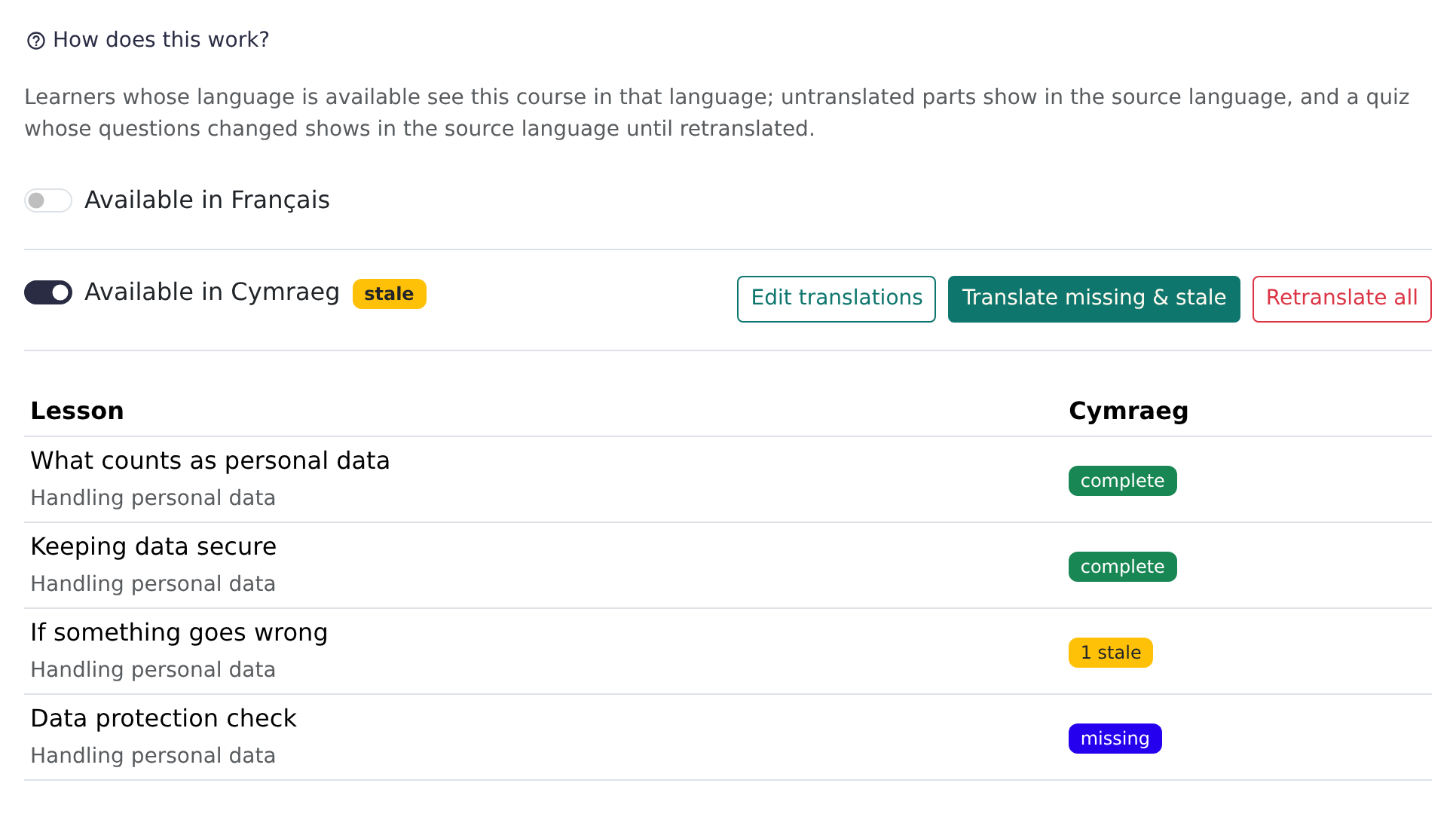
Under the language you will see one row per lesson. Each lesson shows one of these:
| Status | Meaning |
|---|---|
| missing | Nothing translated yet. Learners see the original. |
| partial | Some text is translated and some isn't. |
| stale | The original changed after it was translated. |
| complete | Everything is translated. |
The cell can also give counts, such as "1 stale", "2 missing" or "1 failed", so you can see how much is left.
What gets translated
- The course title and description, and each module and lesson title and description.
- The text in lesson blocks: paragraphs and rich text, notes, accordions, lists, flashcards, tables, image captions and alt text, carousel and narrative images, labelled images, video titles, file descriptions, flowchart captions, Zoom meeting text and the labels on buttons.
- Quizzes and choice questions: the questions and every answer.
- If the course has a micro-credential, its description, criteria and outcomes.
What isn't translated
- Text that is part of an image, and the audio or speech in a video.
- Uploaded files themselves (only their titles and descriptions are).
- Surveys, live events and the question bank.
- Anything Continuum doesn't list above. It stays in the original language.
Links, images, correct-answer settings and layout never change. Only the words do.
The buttons
| Button | What it does |
|---|---|
| Edit translations | Opens the translation editor. |
| Translate missing & stale | Translates only what is missing or out of date. Your own corrections are kept. |
| Retry failed | Appears when some pieces failed. Tries them again. |
| Retranslate all | Translates everything again, overwriting your corrections. Continuum asks you to confirm. |
Check and correct the translation
Always read an AI translation before learners rely on it.
- On the Languages tab, click Edit translations.
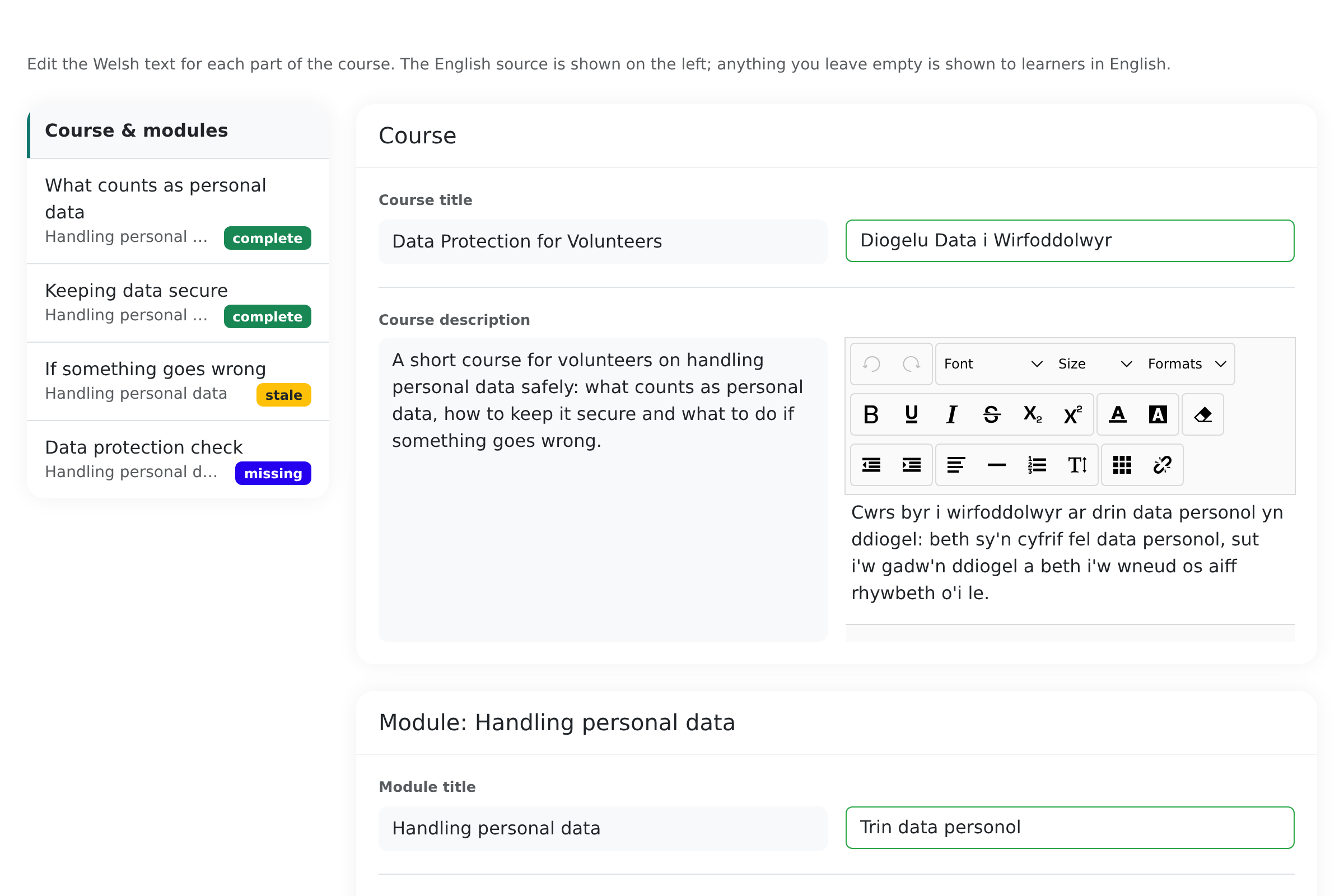
- On the left, choose Course & modules or a lesson. Each lesson has its status.
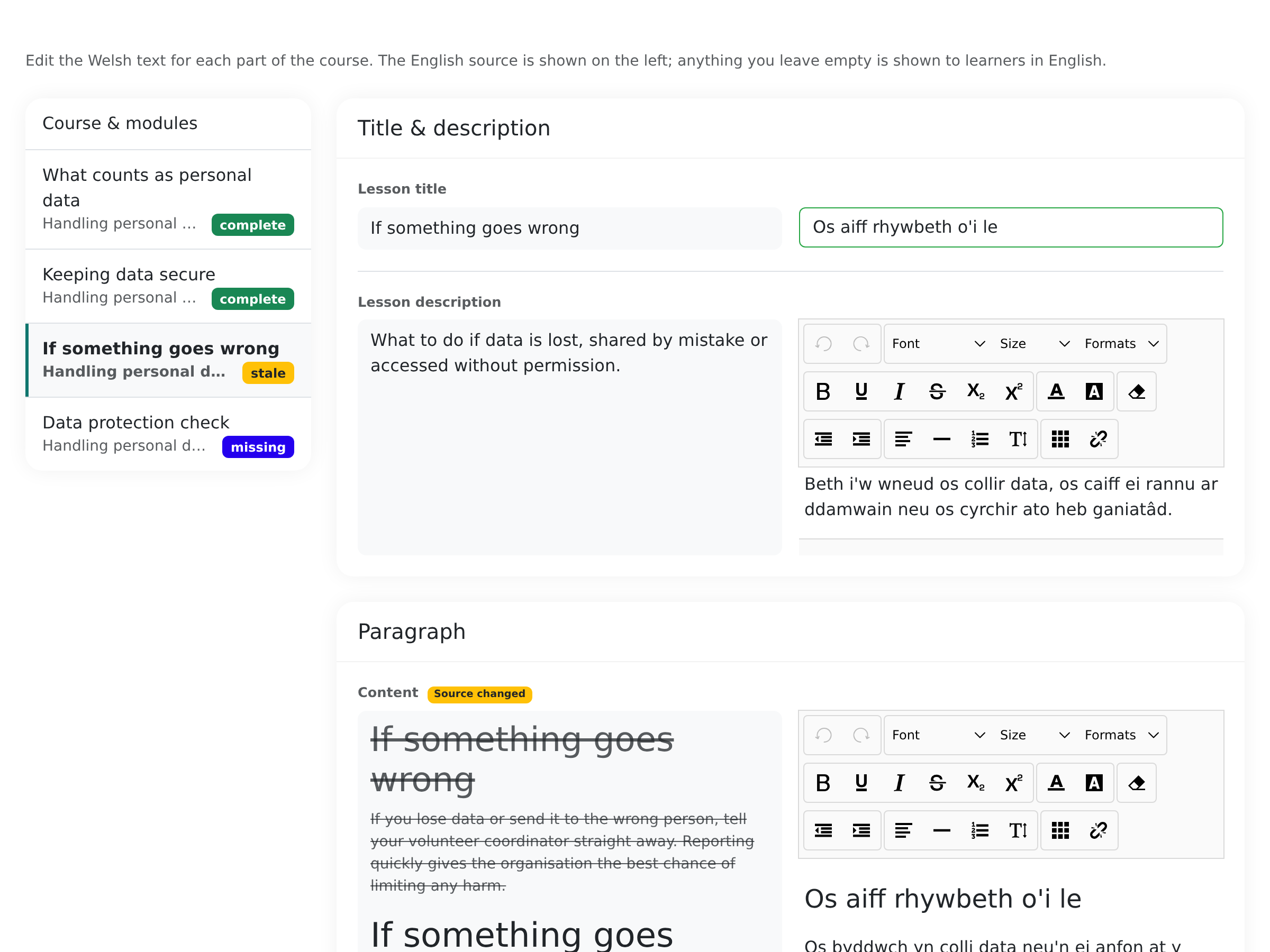
- The original text is on the left and the translation on the right. Edit any box.
- Click Save Changes.
Course & modules holds the course title and description and each module's title and description.
A few things to know:
- Anything you leave empty is shown to learners in the original language.
- If someone else changed the lesson while you were editing, Continuum tells you and keeps your unsaved edits in the form.
- Keep links and formatting in rich text as they are. Continuum refuses an edit that adds, removes or changes links or other formatting elements, and shows a message beside that box.
- A quiz is shown in the translation only when every question and answer is translated. Until then, learners see the quiz in the original language, and the editor says "Served in source until every string is translated". This stops a half-translated quiz marking the wrong answer correct.
When you change the original
Edit the original course as normal. Continuum keeps the existing translations and works out what moved:
- Text you edited is marked stale. In the editor it shows a Source changed marker, with the old original text struck through above the new one. Learners keep seeing the old translation until you update it.
- Text where the links or formatting changed is marked Markup changed — retranslate. Learners see the original for that text until you retranslate or fix it by hand.
- Text you added is missing.
- If you move, delete or reorder lessons, accordion items or list items, translations follow the items they belong to.
To bring everything up to date, click Translate missing & stale. It translates only the changed and new text. Or open the editor and fix them by hand.
Publishing and what learners see
There is no separate publish step for translations. As soon as a language is switched on for a course, a learner who has chosen that language sees the translated parts. Text that isn't translated yet appears in the course's own language. Whether the course itself is published, who can see it and who is enrolled doesn't change.
Learners see:
- A language button in the header. Learners choose their language there. See what learners see.
- "Available in" buttons on the course page, listing the course's own language and each translation, when the course has translations.
- A short note, "Shown in" the original language, when the course isn't translated into their language.
- A language filter in the course catalogue. With two languages it is a button group (All plus each language); with more it is a list (All languages). Learners whose language matches some courses see that language pre-selected. A course counts for a language if it is written in it or has a translation.
- Titles and descriptions in their language on course cards, the dashboard and course pages.
- Translated course search. Searching a course looks through the learner's language.
A learner's quiz attempts record which language they used. Certificates, progress and results are the same in every language.
Certificates and emails
- Certificates are issued in the learner's language. The course title on a course certificate uses the translated title. The wording comes from the certificate template's translations. See Certificates.
- Emails that Continuum sends are written in the learner's language. The course name inside an email is shown as you originally wrote it.
Other text to translate for a fully translated course
Some text lives outside the course, so the course translation doesn't cover it. Each place has its own language boxes once your team has more than one language.
| What | Where |
|---|---|
| Presenter titles and bios | Manage > People > Presenters. See Presenters. |
| Topic (folder) names | Create > Courses, in New Topic or Rename. |
| Certificate wording and signatory titles | Manage > Settings > Certificates. See Certificates. |
| Programme certificate title | Create > Programmes. See Programmes. |
| Header and footer link names | Manage > Settings > Header and the footer settings. |
SCORM and publications
- SCORM export includes translations. When the course has translations, the export window shows a Language list, and one package contains one language. Export a package per language. See SCORM and embedding.
- Publications (courses shown on your own website) keep a copy for each language. After you change a translation the language shows a publication outdated marker until the new copy has been built, which happens automatically a few minutes later. Contact support if it stays outdated.
Frequently asked questions
How good is the AI translation?
It is a good first draft, not a finished product. It keeps your formatting and links, but it can pick the wrong term or tone. Read each lesson in the editor, and ask a fluent speaker to check anything important, such as compliance or safety content.
Does it cost anything?
It uses your team's AI allowance for the billing period. If the allowance has run out, Continuum says "Your AI budget for this billing period has been used" and nothing is lost. See Your team's AI allowance. Typing and editing translations by hand costs nothing.
Are there notes for Welsh and Canadian French?
Yes, Continuum gives the AI instructions for these. Welsh follows formal, public-sector Welsh and applies the usual mutations. French (Canada) follows Québec usage, for example ouvrir une session for log in and courriel for email, rather than France French. Choose French for France and French (Canada) for Canada. Always have a speaker check Welsh and Canadian French.
Can I translate images or videos?
No. Text inside an image and speech in a video stay as they are. Upload a version in the right language instead, or add a captioned or translated alternative in the lesson.
A very long block failed to translate. What now?
A single block of text over 20,000 characters is skipped, and the editor shows that it was too long. Split the block into smaller ones, or type the translation yourself. Use Retry failed for other failures.
How do I remove a language?
On the Languages tab, switch off Available in for that language and confirm. The translated text is deleted and learners see the original. You can switch it on again later, but you will need to translate again.
Can I change the course's language?
Only when it has no translations. Remove them all first, then change Language on the Details tab.
Do copies of a course keep the translations?
Copying a course keeps its translations. A course created from one of Continuum's own templates starts with none.