
In short
In Continuum Learn, the AI tutor answers learners' questions from the text of the course they are taking. A team admin allows it, authors switch it on course by course, and admins can read the conversations under Manage > Reporting.
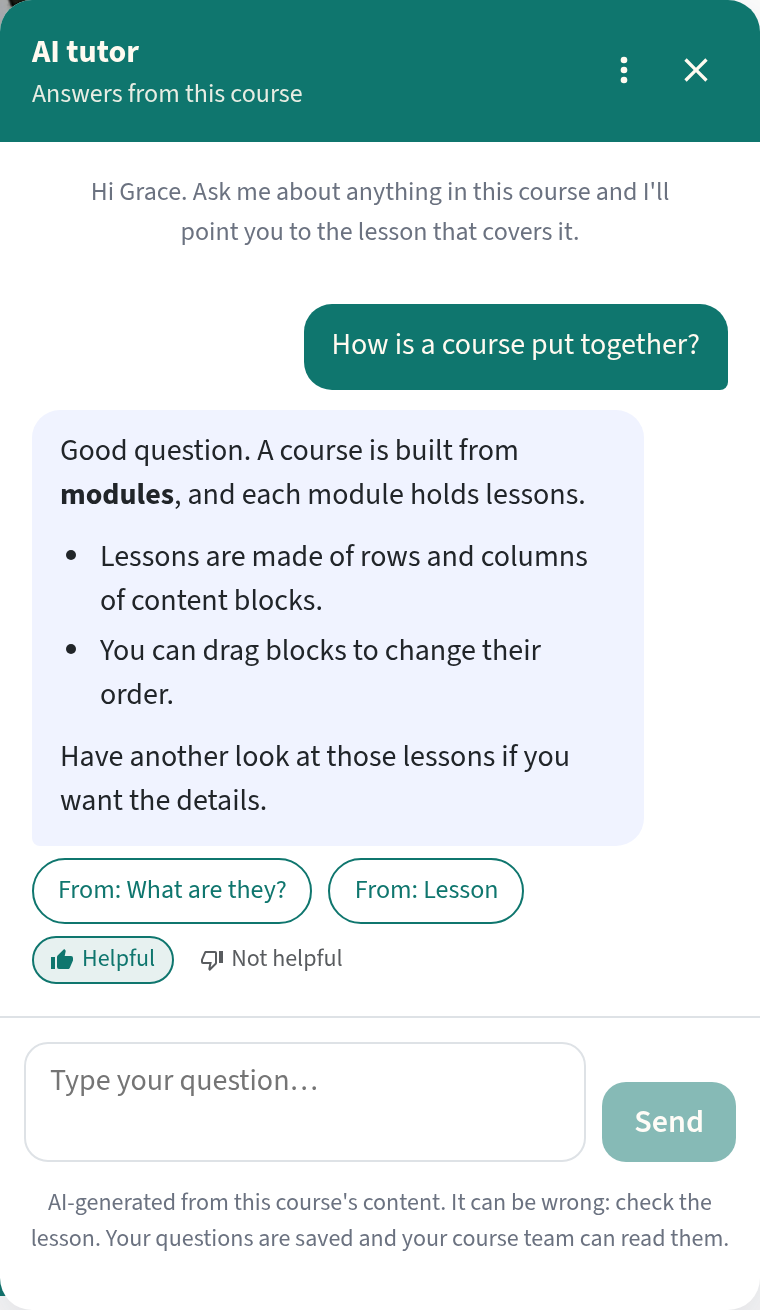
The AI tutor is a chat panel on the course and lesson pages. A learner types a question in their own words and gets a short answer written only from the text of that course, with a link to each lesson the answer came from. When the course doesn't cover the question, the tutor says so and, if the course has a discussion board, offers to take the question there.
Who can do this: a team admin allows the tutor for the team. Authors then switch it on for each course. Team admins read the conversations.
What the tutor reads, and what it doesn't
The tutor answers from lesson text: text blocks, lists, tables, accordions, notes, flashcards, cards, image narratives and labelled images. It also sees the titles of videos, files and buttons, but nothing inside them.
It does not read:
- Quizzes, choice questions, question banks or surveys. These are never sent to the tutor, so it has no answer key.
- What is said in a video, or the contents of uploaded PDFs and other files.
- Lessons the learner can't open yet. On a course with sequential progression or drip release, the tutor only knows the lessons that are open to that learner right now. It can say that a later lesson covers a topic, but not what that lesson says.
- Lessons you leave out (see below).
A course that is mostly video gives the tutor very little to work with. You can only switch the tutor on once a course has enough lesson text.
Allow the tutor for your team
- Go to Settings > Learning features.
- In the AI tutor card, switch on Allow the AI tutor on courses.
Nothing changes for learners yet: authors still have to turn it on for each course. The card also shows how much of this billing period's tutor allowance has been used.

Turning the switch off hides the tutor on every course straight away. Each course keeps its own setting, so turning it back on restores the tutor where it was on before.
Switch it on for a course
- Open the course in the editor and click Settings.
- On the Learner tools tab, switch on AI tutor (just under Discussion board).
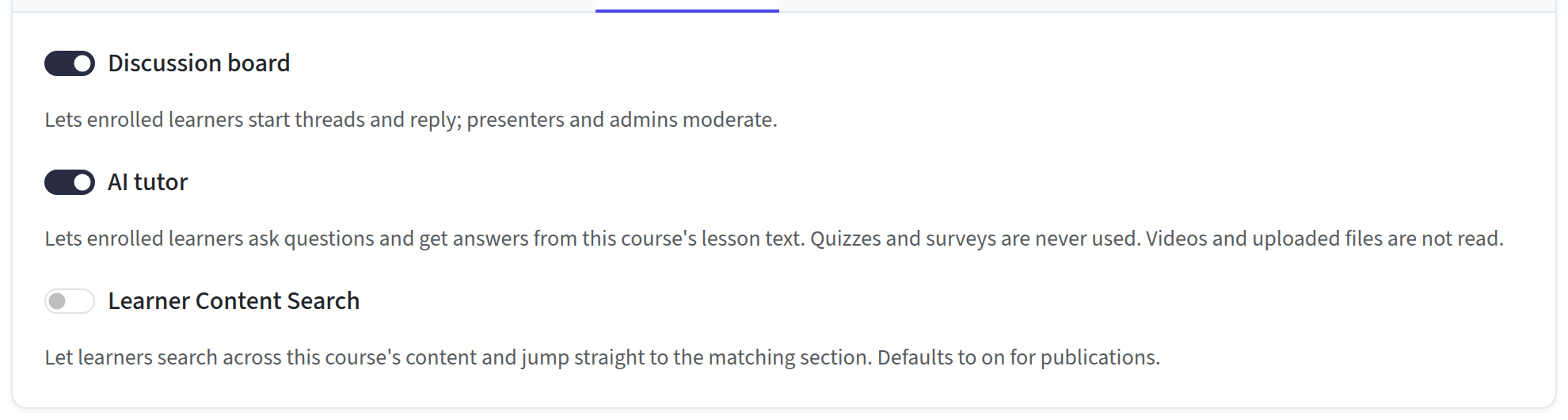
Learners who are enrolled on the course now see an Ask the AI tutor button on the course page and on every lesson. The switch isn't available for publications or SCORM-package courses, because those are not taken on your Continuum site.
If the switch is greyed out, the note under it says why: either the team hasn't allowed the tutor yet, or the course doesn't have enough lesson text.
Leave a lesson out
Some lessons hold model answers, answer sheets or self-tests. To keep one away from the tutor:
- In the course editor, open the lesson's ⋮ menu and click Settings.
- Tick Leave this lesson out of the AI tutor and click Edit lesson to save.
The tick box only appears once the tutor is on for the course.
The tutor will still know the lesson exists, and will point learners to it, but it won't see its text.
What learners see
- The tutor answers in the learner's language and keeps answers short.
- Under each answer, From: [lesson] links take the learner to the lessons it used, so they can check.
- Helpful and Not helpful buttons let them rate an answer.
- The ⋮ menu at the top of the panel has New conversation, which starts afresh, and Delete this conversation, which removes it after a confirmation.
- The conversation follows the learner from page to page, so they can open a lesson from a From: link and carry on asking.
- A note under the input reminds them that answers are AI-generated and can be wrong, and that their questions are saved and the course team can read them.
- When a question isn't covered, the tutor says so plainly. If the course has a discussion board, an Ask in the discussion button opens a new thread so a person can answer.
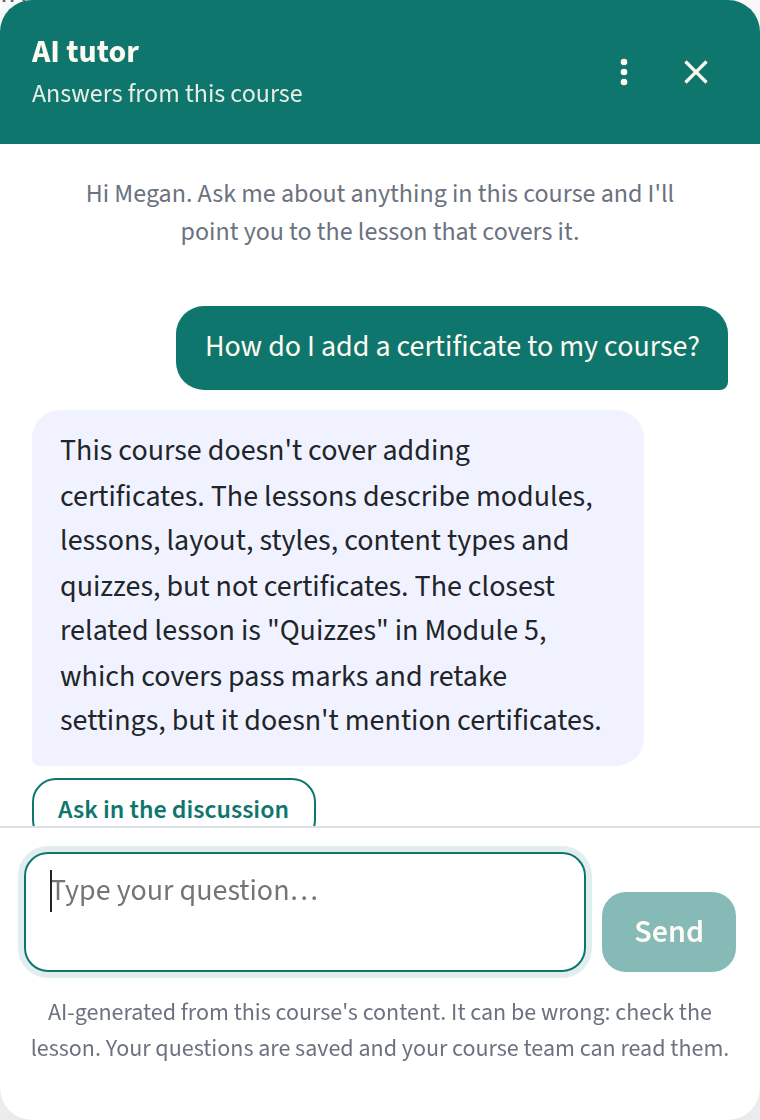
On a phone the panel opens full screen. Learners who have chosen another language get the panel, and the answers, in that language.
Only enrolled learners who are signed in can use it. Admins, authors and presenters can try it on any course they can open; their conversations are marked as previews.
Quizzes and assessments
The tutor is told never to answer, check or hint at the answer to a quiz or test question. When a learner pastes in a question from the course's own quizzes or question banks, the tutor doesn't send it to the AI at all: it says it can't answer assessment questions and links to the lesson that covers the topic.
A question pasted with its answer options (A to D, "true or false", or "is it X, Y or Z?") is also refused, even when it isn't word for word.
This reduces cheating; it can't prevent it:
- A learner can reword a question, or ask it in another language, and the tutor won't always recognise it.
- Very short questions (fewer than four words of four letters or more, such as "How many PCNs are there?") aren't matched against your quizzes, so that ordinary questions on the same topic aren't refused. Asked plainly, without answer options, such a question is answered like any other question about the course, if the lesson text says.
- Anything you wrote in ordinary lesson text (for example a worked answer under a quiz, or flashcards used as a self-test) is teaching text the tutor can use. Leave those lessons out if that matters for your course.
Read the conversations
Team admins can read learners' conversations under Manage > Reporting > AI tutor. Filter by course and date, tick Not covered only to see conversations where the tutor couldn't answer something, and click Apply filters. Conversations staff had while previewing are hidden unless you tick Include staff previews.
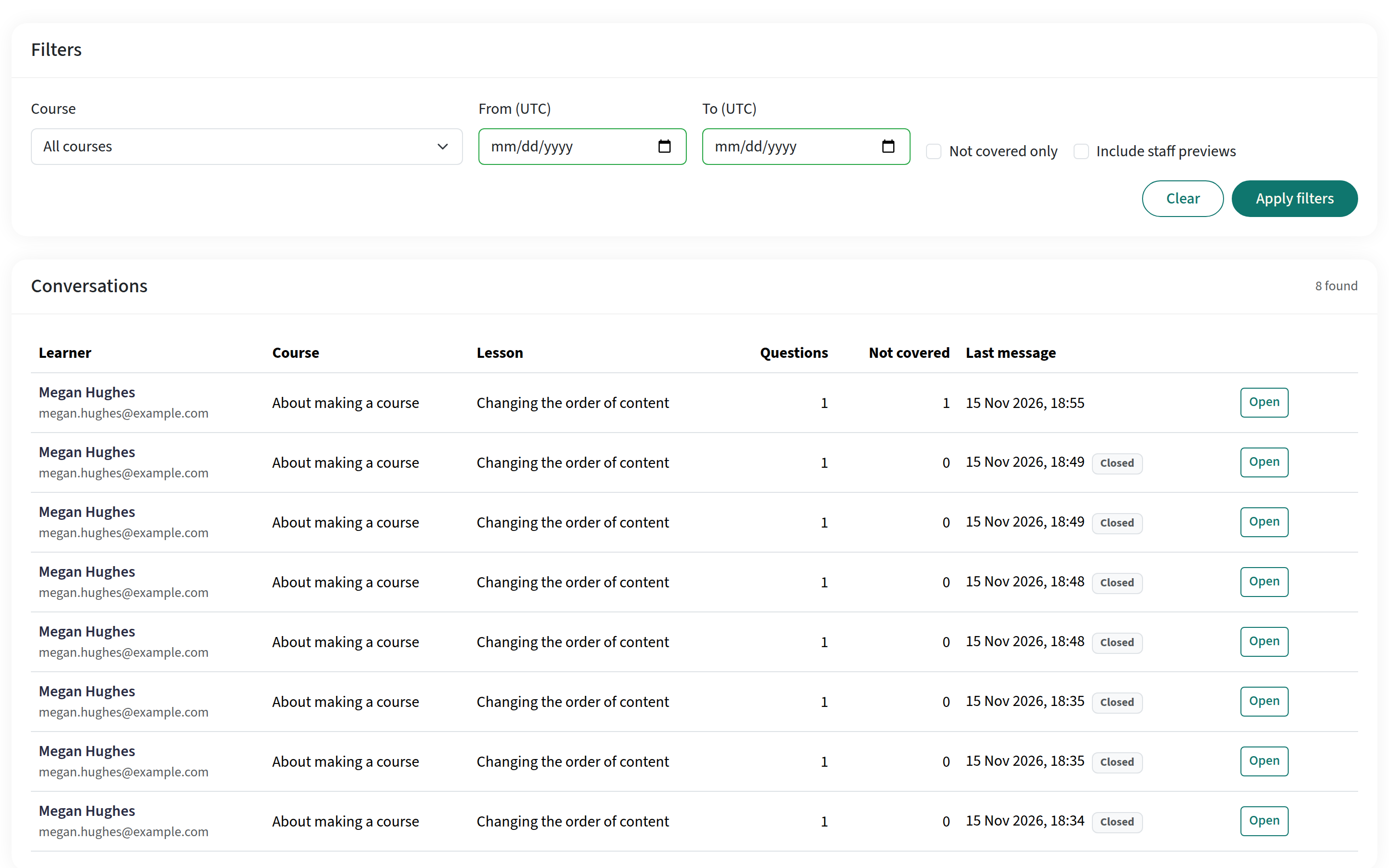
Click Open on a row to read the conversation: each question, the answer, a label for how it went (Answered, Not covered, Off topic, Assessment), the lessons it cited and the learner's rating. The header shows what the conversation cost from the tutor allowance.
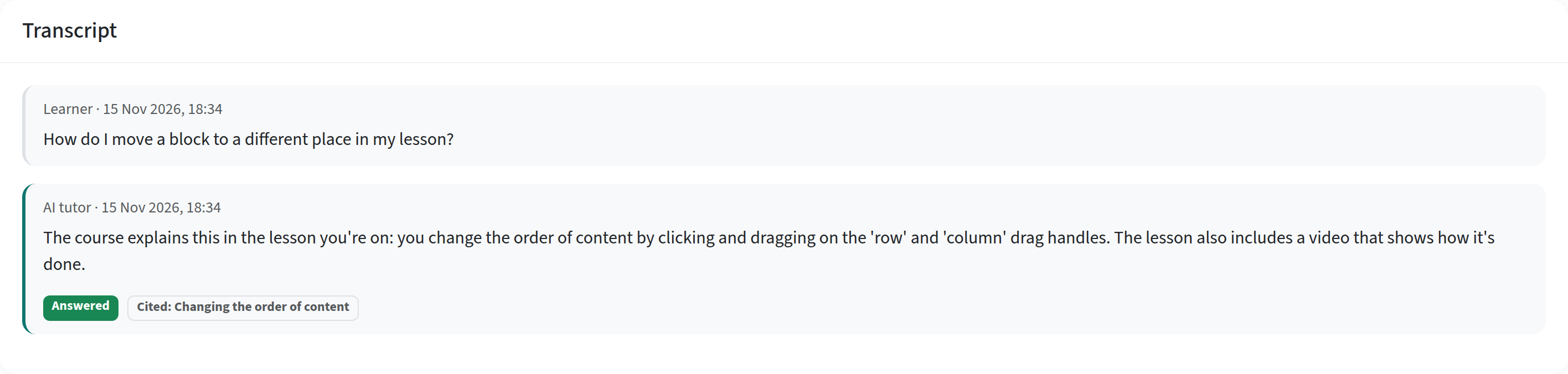
Questions the tutor marked as Not covered are a good guide to what's missing from a course.
Limits and cost
- The tutor's use is paid from a separate monthly AI tutor allowance, so learners asking questions can never use up the AI budget your authors use to build courses. When the allowance runs out, the tutor tells learners it will be back at the start of the next billing period.
- Each learner can ask a limited number of questions a minute and a day, and each conversation has a maximum length.
- Conversations are kept for a year, then deleted automatically. If you delete a course, its conversations are deleted 30 days later (you can still restore the course, with its conversations, before then). A learner can delete their own conversations, and erasing a user's account deletes theirs.
Frequently asked questions
Does the tutor use anything outside the course?
No. It is told to answer only from the course text, and to say so when the course doesn't cover a question. It won't give general advice, even on the same topic.
Can the tutor be wrong?
Yes. It is AI-generated and can misread or over-simplify the course. That is why every answer links to the lessons it used, and learners can rate answers. Read the conversations regularly while you try it out.
Who can see what learners ask?
Team admins, under Manage > Reporting > AI tutor, with the learner's name. Learners are told this in the panel. Questions and the course text are sent to our AI provider to produce answers.
Does it work in SCORM exports, publications or embedded courses?
No. The tutor needs a signed-in learner on your Continuum site, so it isn't included in SCORM packages, publications or website embeds.
Will it make my course quizzes pointless?
No answer key is ever sent to it, and it refuses to answer test questions. A determined learner can still reword a question or use another AI tool, so treat the tutor as a study aid, not as part of your assessment security.