
In short
In Continuum Learn, line managers get a My team page showing each report's courses, progress, quiz scores, certificates and required training status, with a button to send a reminder. It is read-only and shows no email addresses or answers.
My team is where a line manager follows the training of the people who report to them. You can see who is behind, open one person's results across all their courses, and nudge someone whose required training is due.
Who can do this: anyone who is set as the line manager of at least one person in the team. You don't need to be an admin. If you can't see My team, either nobody reports to you yet or line managers aren't switched on for your organisation. Ask your administrator.
Everything on My team is read-only. Admins change requirements, due dates and exemptions under Manage > Compliance (see recurring training).
Open My team
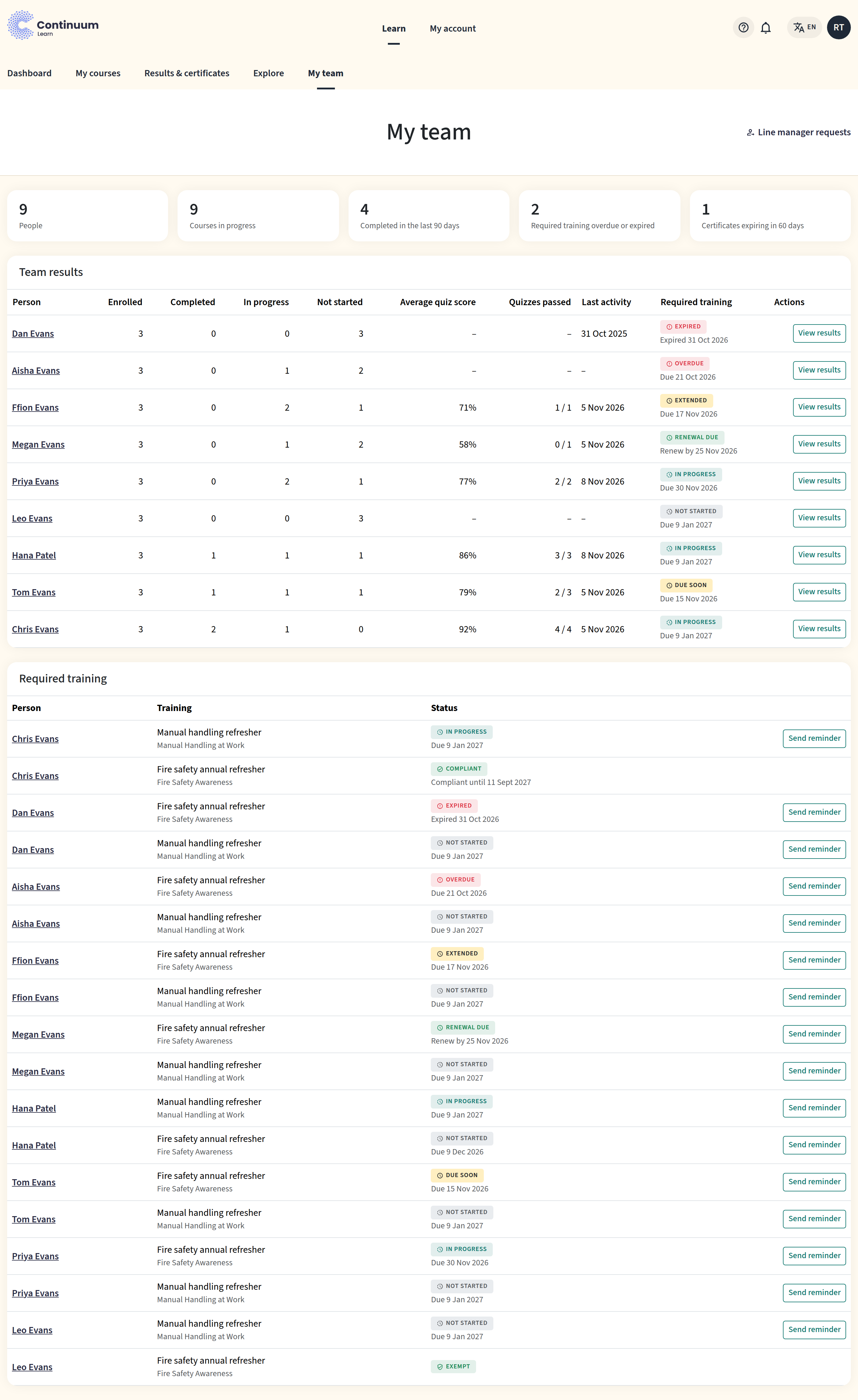
Sign in and click My team in the learner area menu, next to Explore. The page has three parts: summary tiles, the Team results table and the Required training table.
Summary tiles
| Tile | What it counts |
|---|---|
| People | How many people report to you. |
| Courses in progress | Courses your reports have started but not finished. |
| Completed in the last 90 days | Courses your reports finished in the last 90 days. |
| Required training overdue or expired | Required training that is past its due date or whose certification has run out. |
| Certificates expiring in 60 days | Your reports' certificates that run out in the next 60 days. |
Team results
One row per report. The people who need attention most come first: anyone with overdue or expired required training, then whoever has completed the smallest share of their courses. Click any column heading to sort by it, and click again to reverse the order.
| Column | What it shows |
|---|---|
| Person | Their name. Select it to open their results. |
| Enrolled, Completed, In progress, Not started | How many courses they have in each state. |
| Average quiz score | Across their quizzes, or a dash if they haven't taken one. |
| Quizzes passed | For example 3 / 4: quizzes passed out of quizzes taken. |
| Last activity | The last time they were learning. |
| Required training | Their required training status, if they have any. |
View results at the end of the row opens the same page as selecting their name.
Required training
This table lists each report's training requirements: the requirement's name, its course and the status with its date. The statuses are the ones learners see on their own dashboard: Not started, In progress, Due soon, Overdue, Renewal due, Compliant, Expired, Extended or Exempt.
If nobody who reports to you has required training, you'll see No required training to show instead.
Send a reminder
Click Send reminder next to a requirement to email that person. The email comes from Continuum in their own language and says that you asked them to complete the training.
- The button appears while the training still needs doing: not started, in progress, due soon, overdue, renewal due, extended or expired. It doesn't appear for someone who is compliant or exempt.
- You can send one reminder per person per requirement per day. A second click the same day shows You've already sent a reminder today.
You don't have to chase people by hand. Continuum already sends its own reminders before the due date and while the training is overdue.
Open one person's results
Select a name, or View results, to see that person's results. The page is titled with their name, and Back to My team returns you to the overview.
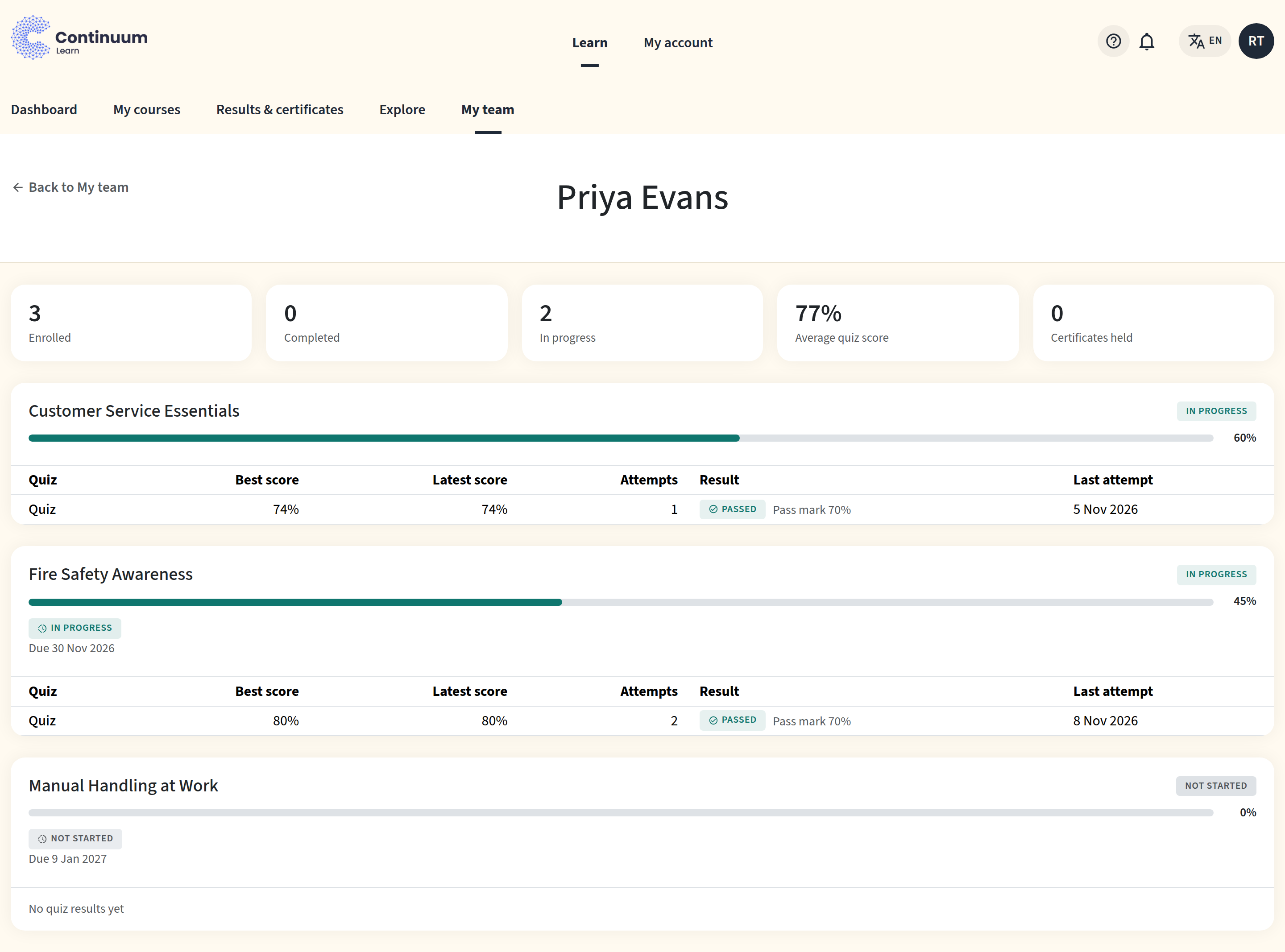
At the top are tiles for Enrolled, Completed, In progress, Average quiz score and Certificates held. Below is a card for every course they are enrolled on in this team, not only required ones. Each card shows:
- the course status and a progress bar with the percentage,
- the completion date and certificate number, once they have finished,
- Download certificate to download their certificate, with its expiry date or an Expired label,
- their required training status and earlier renewal cycles, if the course is required training,
- a table of quiz scores: Best score, Latest score, Attempts, Result (Passed or Not passed, with the pass mark) and Last attempt.
What you can't see
To protect people's privacy, My team doesn't show:
- survey answers, course feedback or ratings,
- the answers they gave in quizzes (only their scores),
- their email address or profile fields,
- courses or results in other teams.
If you need any of these, ask your administrator.
Emails you may receive
As someone's line manager you can get these emails:
| When | |
|---|---|
| Course completed | One of your reports completes a course. |
| Overdue training | A report's required training is overdue by the number of days your administrator chose. You get one email per renewal cycle, after their own first overdue reminder. |
How someone becomes your report
A person has at most one line manager in each team. There are three ways to set it.
An administrator sets it. In Manage > People, the admin opens the person's page and chooses their manager in the Line manager card. The manager and the person are both emailed to say so, and the person's email explains what the manager can see. The person can't change or remove a manager set this way. The card only appears while line managers are switched on for the platform.
The learner asks you.
- The learner opens My account, goes to the Notifications tab and enters your email address under Who will receive notifications about you?, then clicks Send Request.
- You open My account > Notifications yourself. Their request is listed under Who would you like to receive notifications about?
- Click Accept Request, or Reject Request to turn it down.
You invite them. Open My account > Notifications, find Invite someone who reports to you, type the person's exact email address and click Send invite. Continuum doesn't suggest names or search your team. The person is emailed, and sees your invitation on the same page with Accept and Decline. Nothing is shared until they accept, and then they appear on My team. For privacy, Continuum always shows the same confirmation, whether or not the address belongs to someone in the team, and it doesn't list the invitations you have sent. Administrators can switch this off for the team under Settings > Learning features.
Once you accept a learner's request, or they accept your invitation, they appear on My team. Either of you can end it later from the same page: the learner with Cancel Request, you with Stop notifications. A learner can't cancel a manager the administrator set.
If you don't have an account in the team yet, the learner's request sends you an invitation, as long as your email address is on one of your organisation's allowed domains. Accept the invitation and sign up, then accept the request from My account > Notifications.
Frequently asked questions
I invited someone and nothing happened. Why?
Continuum shows the same message whether or not the address is a member of this team, so you can't tell from the page. An invitation is only sent when the address belongs to someone in the team you are signed in to, they don't already report to you, and they don't have a manager set by an administrator. If it was sent, they need to accept it from My account > Notifications before they appear on My team.
Why can't I see My team?
My team only appears when line managers are switched on for your organisation and at least one person in the team has you as their line manager. Check with your administrator, or ask your report to send you a request from My account > Notifications.
Someone who reports to me is missing. Why?
Line manager links are per team. You only see people whose manager you are in the team you are signed in to. If they belong to another team as well, switch to it. If they have stopped reporting to you, the administrator or the learner may have removed the link.
Can I record a completion, extend a due date or exempt someone?
No. Those changes are made by an administrator in the learner drawer under Manage > Compliance. Ask them, and give them the reason.
Does my reminder replace the automatic ones?
No. Continuum keeps sending its scheduled reminders. Yours is an extra email that names you, so use it when a personal nudge will help.
Can I see what someone answered in a quiz or survey?
No. You see their quiz scores, how many attempts they made and whether they passed, but never their answers. Survey and feedback answers aren't shown to managers.
Can I download someone's certificate?
Yes. Click Download certificate on the course in their results. You can only download certificates of people who report to you.