
In short
In Continuum Learn, a learning path is a programme set to "In order", so each course opens once the required course before it is complete. Learners see every step, locked or not, and earn one certificate at the end.
A learning path is a programme whose courses open one at a time. A learner on the path starts with the first course. When they complete it, the next one opens, and so on to the end, where they earn the programme's certificate.
Use it for staged qualifications (Foundation, then Intermediate, then Advanced), an induction sequence, or a multi-course product you sell for one price.
Who can do this: team admins and authors set up learning paths under Create > Programmes. Selling one needs a bundle under Manage > Selling > Bundles (admins).
Turn a programme into a learning path
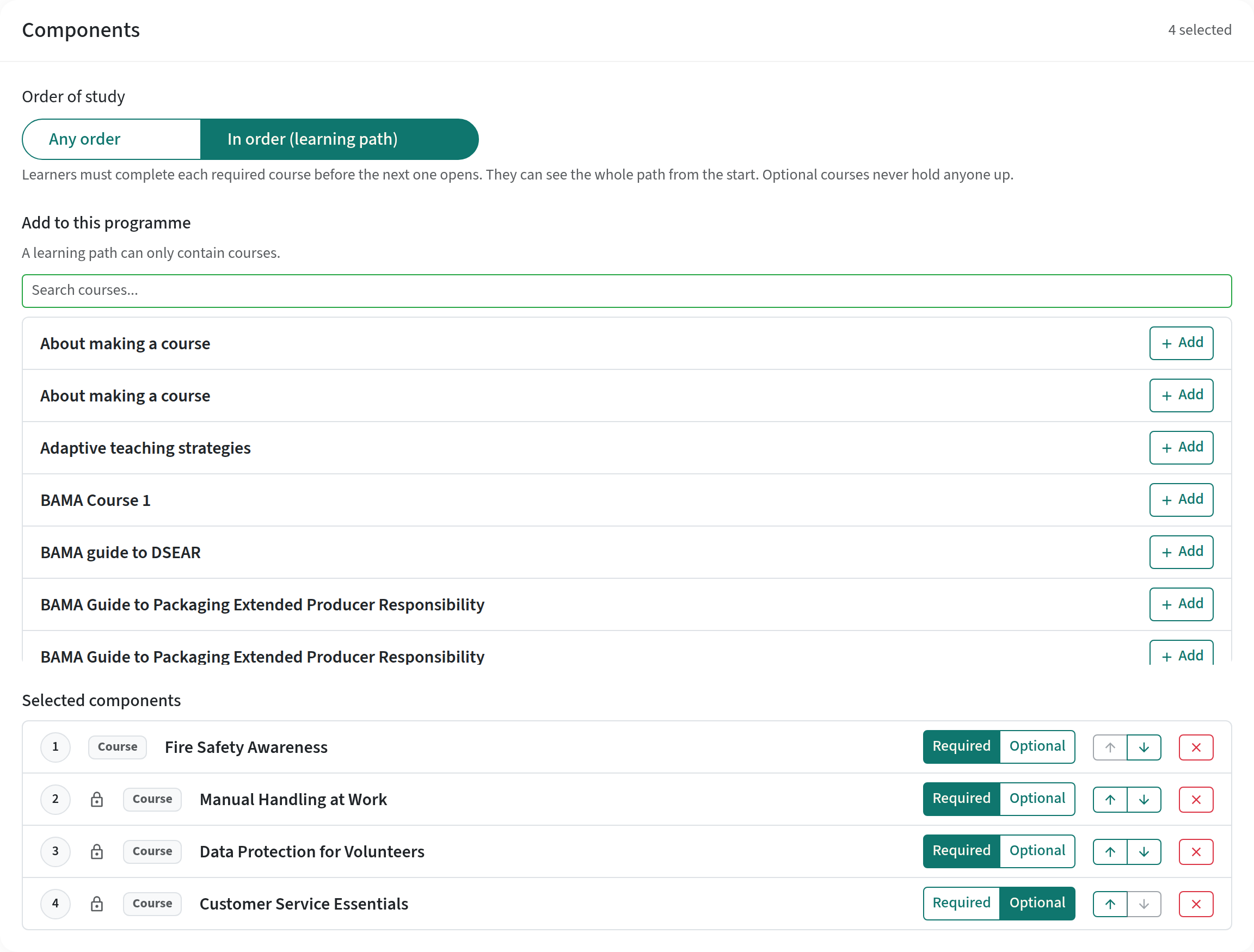
- Go to Create > Programmes, click New programme and choose Learning path, which sets Order of study to In order (learning path) for you. For an existing programme, open it and, in the Components card under Order of study, choose In order (learning path).
- Add your courses and use the arrows to set the order. The number beside each course is its step.
- Mark each course Required or Optional.
- Click Save Changes.
A learning path:
- contains courses only. It can't contain another programme, and it can't itself be part of another programme;
- uses explicit enrolment, so Continuum knows who is on the path. The Enrolment setting is fixed to Explicit while In order is chosen;
- still awards one certificate when the completion rule is met, exactly like any other programme.
The programme list shows a Learning path chip on these programmes.
Warnings in the editor
Each step can show a warning under its title:
- Anyone can open this course, so it cannot be locked: the course is open access.
- Learners who are not on the path can still enrol on this course from the catalogue: the course is free and listed in the catalogue. Learners on the path still see it locked, but anyone else can enrol.
- Path enrolment ignores the space limit: the course has a limited number of spaces, and the path enrols learners on it even when it is full.
When you save, Continuum also refuses an order that can't work, such as a step that needs a course from later in the path (as a prerequisite, or because another learning path puts them the other way round). The message names the step to move.
How the steps open
- When a learner joins the path, they are enrolled on the first required course only.
- When they complete a required course, they are enrolled on the next one straight away.
- Optional courses never hold anyone up. An optional course opens as soon as every required course before it is complete. Learners add it themselves with Add to my courses, without paying for it separately.
- A course counts as complete the same way it does for the certificate: completed, attended if it's in person, signed off if it needs sign-off, or credited as prior learning. Crediting a course to a learner opens the next step for them.
- Nobody loses access. If a learner already had a later course (you enrolled them on it, or they bought it), they keep it.
What learners see
Learners see the whole path from day one on the programme page. They open it by clicking the programme's name in the Programmes card on their dashboard, View programme on a course page, or the programme on their Results page.
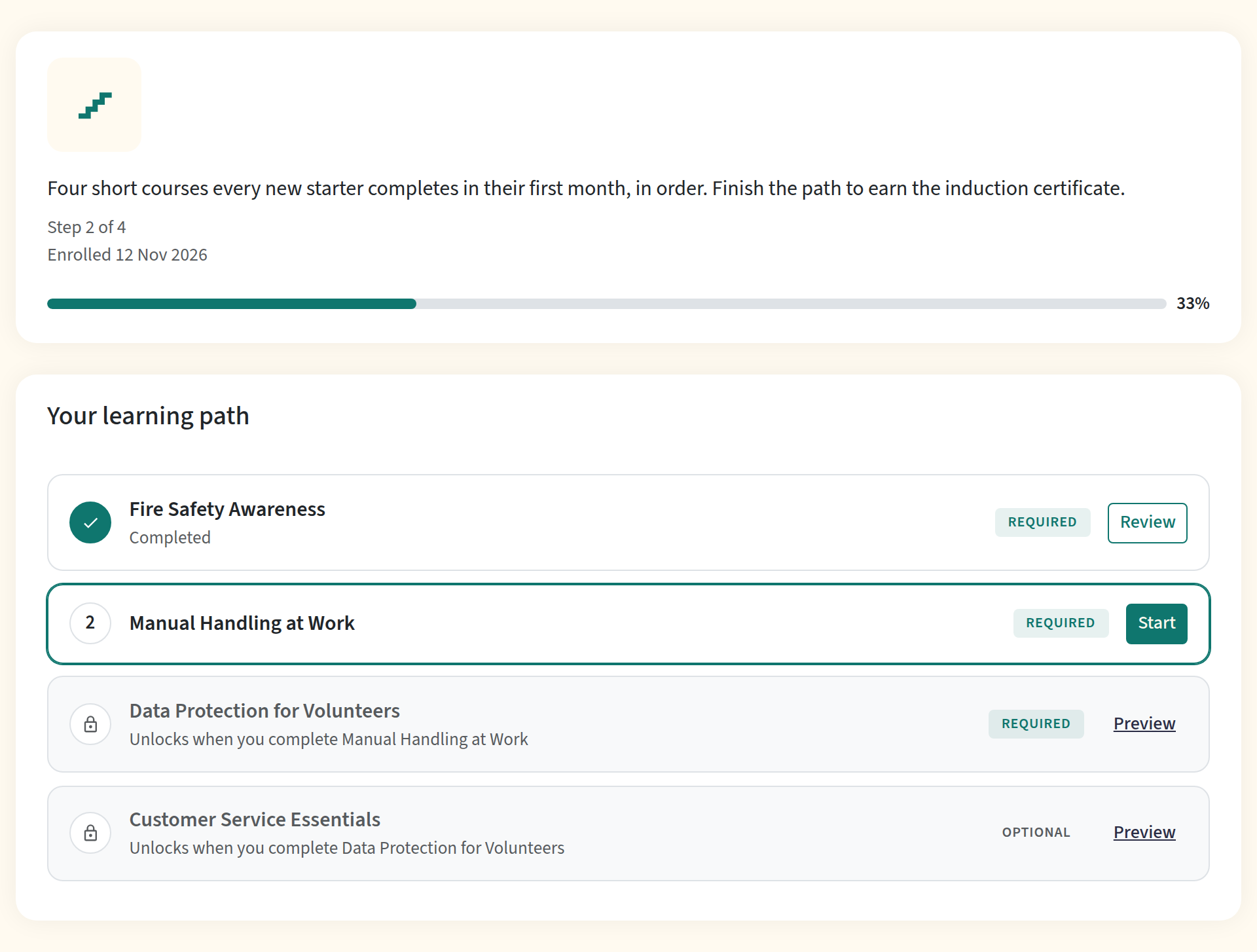
The page shows which step they are on ("Step 2 of 4"), their progress towards the certificate, and every step in order:
- a completed step has a tick and a Review button;
- the open step has a Start or Continue button;
- a locked step has a padlock, a line saying what unlocks it ("Unlocks when you complete Manual Handling at Work") and a Preview link to the course's landing page.
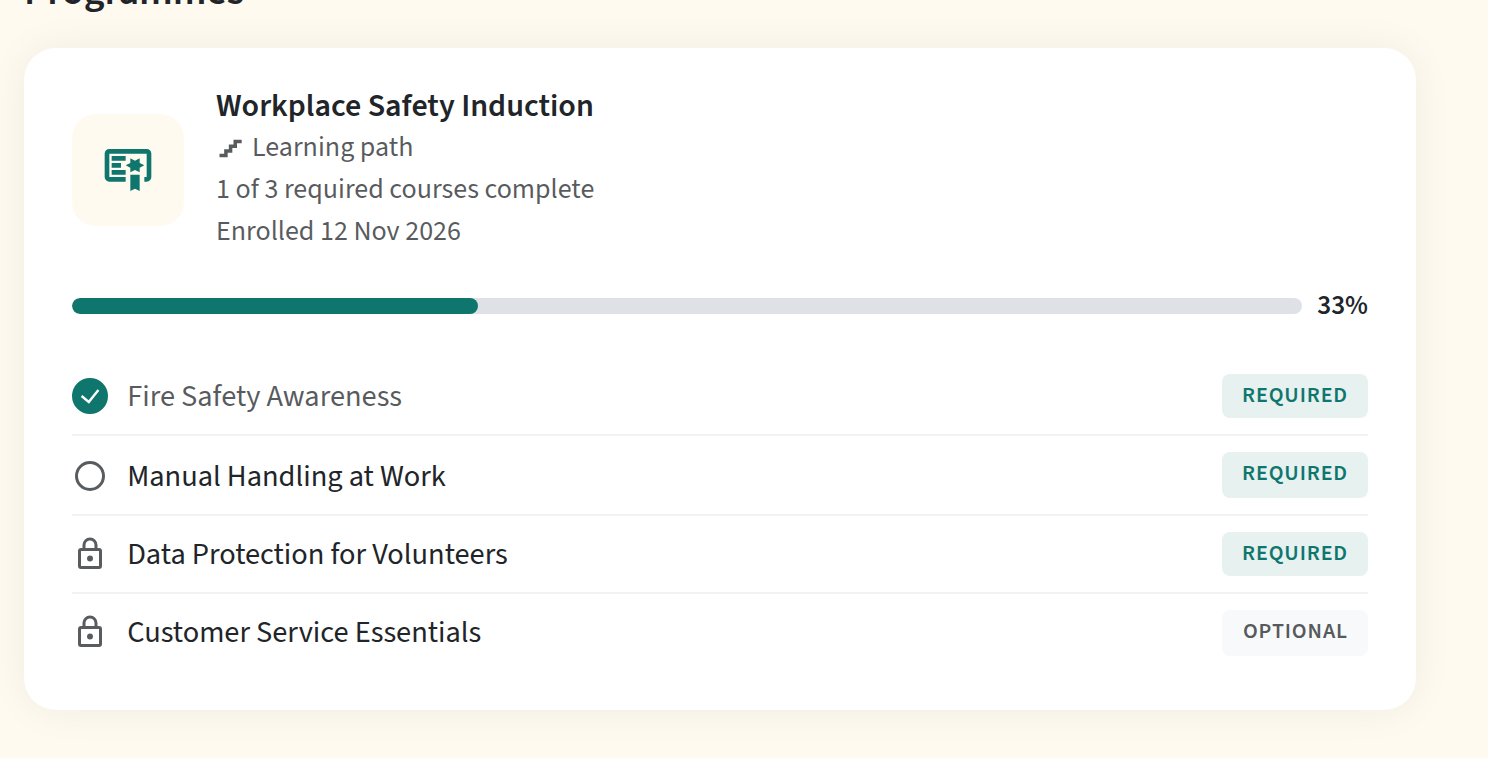
The Programmes card on the dashboard shows the same steps in a compact list, with a padlock on the locked ones.
Elsewhere:
- Course landing page: on the default landing page, a locked step says what unlocks it, with a View programme button instead of the usual enrol prompt. On a custom course page built in the page builder, the Enrol button is disabled and its tooltip names the course to complete first.
- Course catalogue: a locked course shows the previous step under Requires: and its Enrol button is disabled.
- Results page: under Still to complete, locked steps have a padlock.

Optional steps
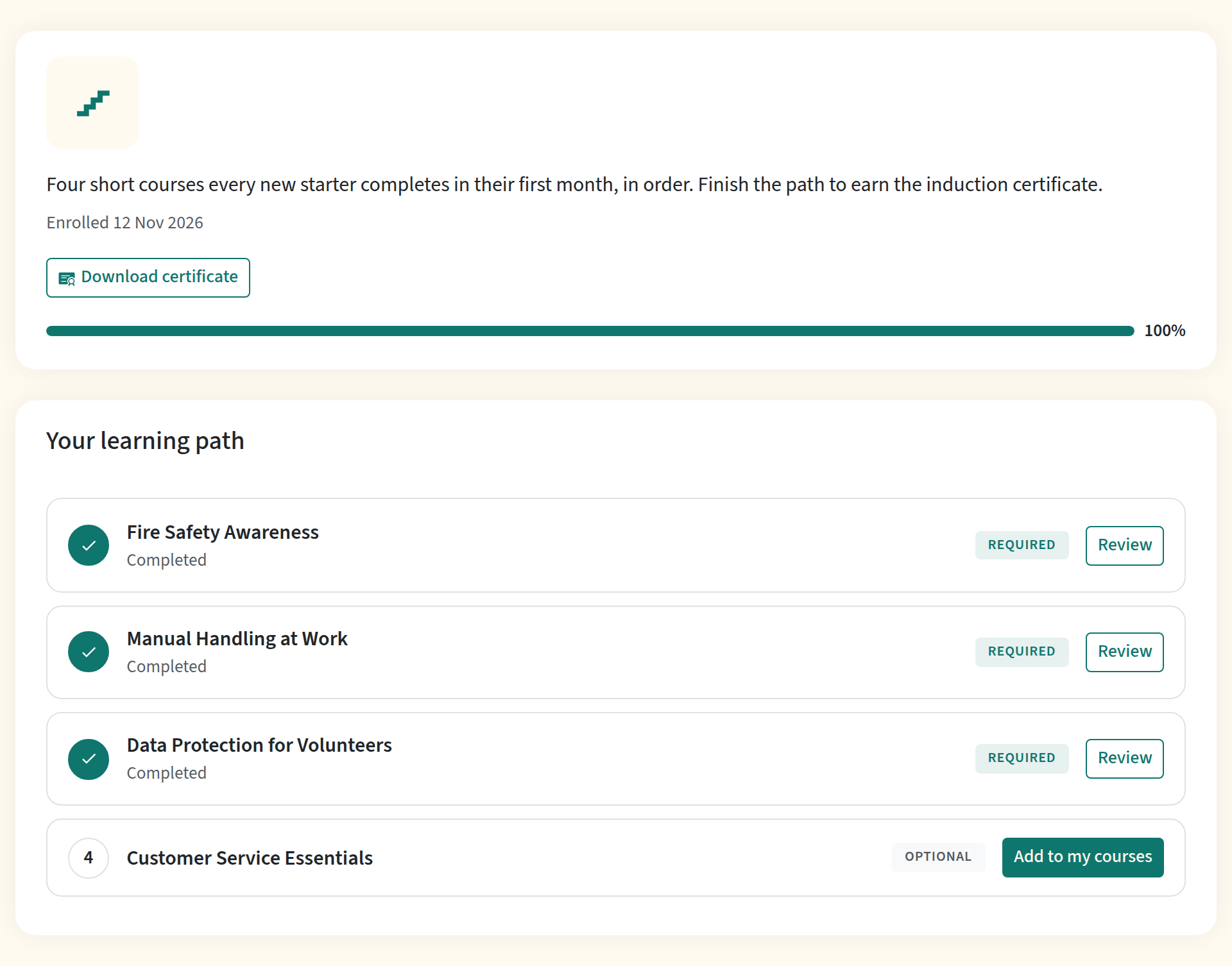
An optional step opens once every required step before it is complete. It isn't added automatically: the learner clicks Add to my courses on the programme page or the dashboard card, and the course appears in their courses straight away. They can still add optional steps after earning the certificate.
People who aren't on the path
Anyone in your team can open the programme page if the programme allows self-enrolment or is in an active bundle. They see the steps, an Enrol on this path or Buy for button, and Preview links. Otherwise the page is hidden from them. Admins and authors who aren't enrolled see a preview with a note saying so.
A path that allows self-enrolment is listed under Available programmes on every learner's dashboard. A path you only sell isn't listed anywhere yet, so share its link: open the programme in Create > Programmes and click View learner page at the top right to get it.
Assign or sell a learning path
- Assign it: enrol learners on the programme's Learners tab, one at a time or by CSV, or switch on Allow learners to self-enrol to let anyone in your team join for free.
- Sell it: create a bundle under Manage > Selling > Bundles, tick the programme under Programmes and set the price. Learners who aren't on the path see a Buy for button on the programme page. Buyers are enrolled on the path and get the first course straight away. Checkout refuses a course on its own while it is still locked for that learner. Leave Allow learners to self-enrol off on a path you sell: while it is on, learners see a free Enrol on this path button instead of the price. See How to sell courses.
- Refunds: a full refund withdraws the buyer from the path and removes the courses the path gave them, unless something else still gives them access (another programme, another purchase, or a training requirement). If you later enrolled the learner on one of those courses yourself, the refund removes it too, so re-add it if they should keep it. The same applies to a course a learner kept after you withdrew them from another path that contained it.
Things to know
- Courses anyone can open aren't locked. An open-access course, or a free course in the catalogue, can still be opened or enrolled on by people who aren't on the path. The editor warns you about these steps. Price or hide the step courses if the order matters.
- Space limits are ignored when the path enrols a learner on the next step.
- Required training wins. A recurring-training requirement still enrols learners on its course even if it is a locked step.
- Reordering a path creates a new rule version. With Lock rules at enrolment on, each learner keeps the order they joined under.
- Switching back to "Any order" enrols everyone on the path on the remaining required courses.
- SCORM packages and website publications are single courses: the path order applies inside Continuum only.
- API v2 enrolment ignores the path order unless you send
check_prerequisites: true.
Frequently asked questions
A learner finished a course but the next one hasn't opened. Why?
Most completions open the next step immediately. A completion recorded without the usual event (for example from a SCORM package) opens it the next time the learner opens their dashboard, results page or the programme page. Also check that the learner is still enrolled on the programme, and that the next course has no other prerequisite they haven't met.
Can a learner skip a step they've already done elsewhere?
Yes. Credit the course to them as prior learning on the programme's Learners tab. The next step opens for them.
Can a course be in two learning paths?
Yes. It is locked only while it is locked in every path the learner is on.
Can courses open on a schedule instead of on completion?
Not yet. Learning paths open the next course when the previous one is complete.
Can I make an existing programme a learning path?
Yes, if it uses explicit enrolment. An implicit programme that already has learners must be switched to explicit enrolment, and its learners enrolled on the Learners tab, first. Learners already on the programme keep every course they have.